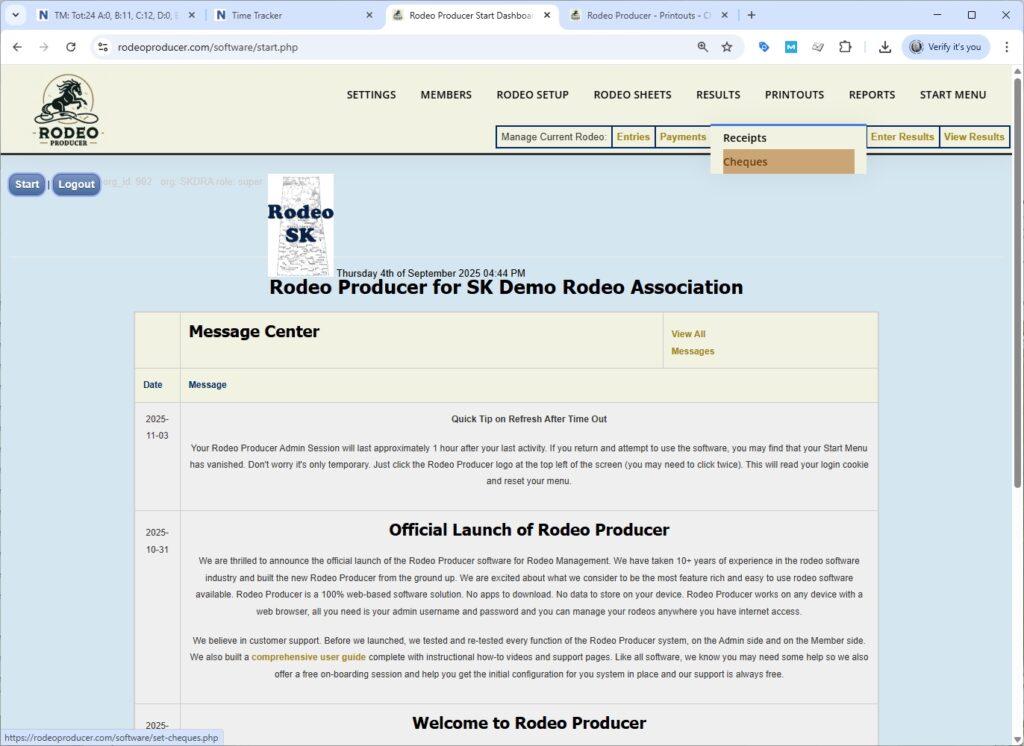
In this chapter, we will cover printing out cheques. We will go to Printouts > Cheques.
Part of the process of printing out cheques is that in advance of of doing this, we need an electronic copy of your cheque so that we can do a little bit of work on our end to adjust the location of the various print fields to line up with your cheque. While there are standard cheque formats, it does seem that the spacings and positionings are a little bit different. It requires a little bit of customization by us at this end. Just send to us by email and we can work with the image file. Once we have that taken care of and and we've formatted for your cheque layouts, then you can use this feature to generate the cheques. Obviously, you would have your printer loaded up with the cheques.
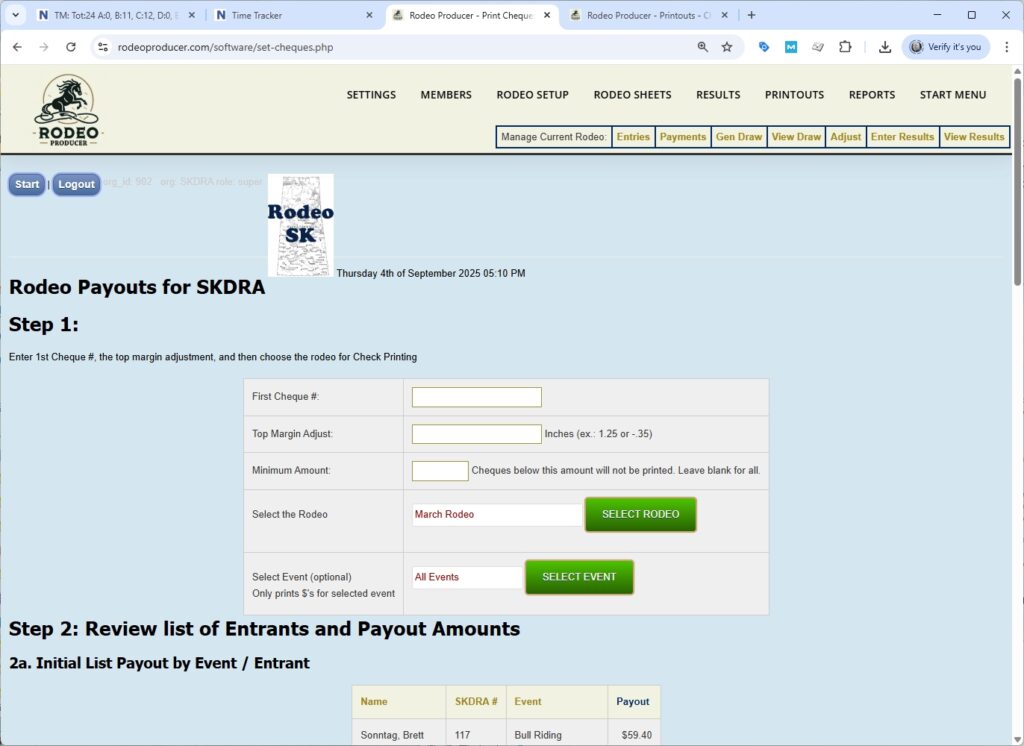
We would select the rodeo. You can decide which cheque number you want to begin with printing (this is just for reference). You make a spacing adjustment to the top margin. This sometimes is needed if you are switching printers. Different types of printers seem to handle the printouts of PDFs slightly differently. We always recommend test it out by printing a a single cheque. Make sure things line up and then you can continue with printing in bulk.
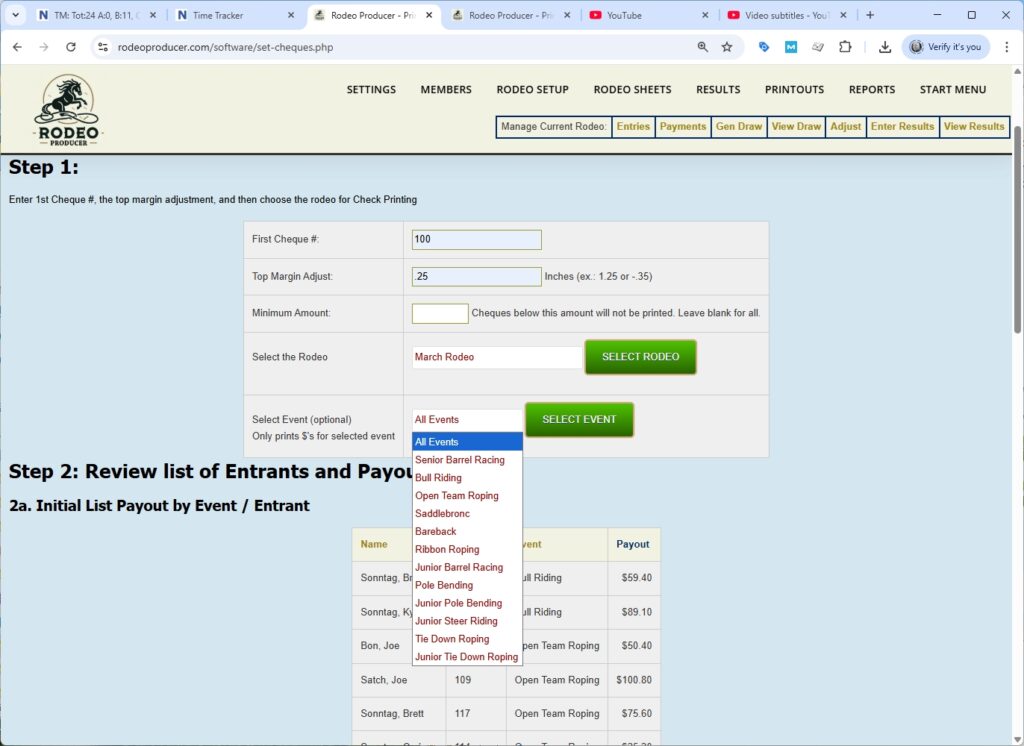
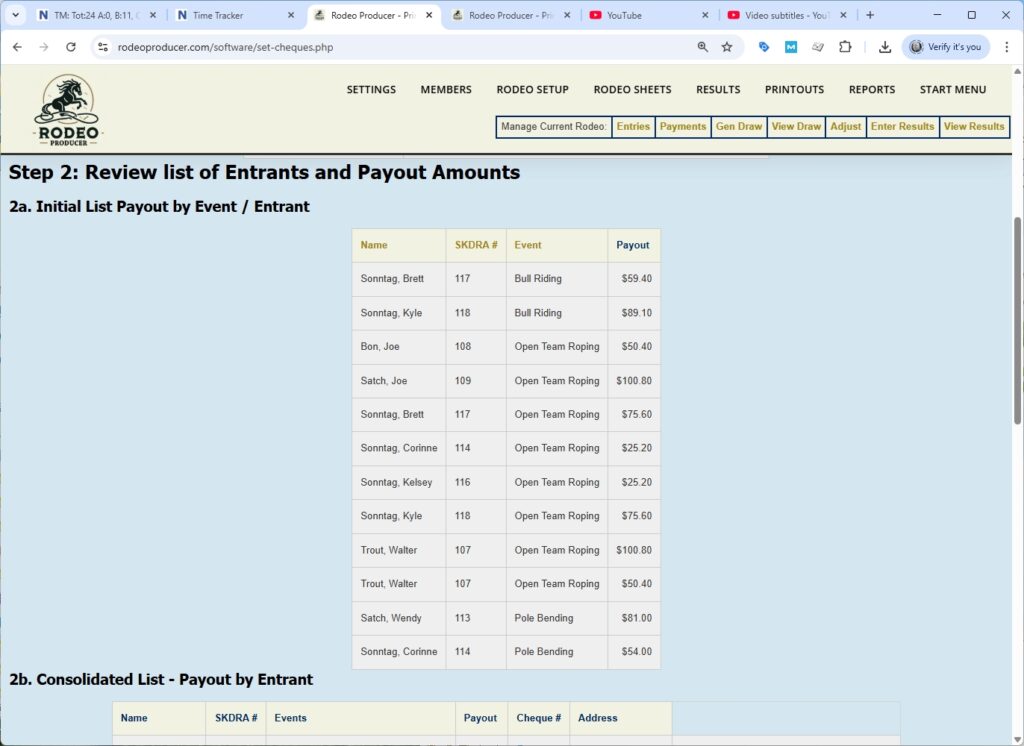
You can choose also to print a single event. In most cases you'll be looking at all events. We have the March rodeo loaded up here. We have our settings in place. We can scroll down here and we see initially a list of payouts by event and entrants. This will list each event. You'll see we do have an entrant here that has won money in two different events.
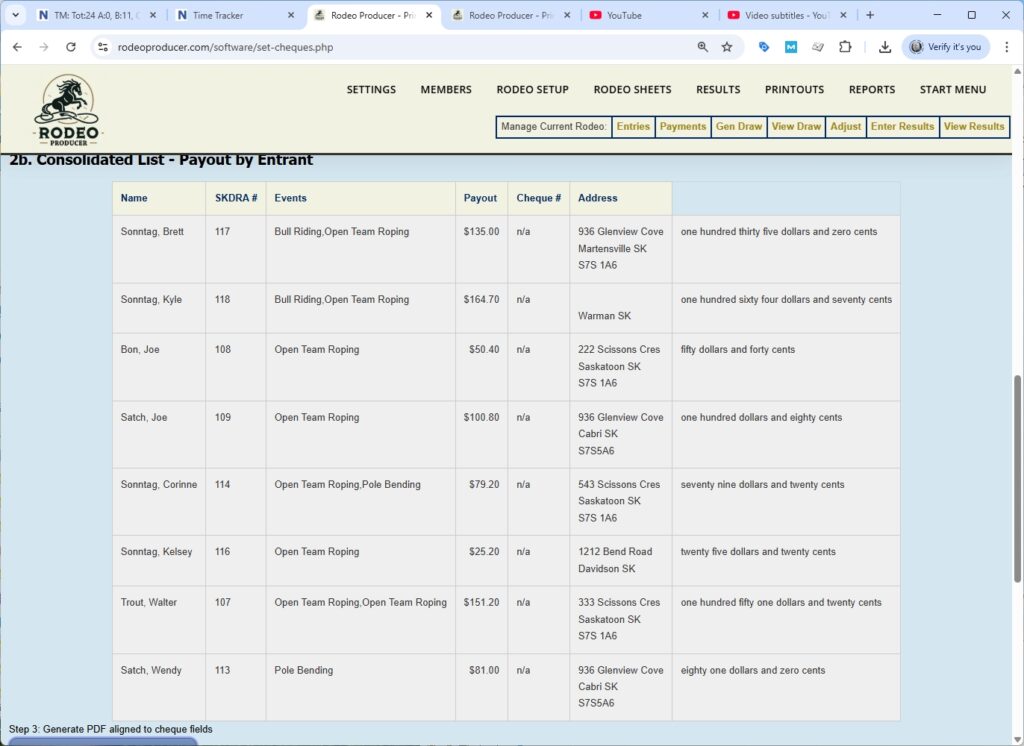
We scroll down to the next section which consolidates winners of multiple events into one amount. We look up that same member and now we see payouts in two different events and the total adding up to the total of of the two separate amounts from above. This is the information that will actually go on the cheque. We see their address, we see the amount written out in in text form and then the next step is to generate this to a PDF.
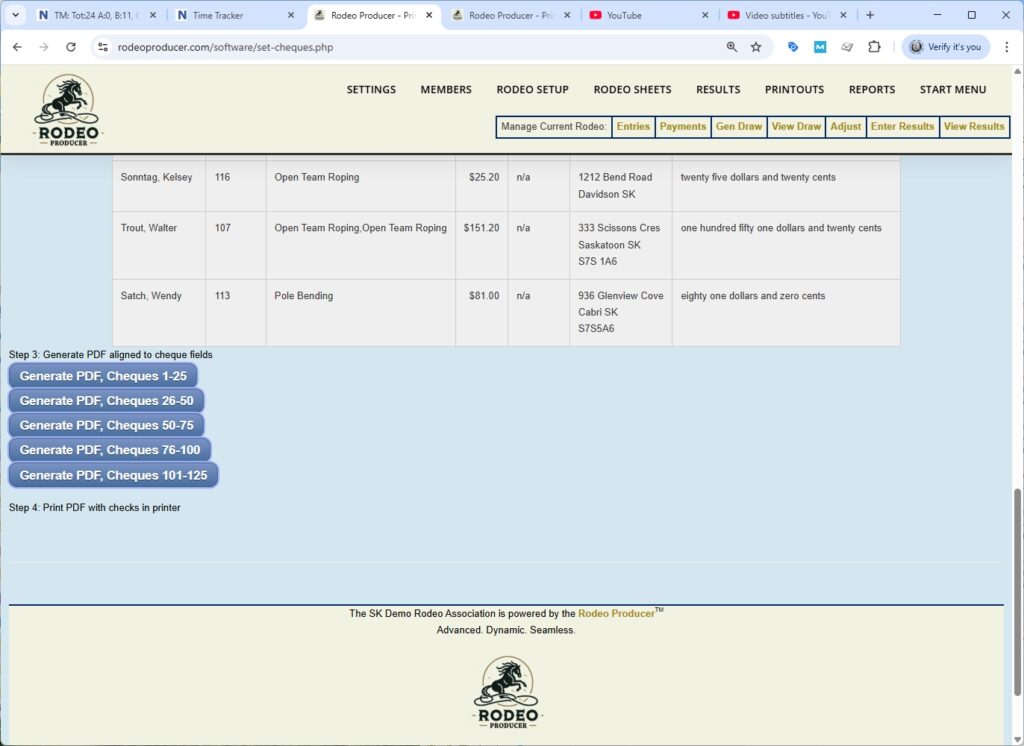
We have bulk print out options here. If we try to generate too large of a PDF with too many members, too many cheques, it just slows things down and may cause problems. So we've created ranges here. In this case, we only need the first range as there's less than 25. We would click on generate PDF cheques 1 through 25.
We'll see a preview of the cheques. We'll see how these position everything into those fields on your cheque. We'll hit the generate PDF button.
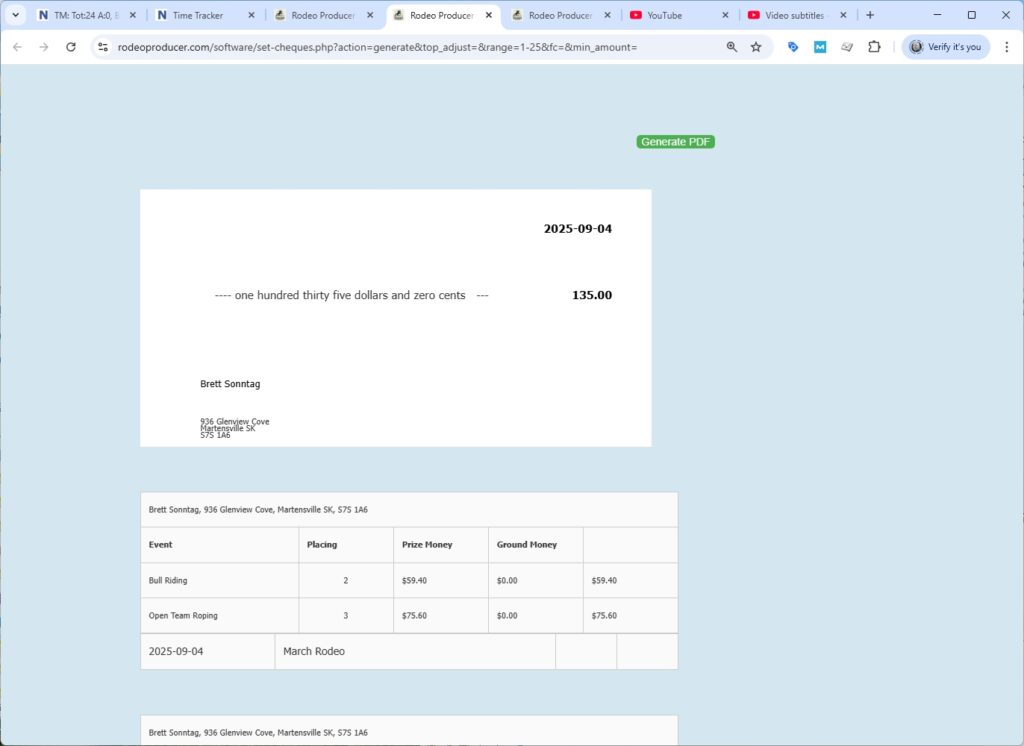
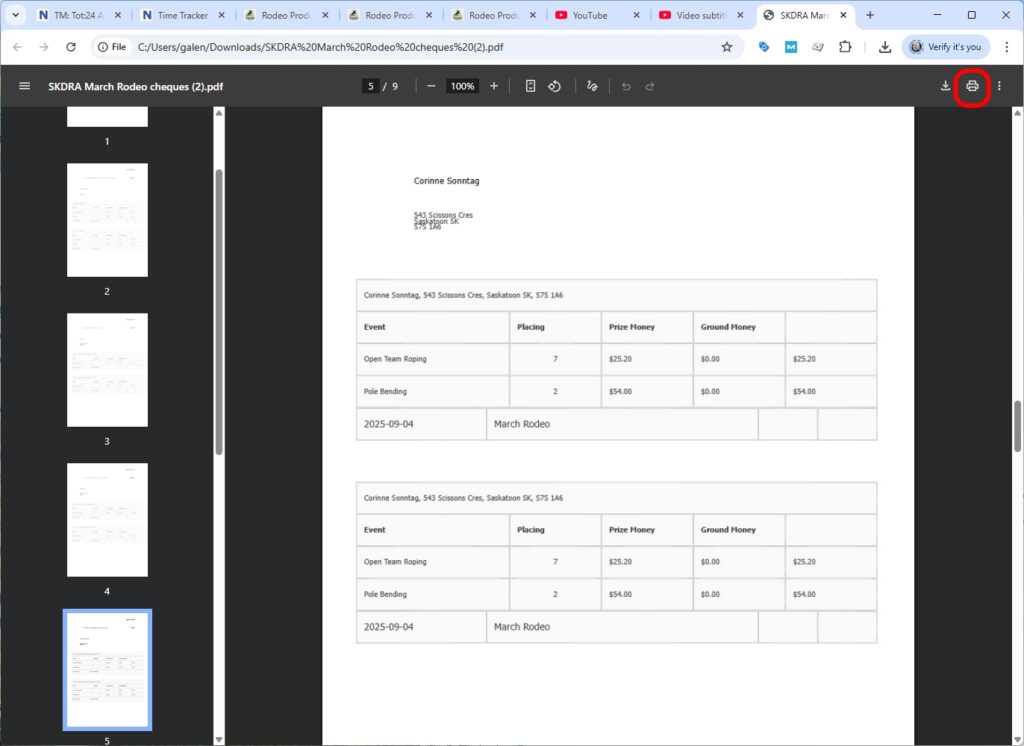
This will create the actual PDF and we can see in this case that it's one of those full page three section cheque blanks. We have the date, we have the amount written in text, we have the amount in numbers, we have the name, we have the address, and then we have the other two sections that will be printed below the actual cheque.
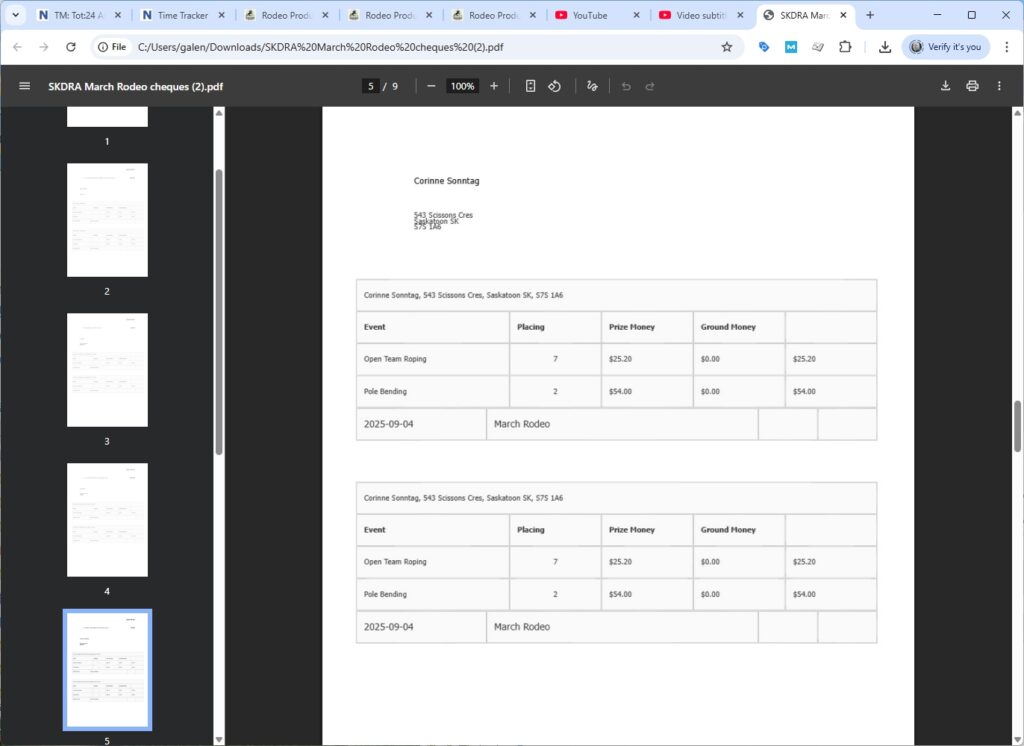
As we scroll down, we'll see we have the same thing for the rest of the members that are being provided cheques from this rodeo.
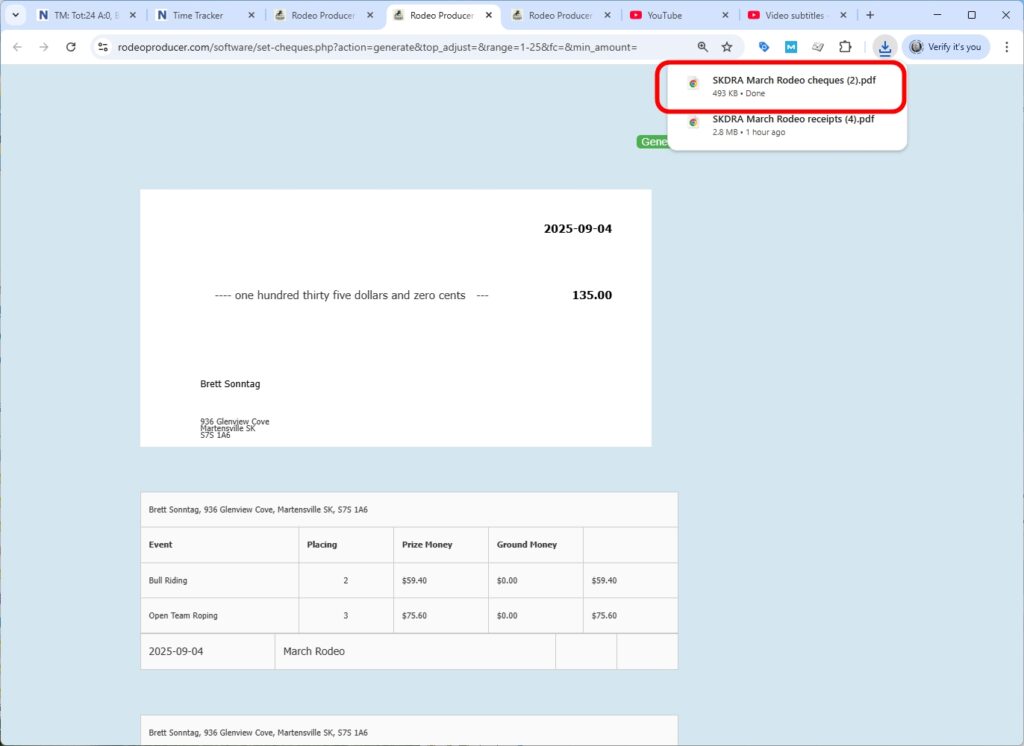
With your blank cheques loaded up in the printer, you would simply hit the print button and crank them out onto the cheque paper. Again, we recommend to do a test print to make sure you're properly aligned. Just print the first cheque. You can select that in your printout options to print only page one and make sure that comes out properly. Then you continue on with page two to the end after that.