
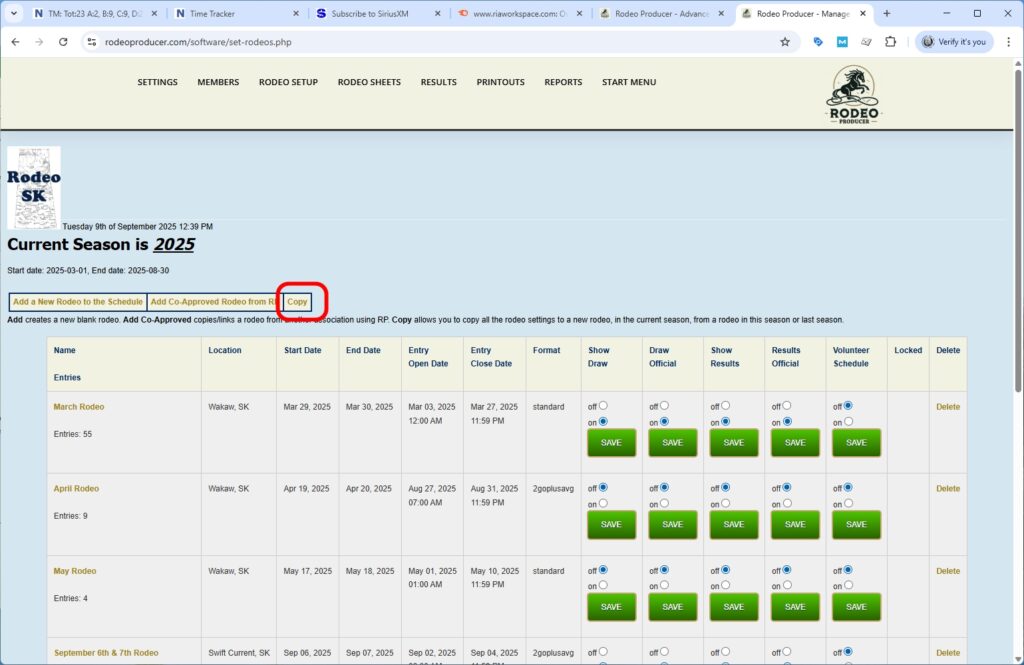
In this chapter, we're going to do a quick run through a demo, an example of setting up a 3 Go Plus Average rodeo and running through the steps from Rodeo Setup through Draws through Entries through Entering Results and Viewing Results. So first we need to set up the rodeo. We will go to Rodeo Setup > Set Rodeos.
We are going to make a copy of an existing rodeo and then make changes to set it up as the rodeo we need.
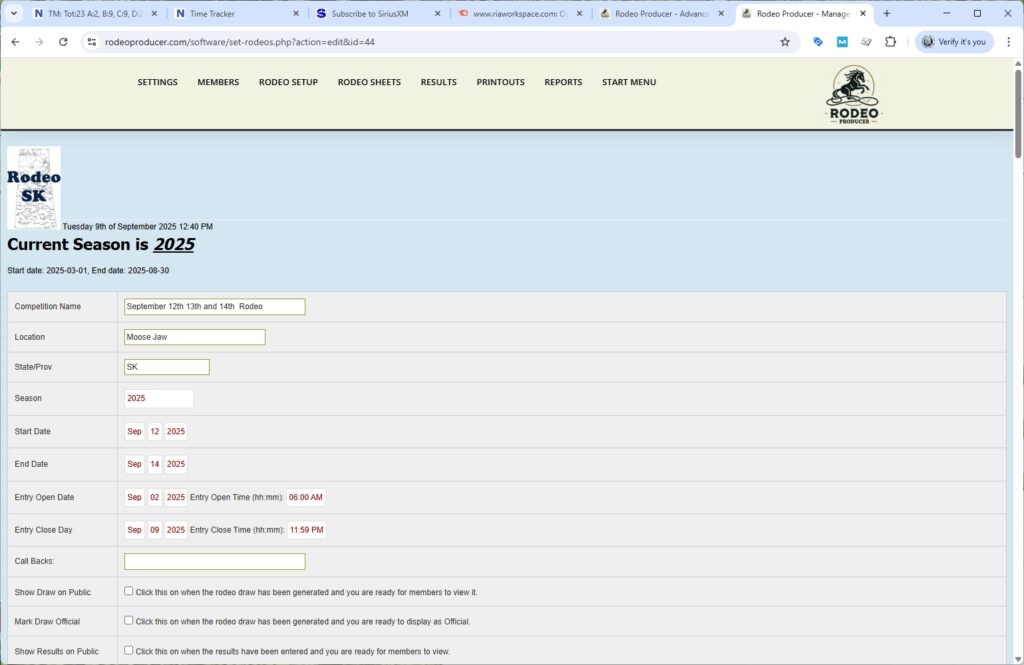
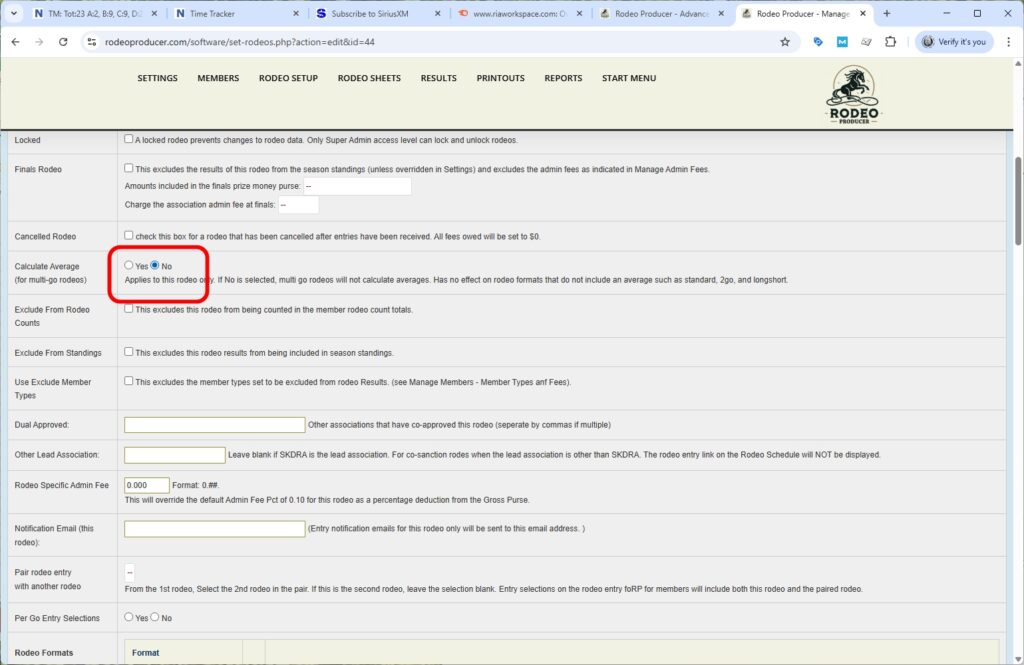
So we've made the copy. You'll notice it says new copy. We will go to edit this one. We have updated the competition name. We have updated the start date and end date. We've set this so that it will be a Friday, Saturday, Sunday for Go 1, Go 2, Go 3. When it copied over the rodeo, it set all of the display settings back to unchecked. We do want to turn off calculate average and we'll explain that as we go through the results process.
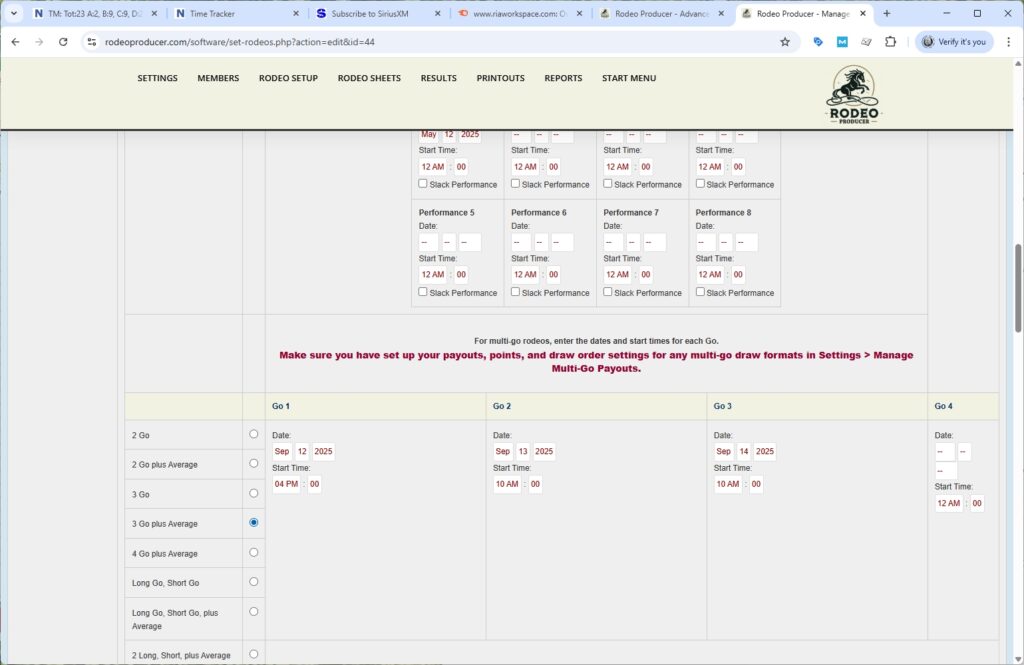
RP did copy over the format of the rodeo. We will need to change this to 3 Go Plus Average and update our dates. Similar to the 2 Go Plus Average example, we are going to just run our example here on three events so that we can show that off a little quicker rather than having this big mass of data for all these events.
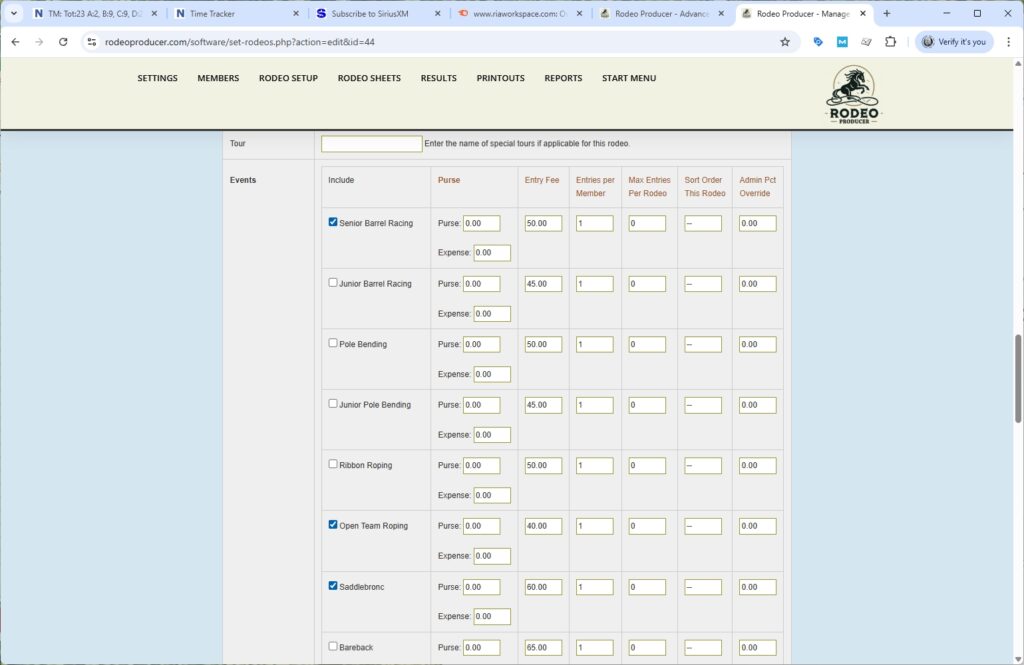
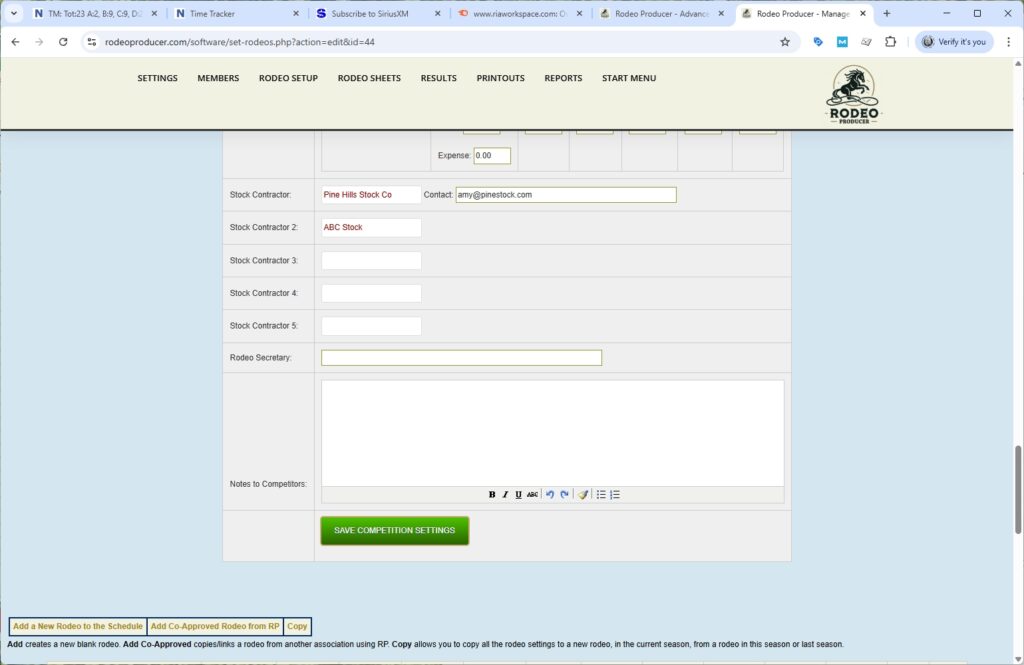
For this example rodeo, we are going to use two stock contractors and we are going to cancel out the note that was in there from the previous copied rodeo. Click to Save the new rodeo.
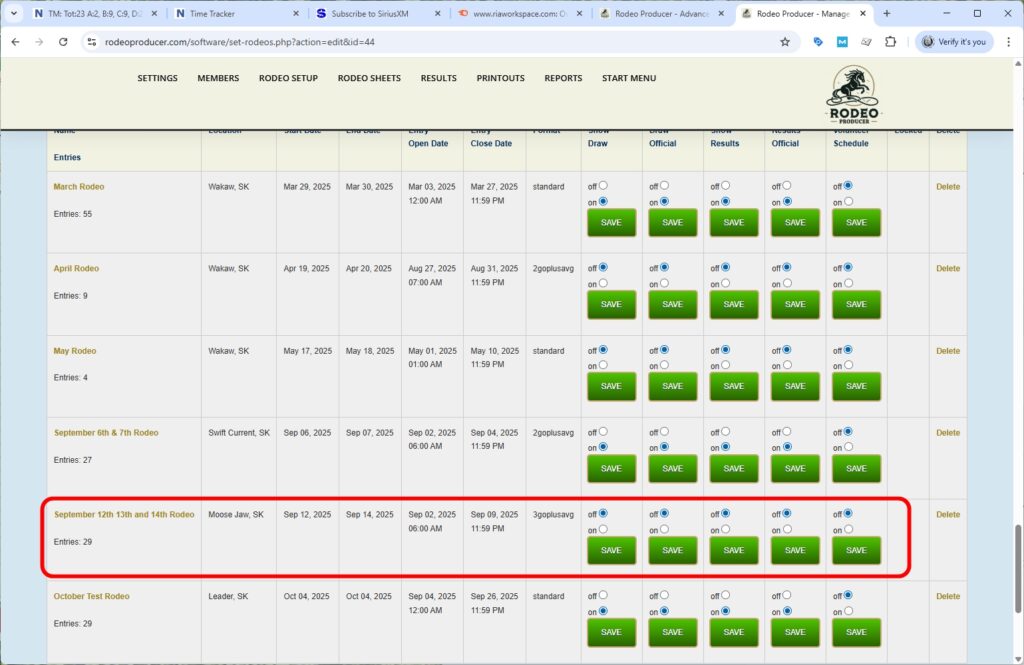
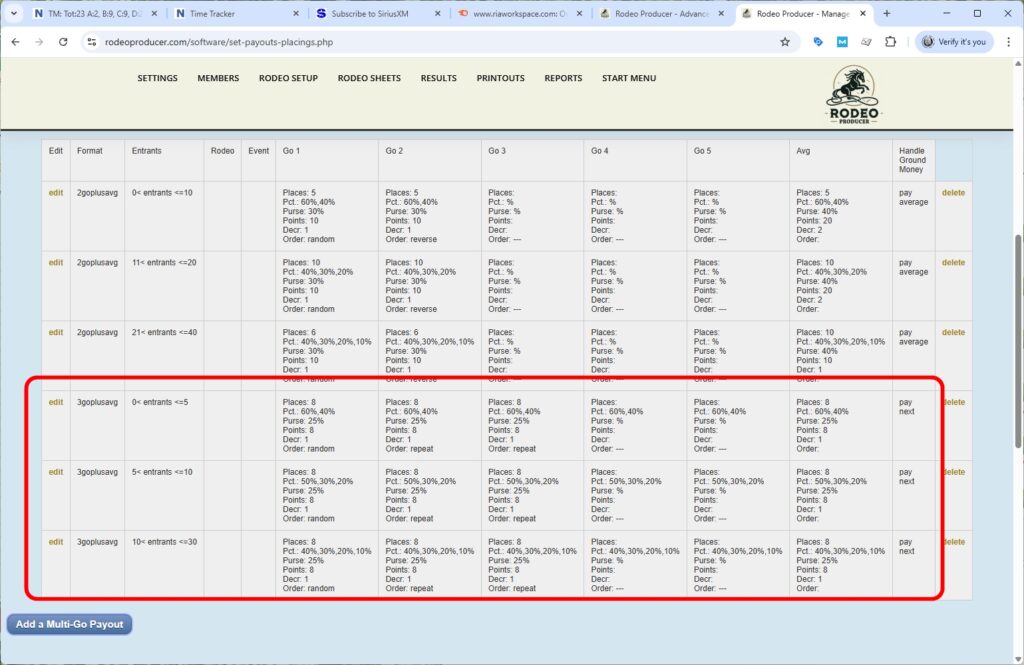
So we now have our new rodeo. We have it all set up for the dates, times, and events. Next, we want to check to ensure that we have the payouts and placings set up for a 3 Go Plus Average. As you see here, we have the 2 Go Plus Average rodeo payouts and points settings in place and below that we have the same thing in place for a 3 Go Plus Average. We recommend having a look at the video/chapter on Settings > Set Payouts and Placings for more detail on this.
We now have the rodeo settings in place. We've confirmed we have the payouts, points, and placings settings in place. The next thing that would happen is during the online entry window, members would enter the rodeo. We'll put some of those in place offline and come back to view them [...]. We have now added a number of entries to the 3 Go Plus Average rodeo on September 12th, 13th, and 14th.
For the purposes of this of this demo, we'll leave them as as unpaid. Some organizations will have rules that wouldn't allow them into the draw, but we have set this organization to allow that. So we have some Senior Barrel Racing, we have some Open Team Roping, and we have some Saddlebronc entries.
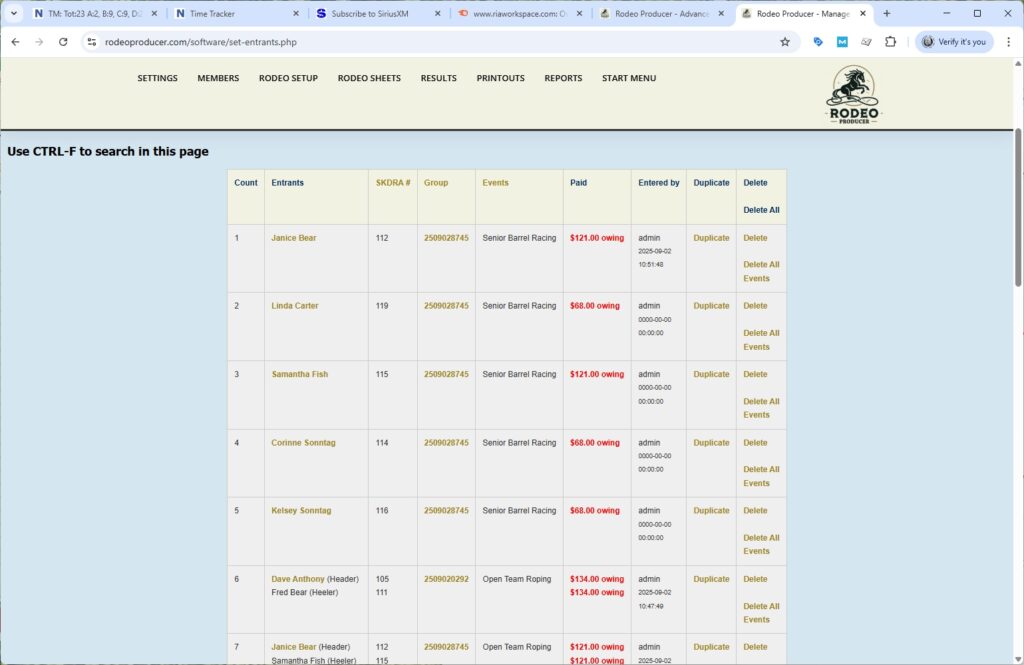
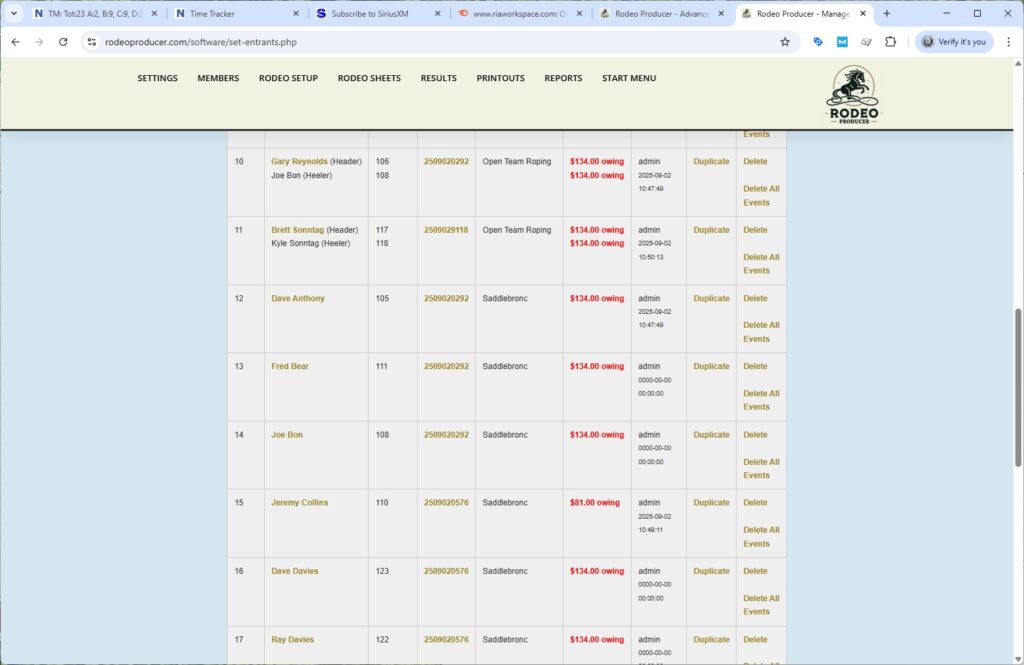
Before we run the draw, in addition to all of the entries, we need to make sure that we have set the stock for the draw. So we have two stock contractors. In this case, we have Pine Hills and we have ABC Stock. We only have one stock event. Just a quick glance at our list here, we can see we have 12 Saddlebronc entries. We can also review that under Rodeo Setup > Rodeo Pre-Draw Count. We know that when we talk to our stock contractors, we will need at least 12 animals for the Saddlebronc event. We go to Rodeo Setup - Set Stock for Draw. We have two stock contractors. We need up to 12 for the draw. Plus, we'll need some re-ride stock. So, we'll scroll down our list to Saddlebronc. This will show us those animals available from both of the contractors. And using the list that the stock contractors would provide us, we would mark off the stock we're making available. We'll keep Smile Again in reserve as re-ride stock and we'll save those selections.
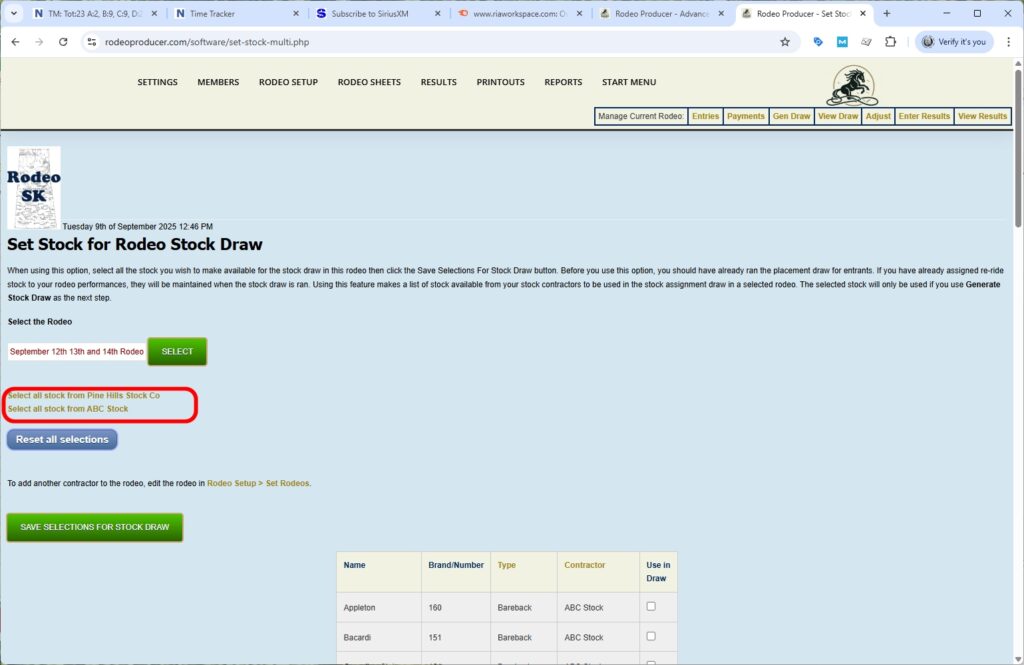
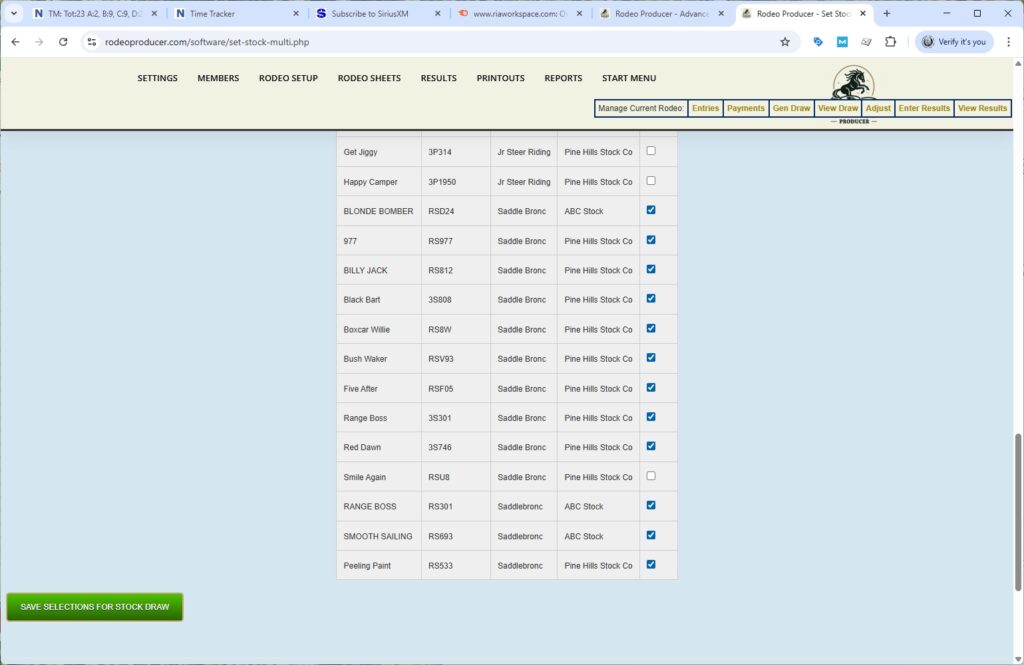
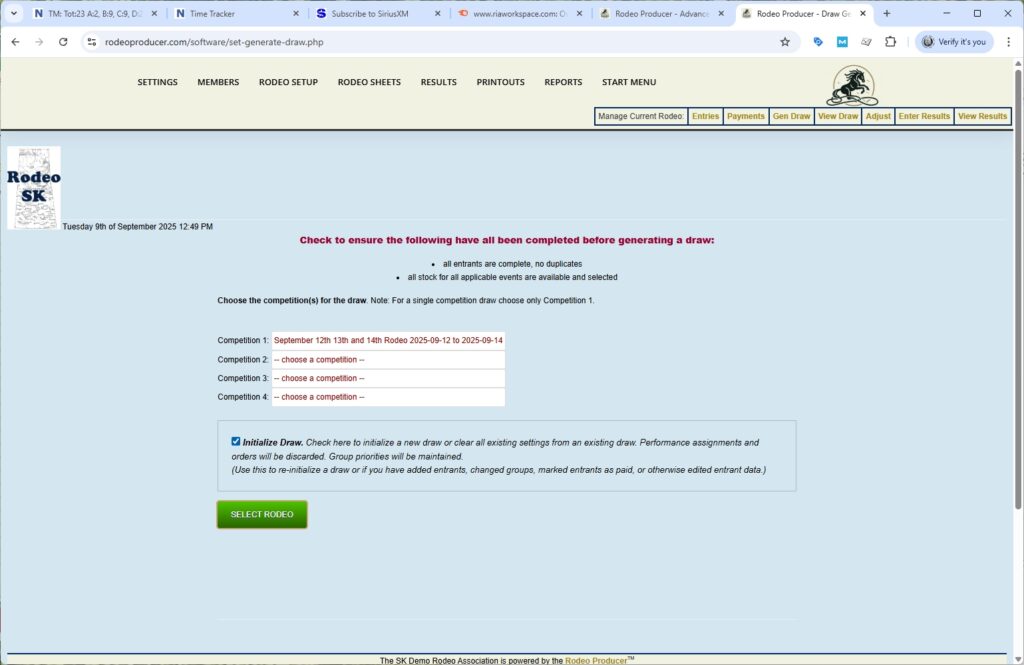
We now have all of our stock in place. We will now generate the rodeo draw. Rodeo Setup - Generate Draw.
We will choose our competition. We will initialize the draw and click Select the Rodeo button. This organization that we've set up does not use priorities on entry groups. We will need to set max entries. So we'll set all to unlimited, which is typically what one would do in a multi-go draw.
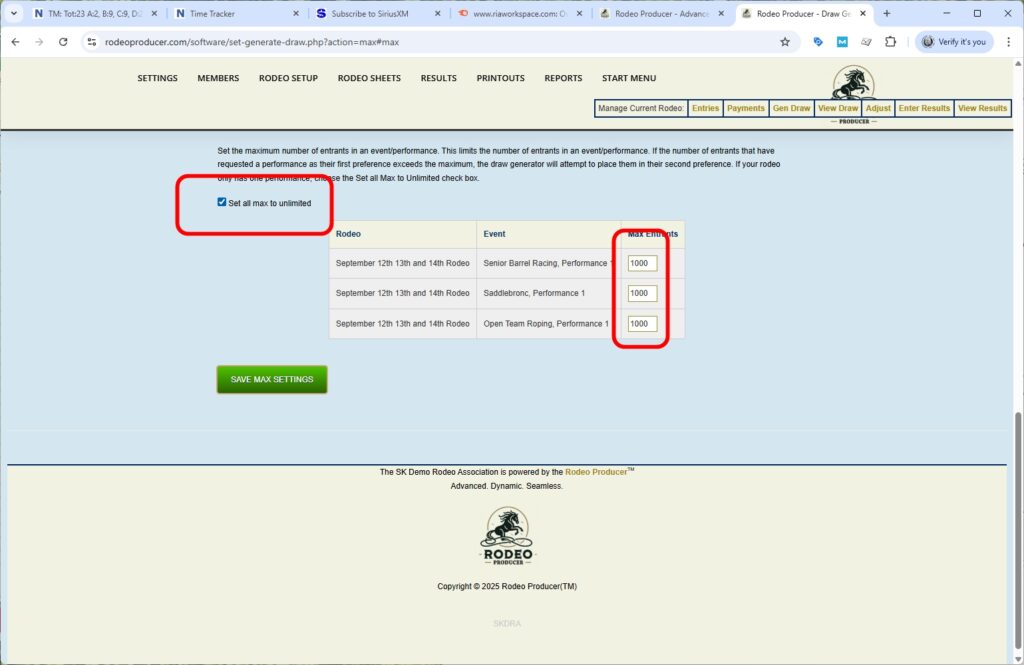
We can now generate the draw.
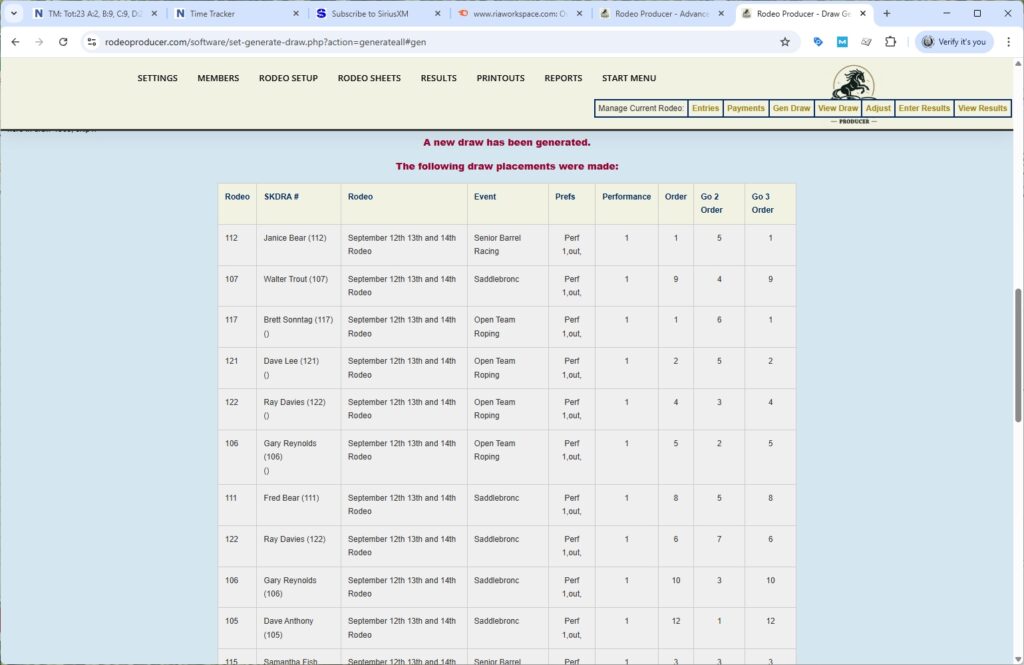
We see we have our entrants placed in Go 1, Go 2 and Go 3 orders here. As we scroll down to the end of the list, we see all entrance were placed in the draw.
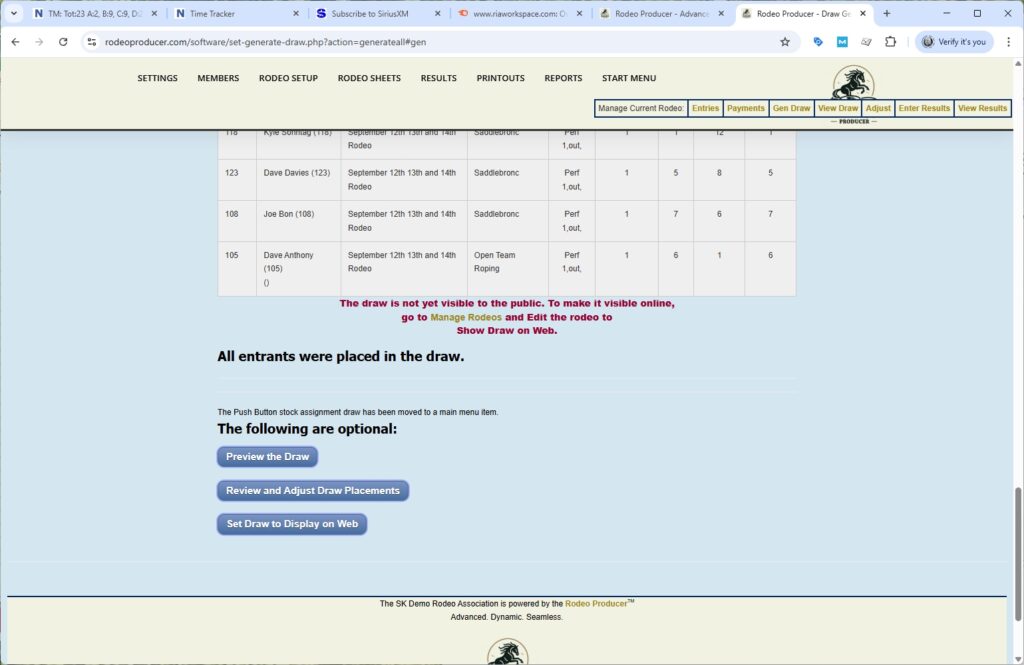
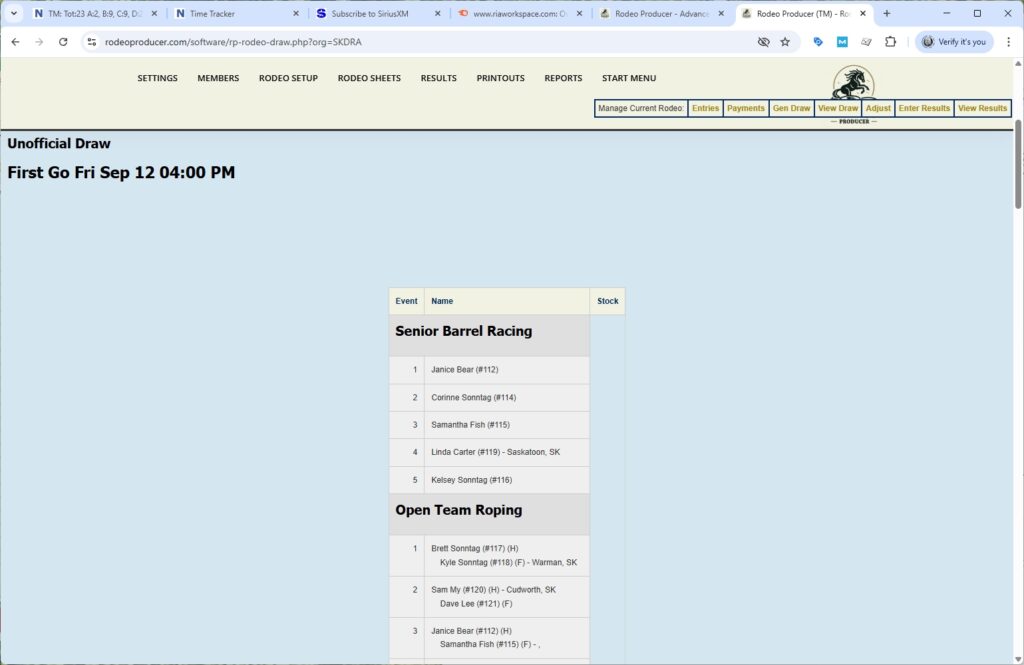
If we wish to preview the draw, we can click the link. We see the unofficial draw. We see our First Go. We see our events. We have not yet generated a stock draw. So we won't see any stock here yet. We have selected the stock but we haven't generated the draw.
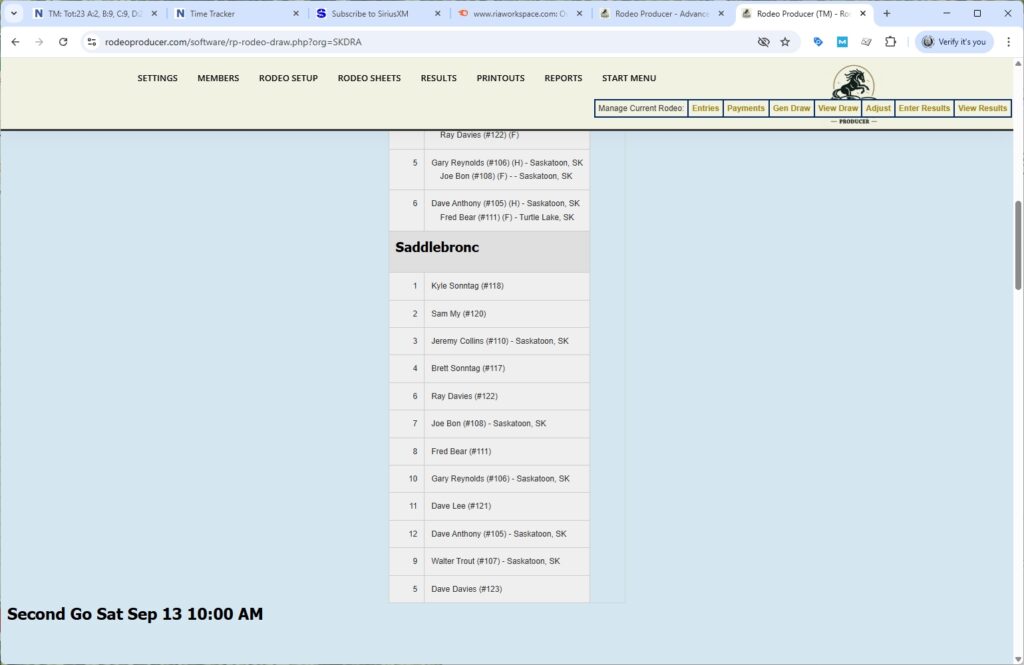
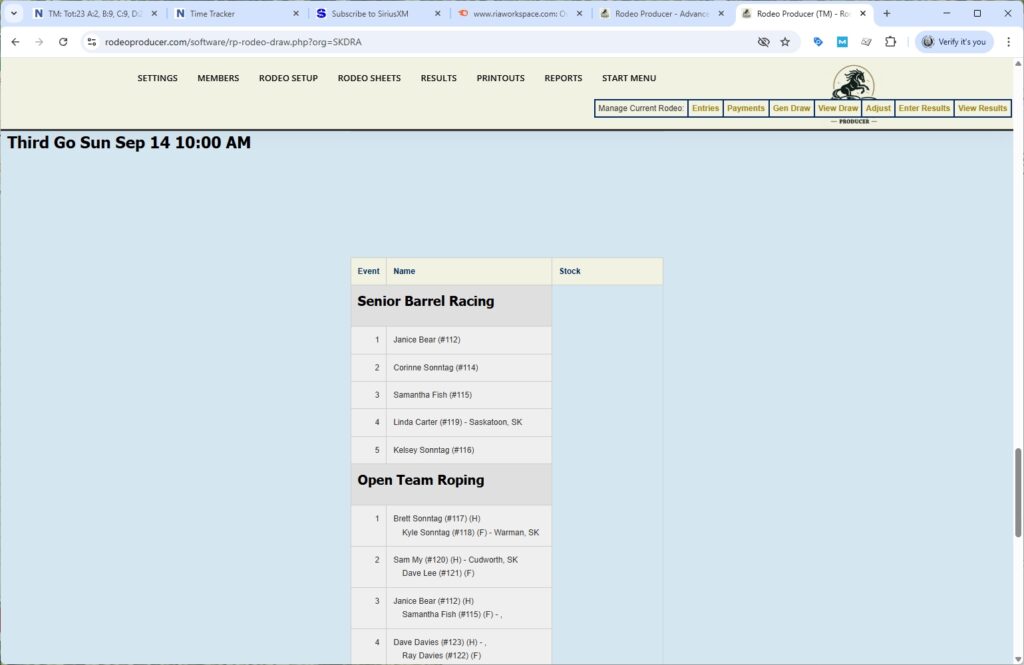
We see our Second Go and we see our Third Go.
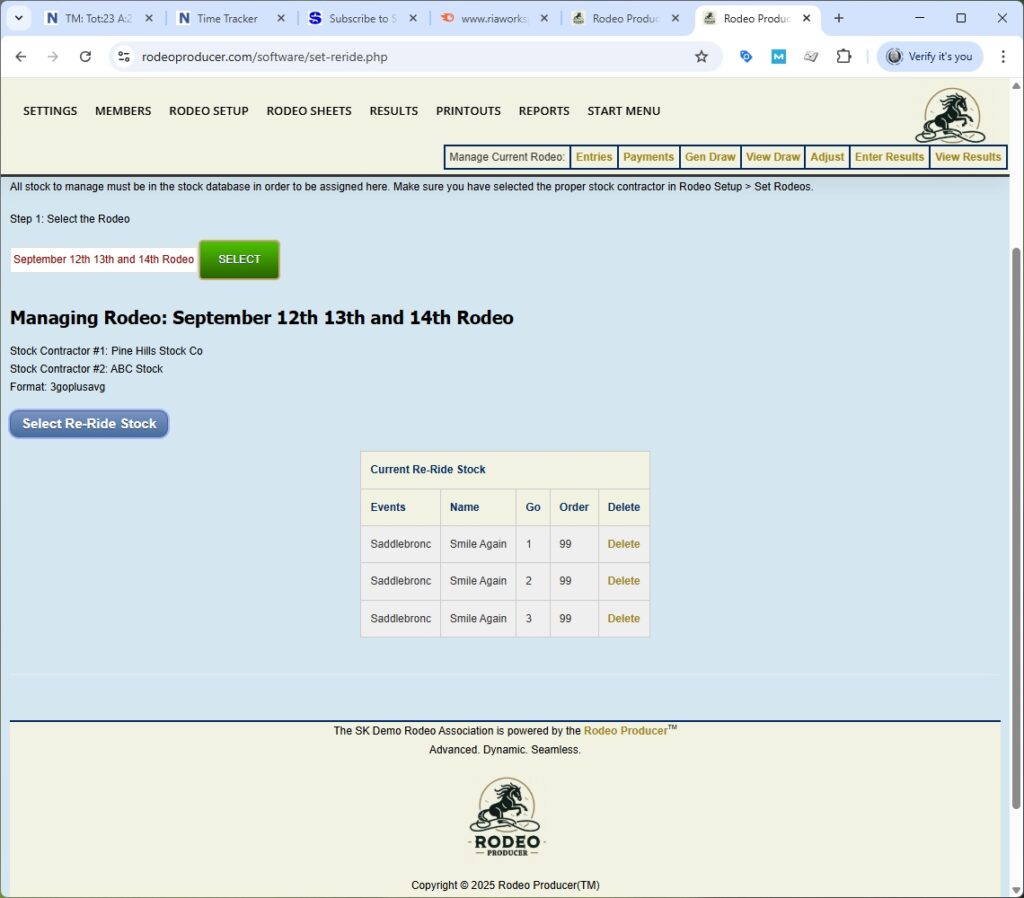
So we can now set the re-ride stock. And we're going to make this simple and choose Smile Again for all the Gos. We are setting the re-ride stock to the same animal for all three Gos. You can set it so that you have a different animal assigned per each go.
Now that we have our stock selections in place and we have ran our placement draw for the competitors, we will generate the stock draw. Please note that it does remind us prior to running the draw that we have selected the stock from each contractor for each event. We select the rodeo and we have our stock contractors in place and we hit the run stock assignment draw.
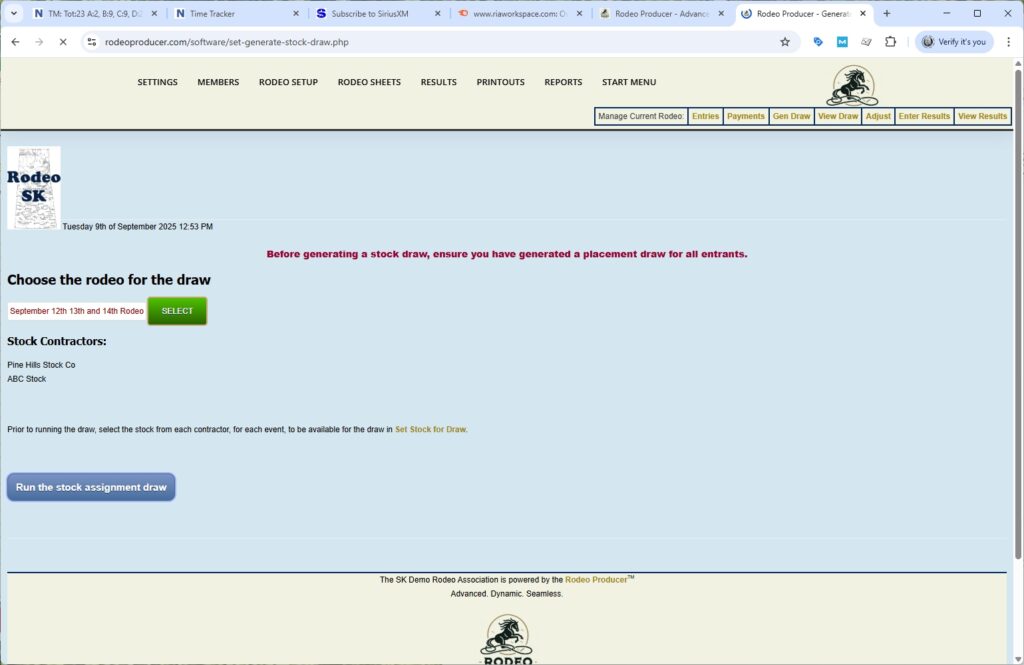
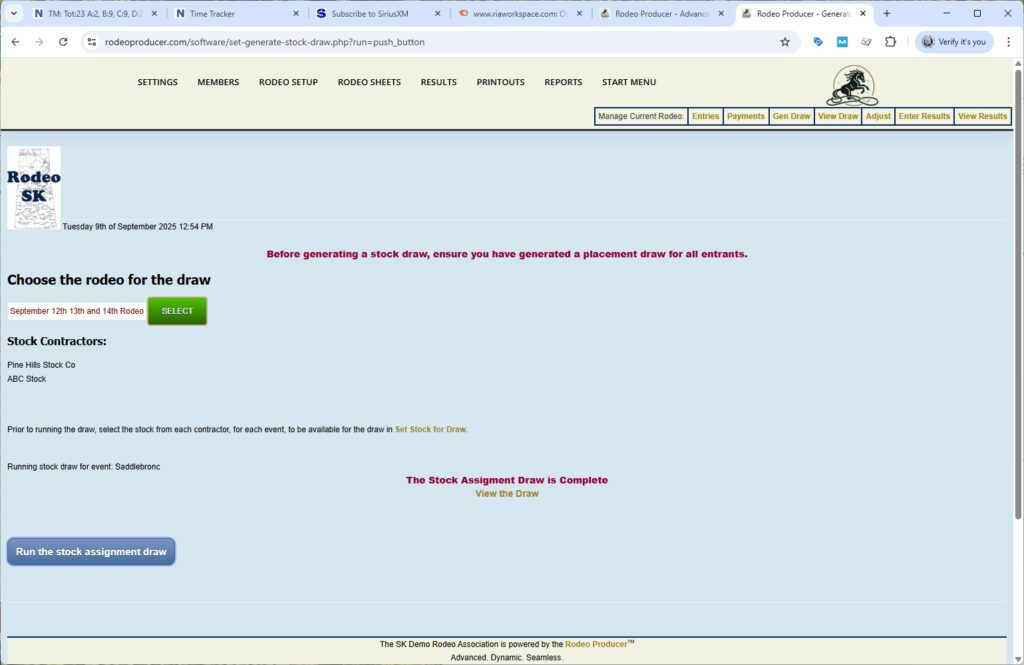
The stock assignment draw is now complete.
We can now go and view the draw. We did that previously but now we should have the stock. As we scroll down we will see Senior Barrel Racing, Open Team Roping which have not changed. We have Saddlebronc with the stock assignments in place. We have Second Go with our stock assignments and Third Go with our stock assignments.

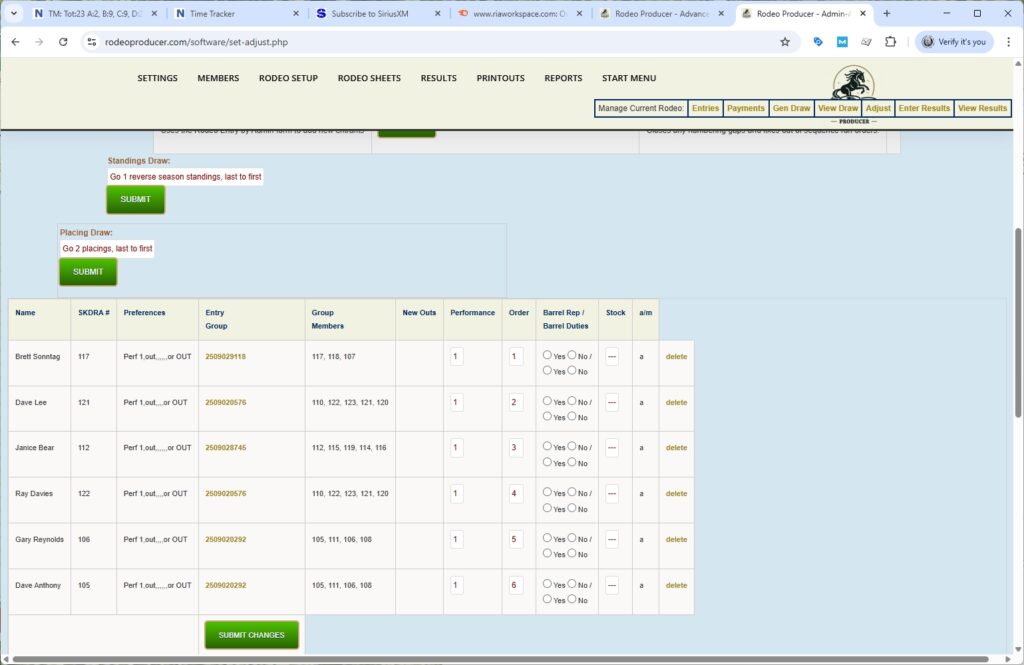
You can now go through Rodeo Setup > Adjust Draws if you wish to make changes to either run orders or stock as needed. Once you have made any adjustments, if you need to make any, the next step would be to set this to view for the members.
We will turn on the show the draw on the web, and we will also set this draw to official. If we go to view the draw, we will see that it says official draw.
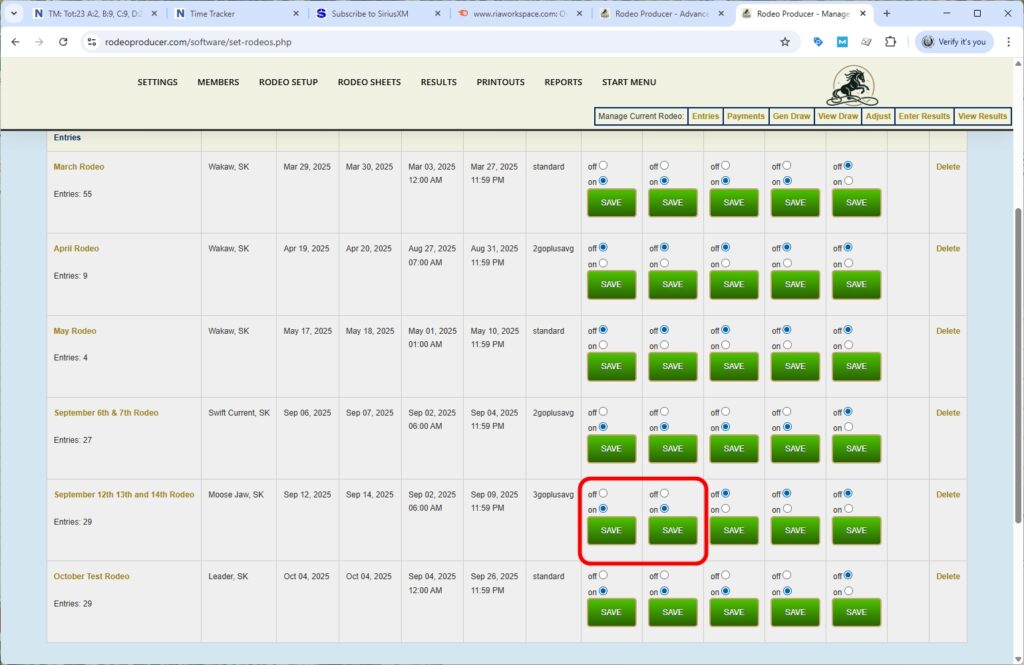
In between setting the official draw, so that the members can see it, and the actual rodeo day, this is the time when you would go and generate your rodeo sheets. Your judges cards, your announcer sheets, and if you use them, your day sheets.
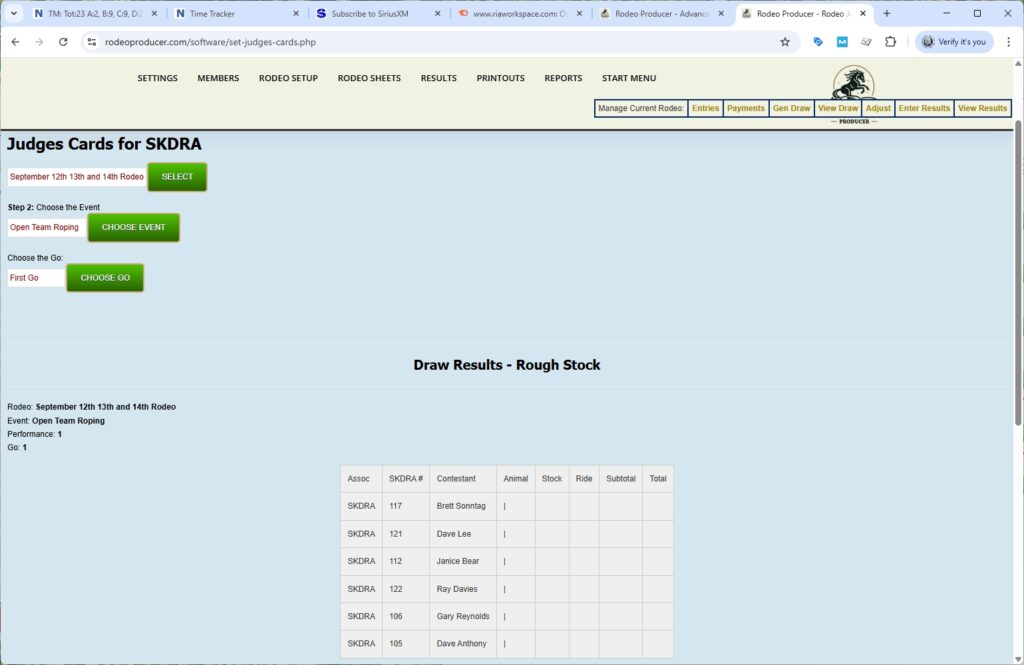
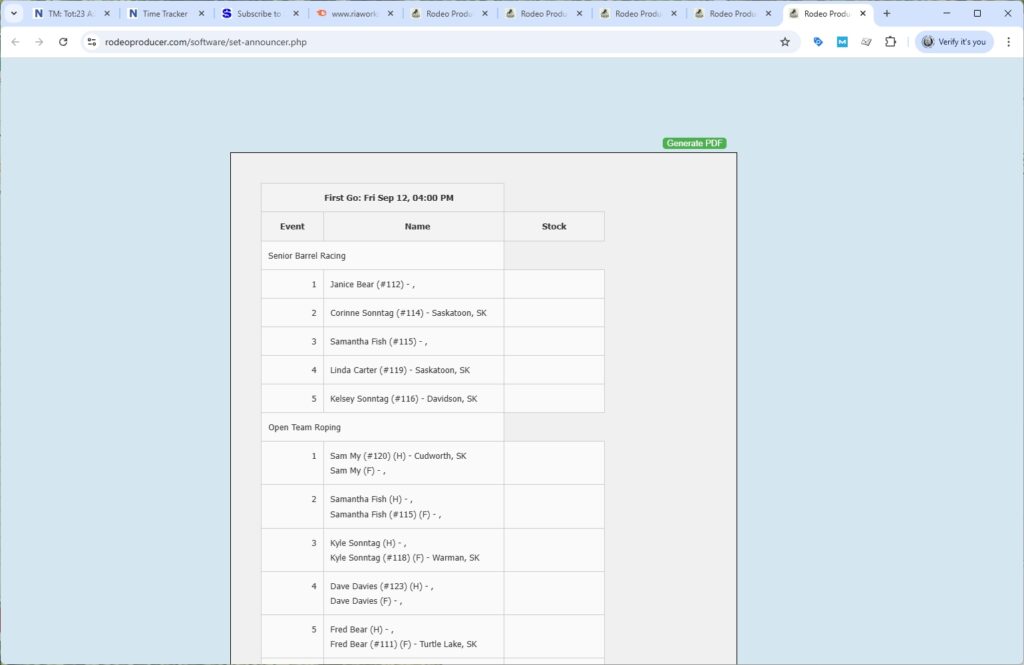
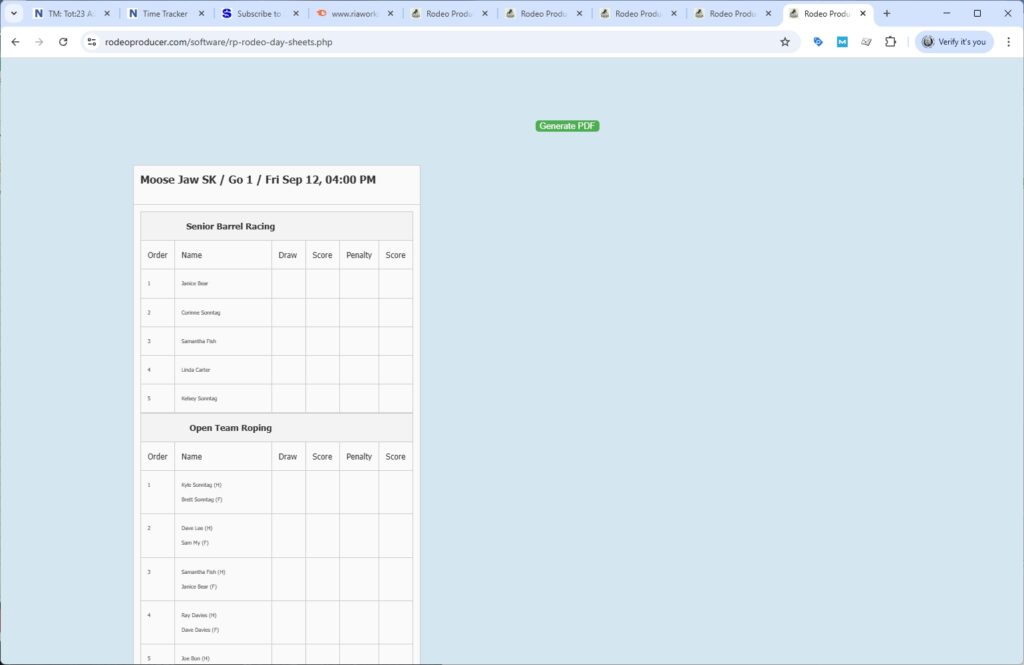
Next, rodeo day comes and the events get underway and it's time to enter results. Results - Enter Results. We select our rodeo and as you see we had set calculate average to no. We will select an event, Senior Barrel Racing. Now we see the input boxes for Go 1, Go 2, and Go 3 for this event. You'll notice that the entrants are ordered by the Go and the run order within Go 1 for now. This will change as we enter times into the event. We can set it to whichever run order as we work through the rodeo Gos. We'll now enter some times and hit submit results.
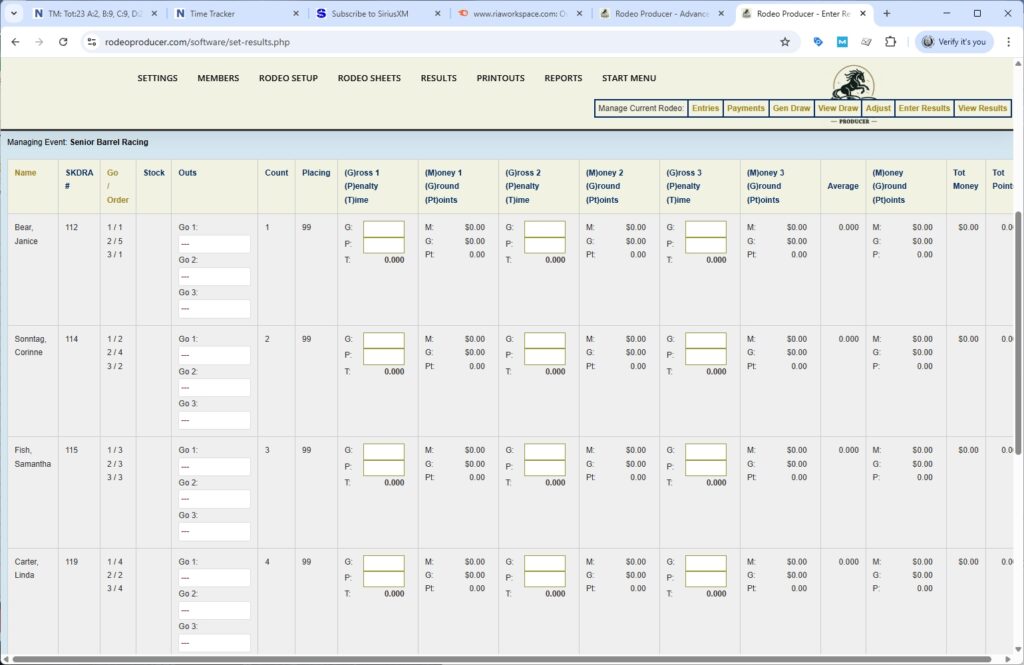
Rodeo Producer will display the net purse calculations. For this rodeo draw format we have set the payout rules to pay 25% of the net purse to Go 1, Go 2, Go 3 and the Average. 25% of the net purse is calculated and is paid to Go entrants.
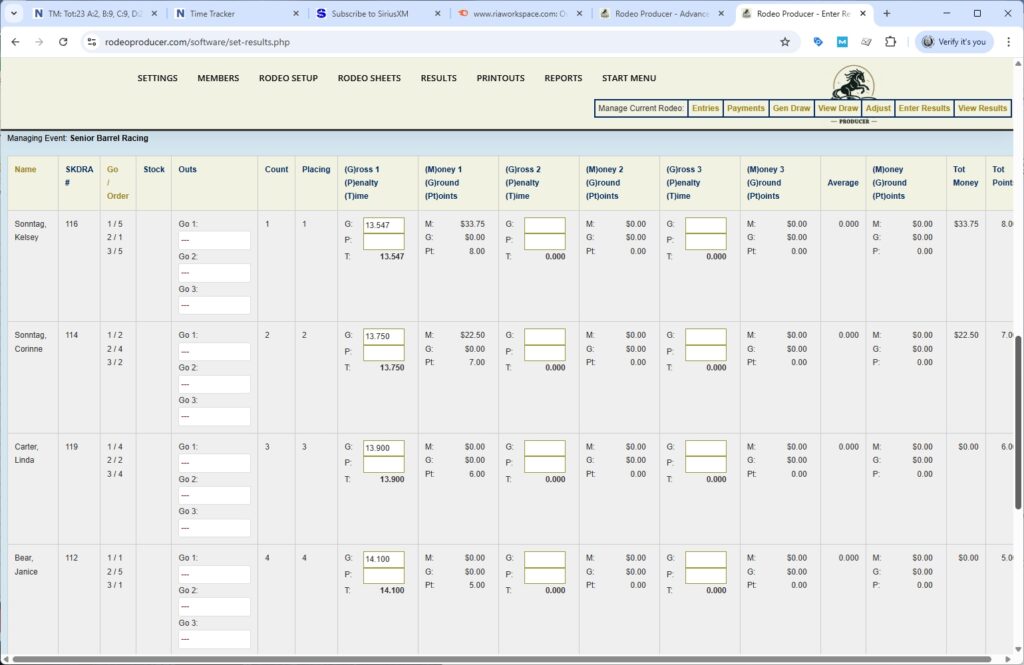
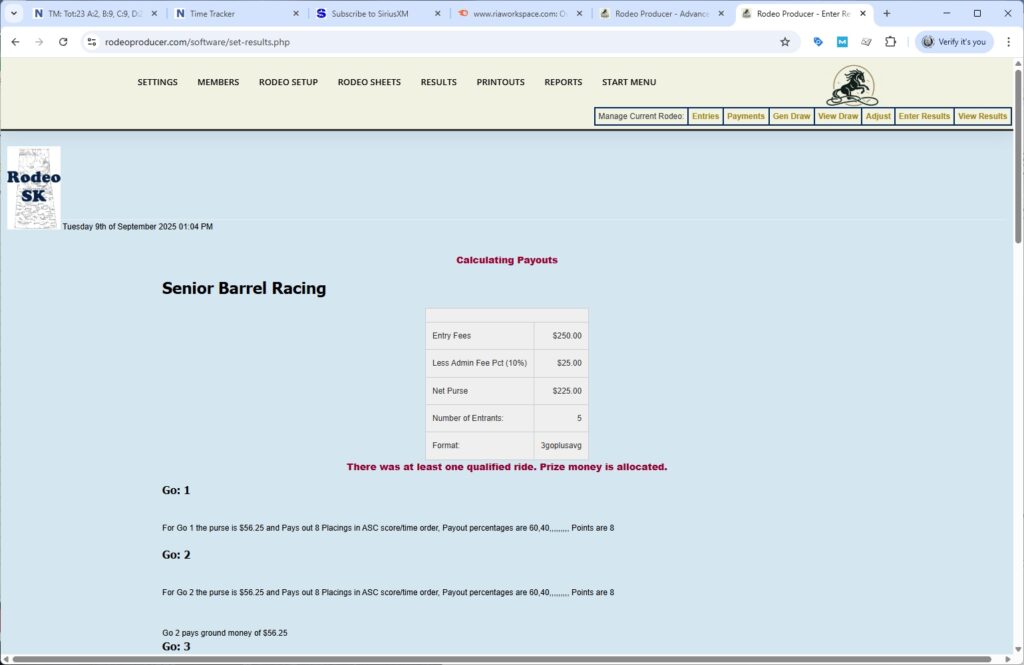
Now if we enter Go 2 times and enter Go 3 times then we would be able to calculate the Average. First we will enter Go2 and we get the same net purse calculation and we'll see that the order in the table is by overall placing.
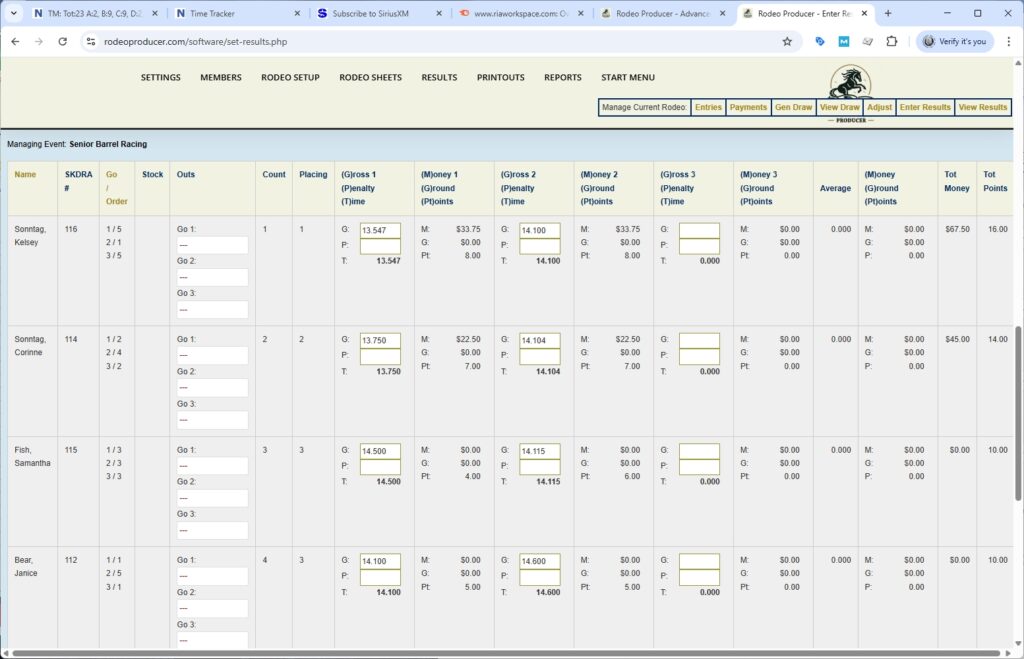
If we choose Go 3, it will now show us in order of Go 3 and the run order. We have calculated Go 1, submitted and calculated Go 2. We have not done Go 3 yet. Before we do that, we will turn on Calculate Average.
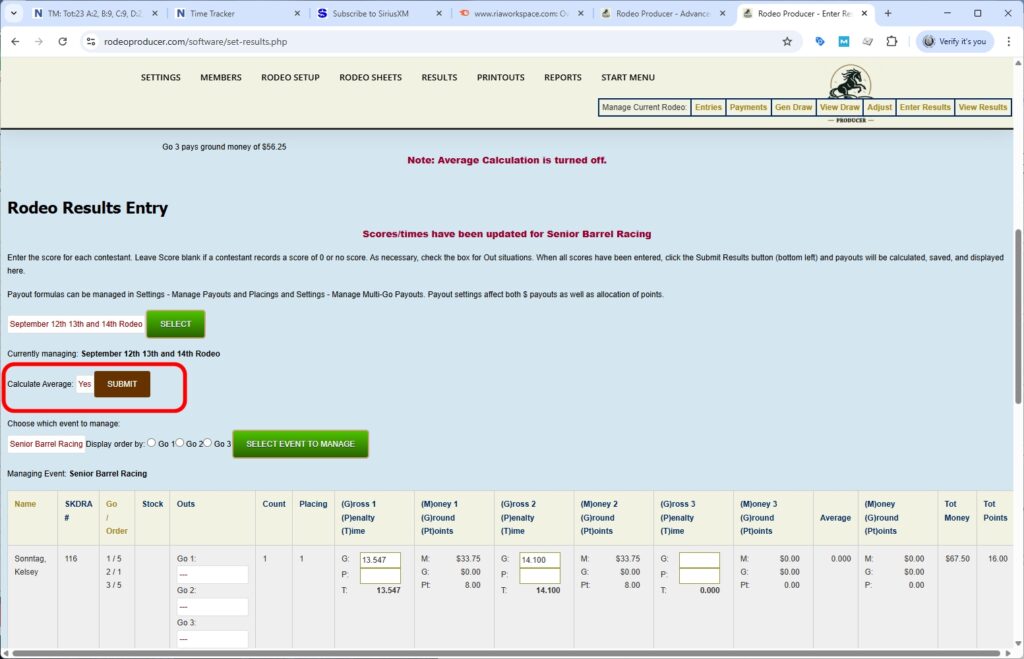
When we enter the results for Go 3, it will calculate Go 3 and the Average in this final step. Once the scores are in, we hit submit results. We see the net purse table again. Now we have Go 1, Go 2, Go 3 and the Average payout is calculated. The final columns show the total money and total points.
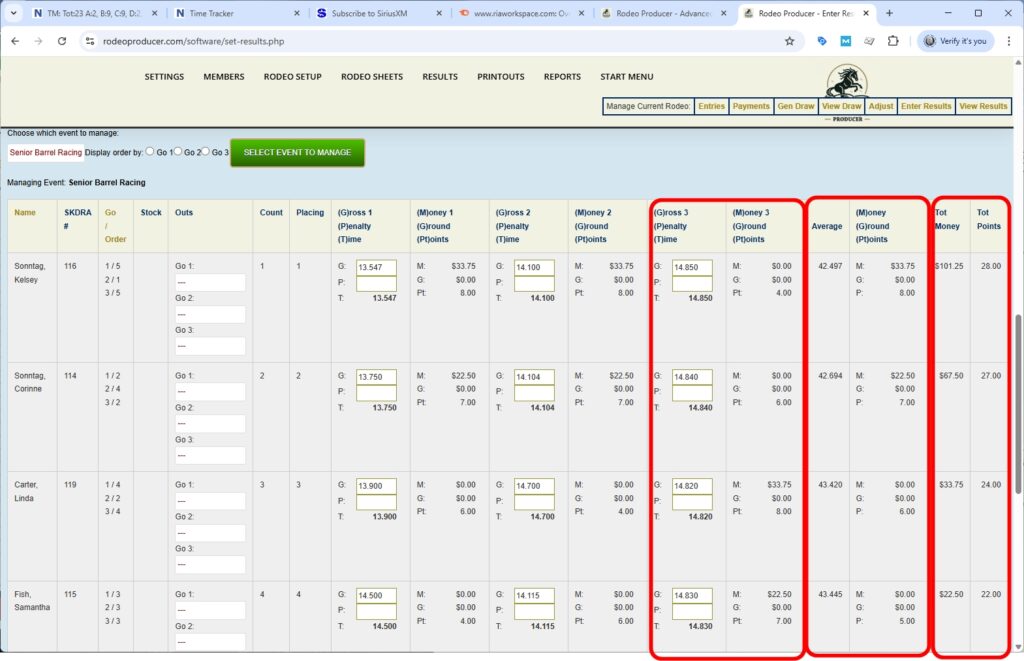
We're only showing Senior Barrel Racing above. The method of of entering Go 1, Go 2, and Go 3 - we have skipped entering results into Team Roping and Saddlebronc - would be much the same. We will go and do those offline and then look at how that all shows up in the results. [...]
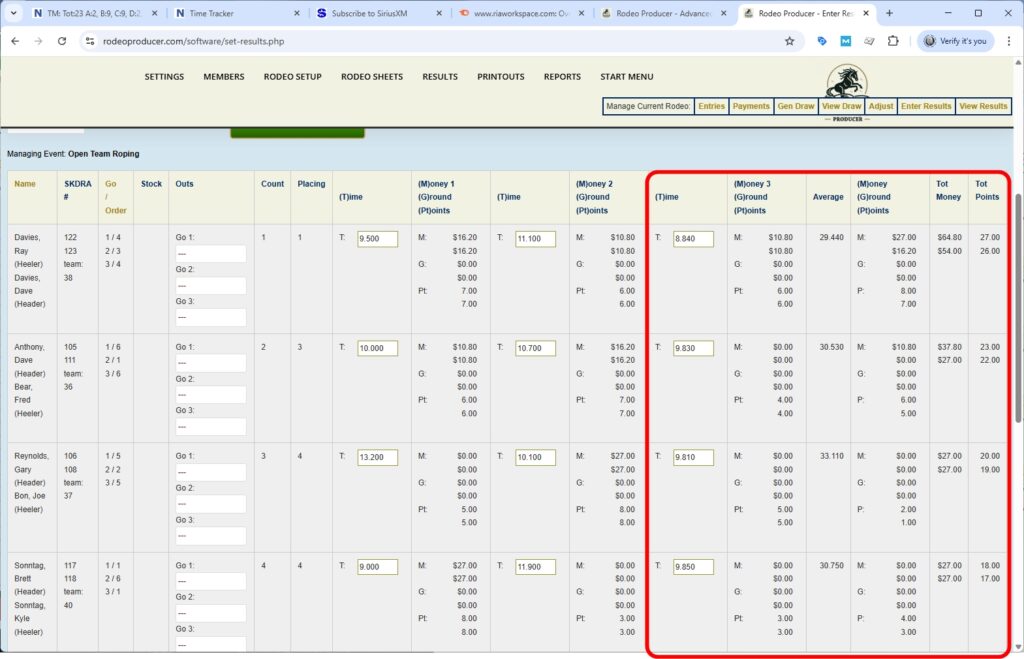

The times and scores have been entered and the money, points, averages have been calculated. Now we can go and have a look at the Results >Rodeo Results Preview as it shows unofficial results.
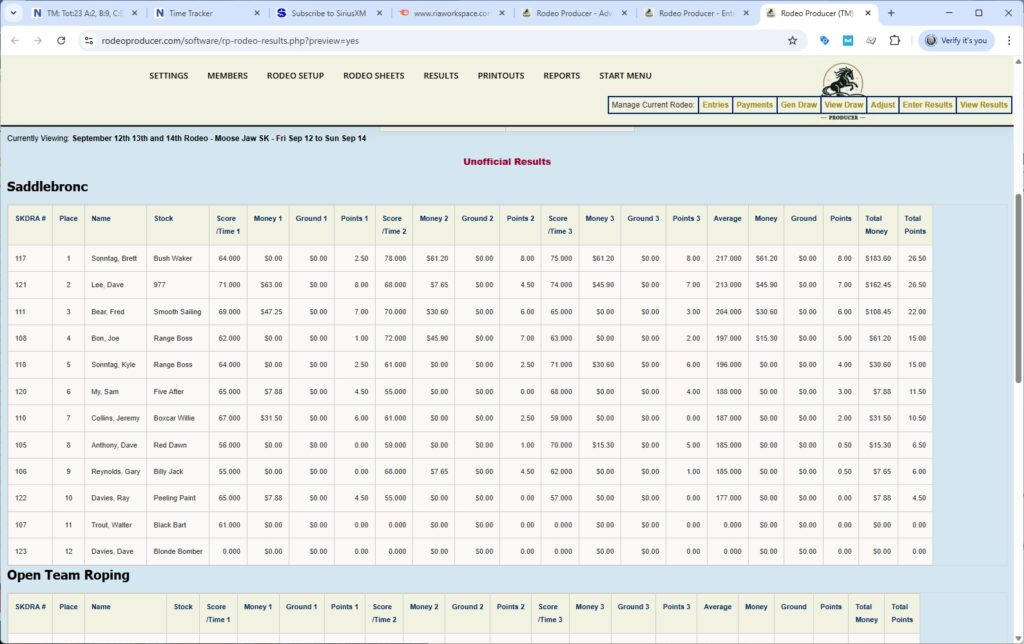
This is the preview, it is prior to to the members seeing this. As we scroll, we will be able to see total money and total points. It's a fairly big table. You may need to do a little bit of scrolling sideways depending on your device. We have Saddlebronc. We have Open Team Roping. We have our Senior Barrel Racing.
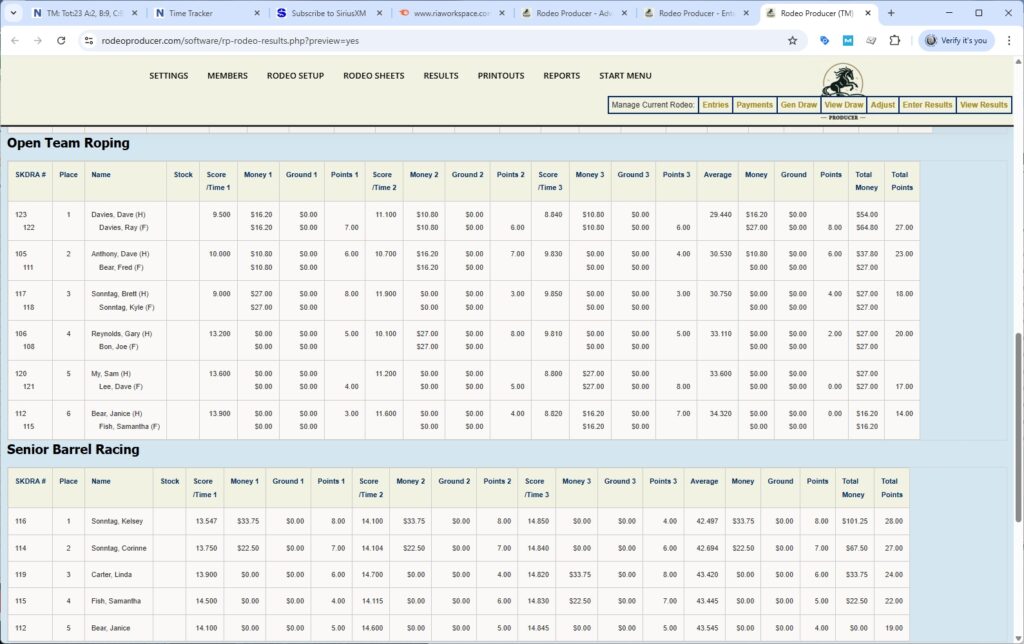
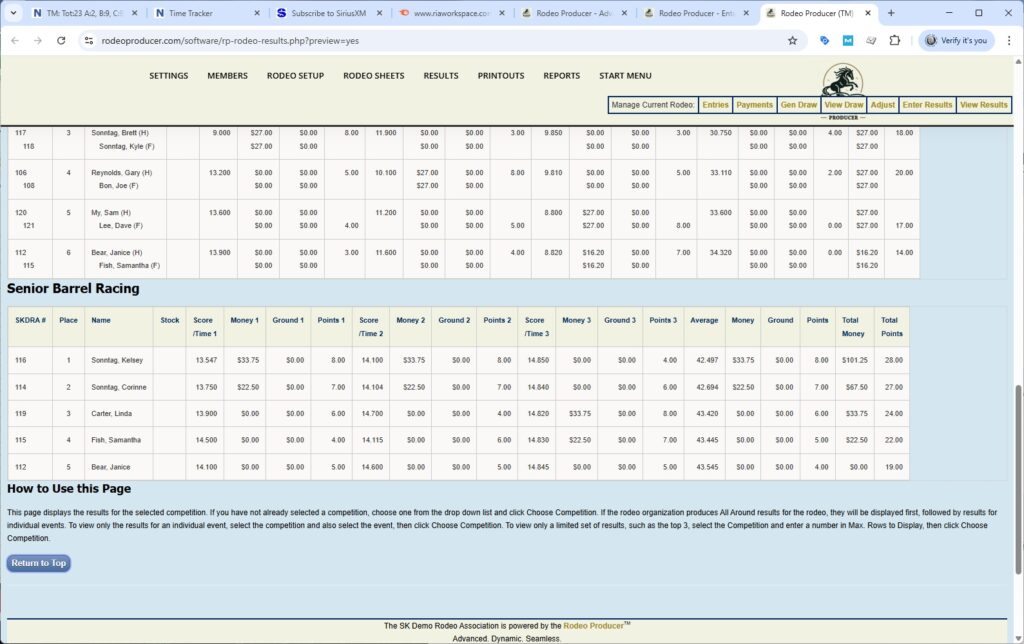
A quick glance at the results and if we determine that all is good then the next step would be to set the rodeo to show the results and show results official.
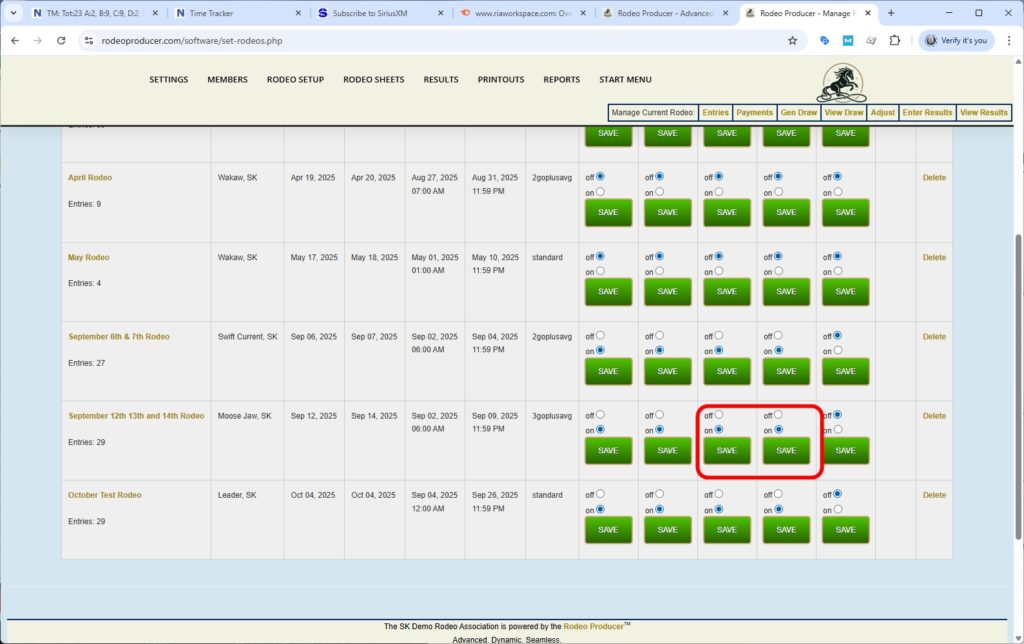
And so now the members themselves can click on results on Rodeo Producer and see the results. They can see scores, placings, payouts, points.
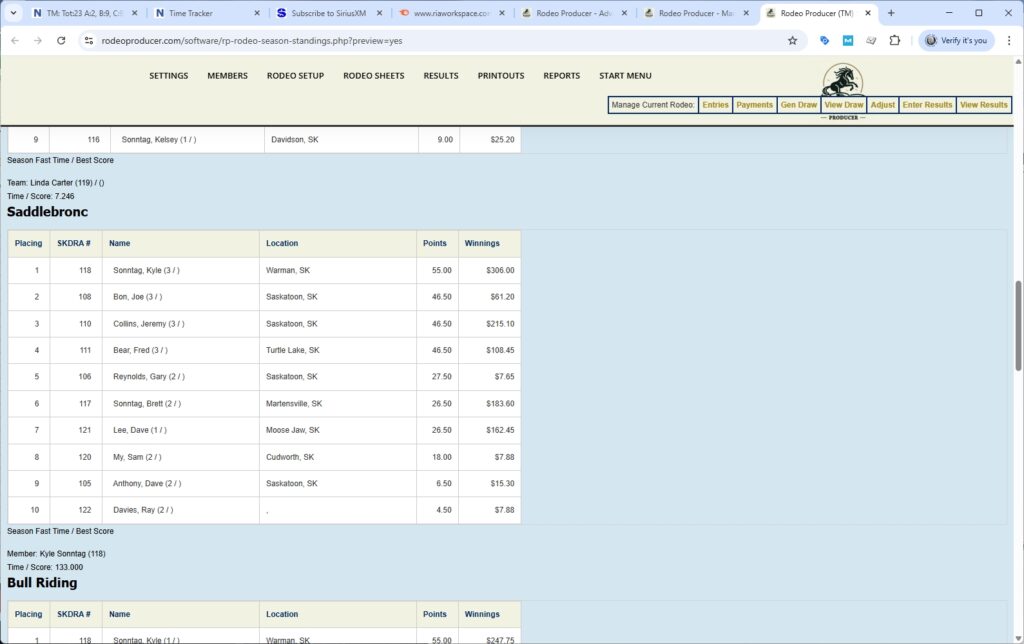
Under Results > Season Standings Preview we'll be able to go to the season standings preview. Because we've marked the rodeo official the results will be included in the total here. As we scroll down, we see these standings are updated up to and including the September 13th, 14th, and 15th rodeo.
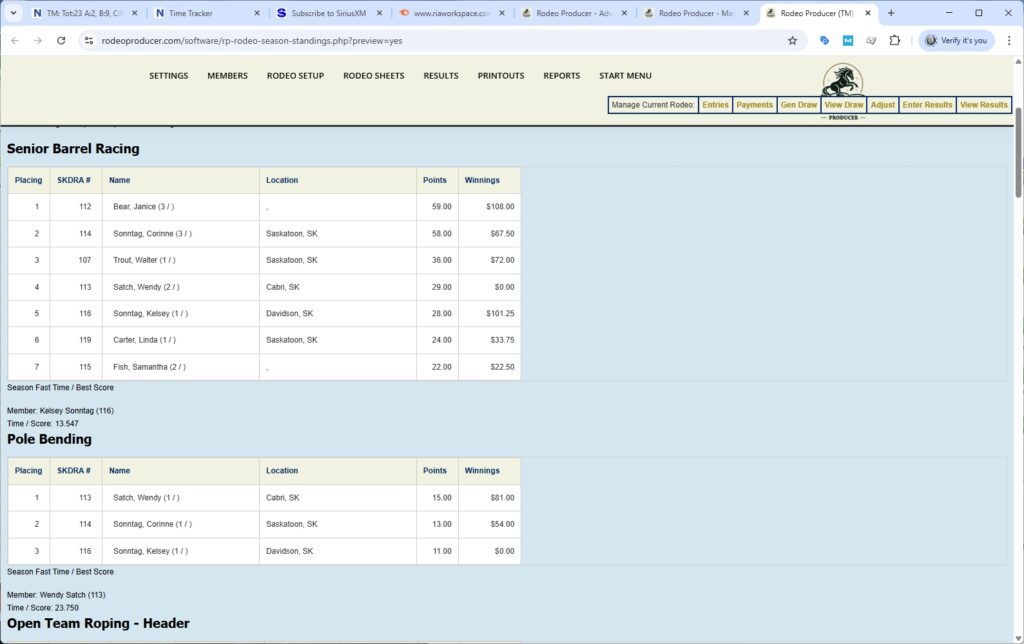
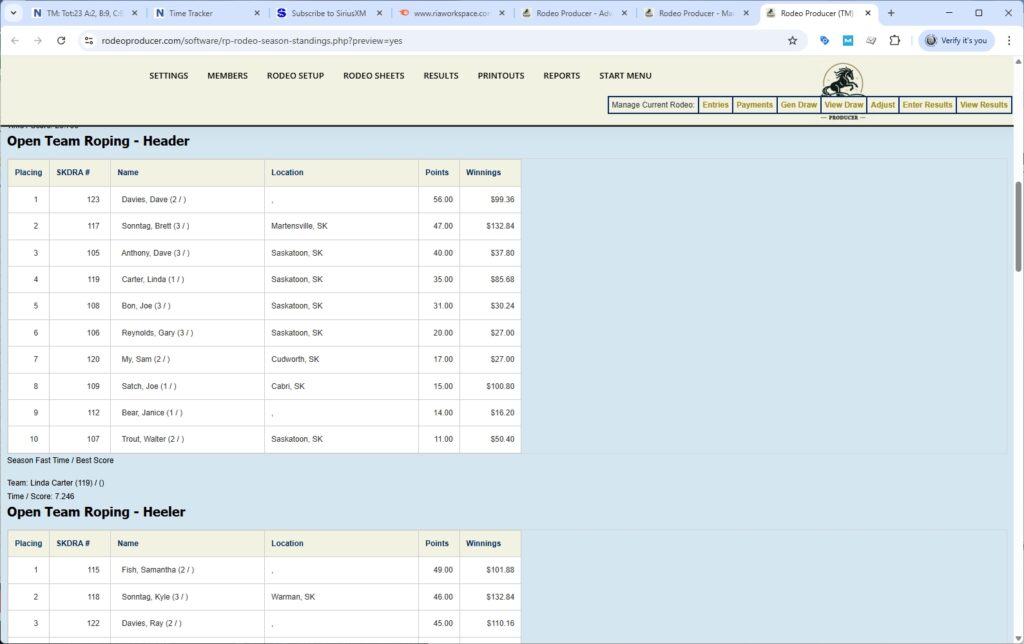
That is how you set up and operate a 3 Go Plus Average rodeo.