
Payouts and Placings
In this chapter, we will describe setting up Payouts and Placings.
To get started, from rodoeproducer.com we will click the Start link in the top right and then login to our demo Rodeo Producer account.

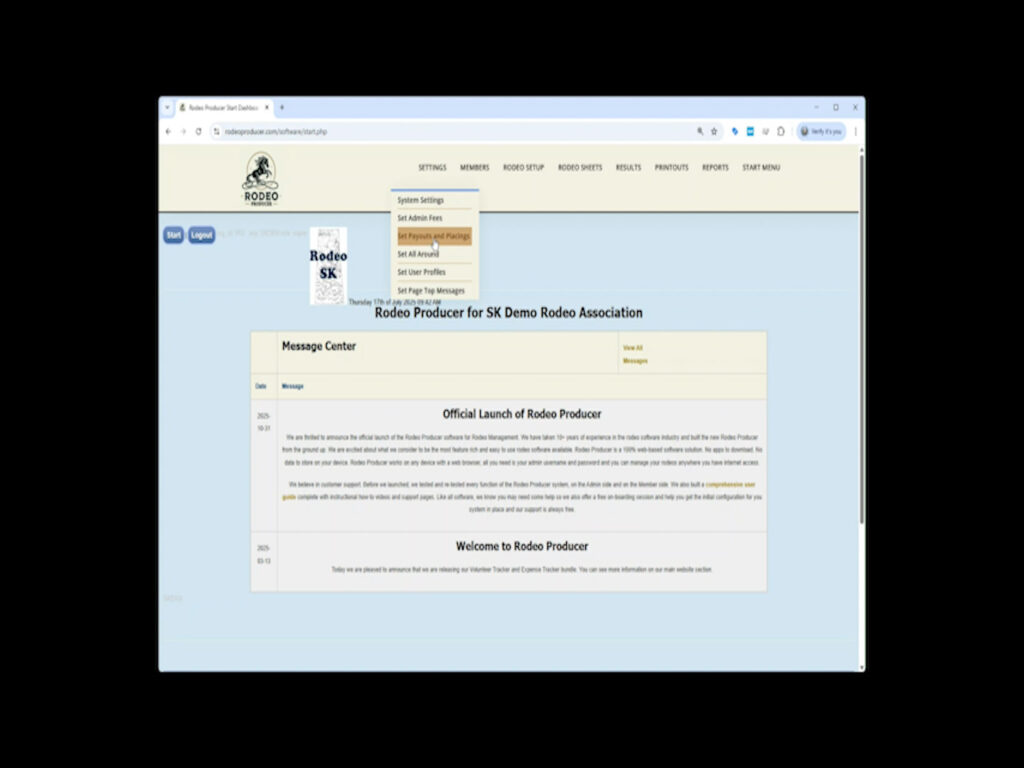
From the main menu, choose Settings > Payouts and Placings
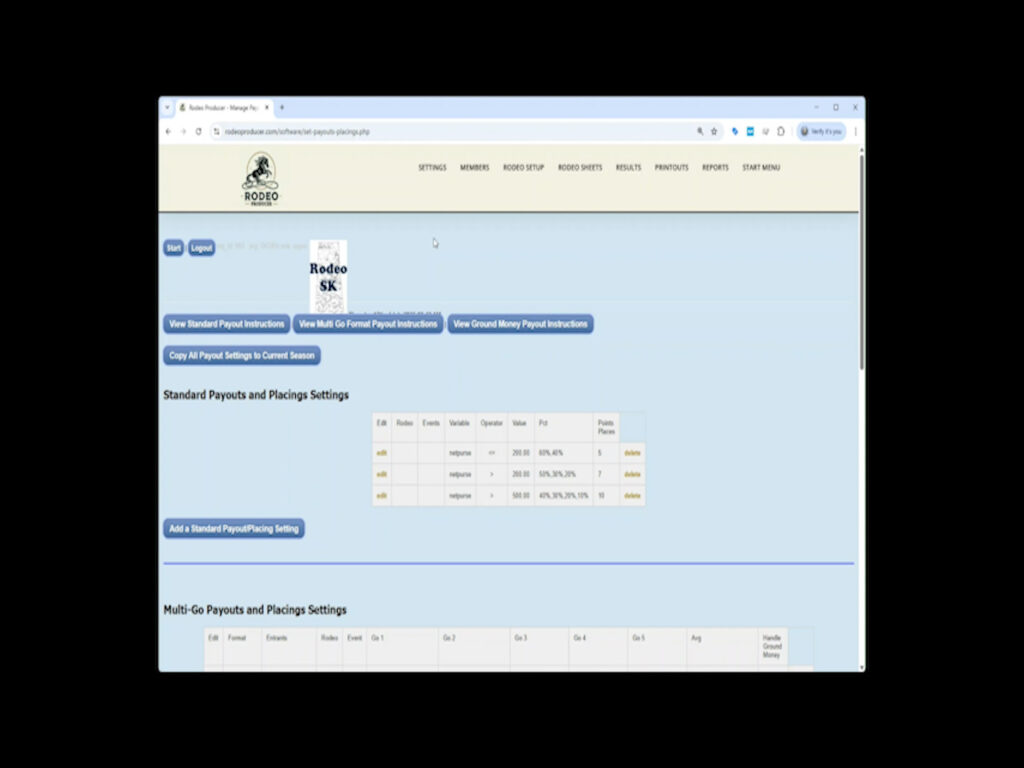
There are 3 areas of Payouts and Placings Settings, Standard, Multi-Go, and Ground Money. You can use the Jump Buttons to navigate directly. Note that payout settings, all three areas, are set for each season you use in the RP system. This allows you to change your payout formulas from season to season. If your organization will use the same payout formulas for a new season, then use the Copy All Payout Settings to Current Season.
Let’s take a look at Standard Payouts and Placings.
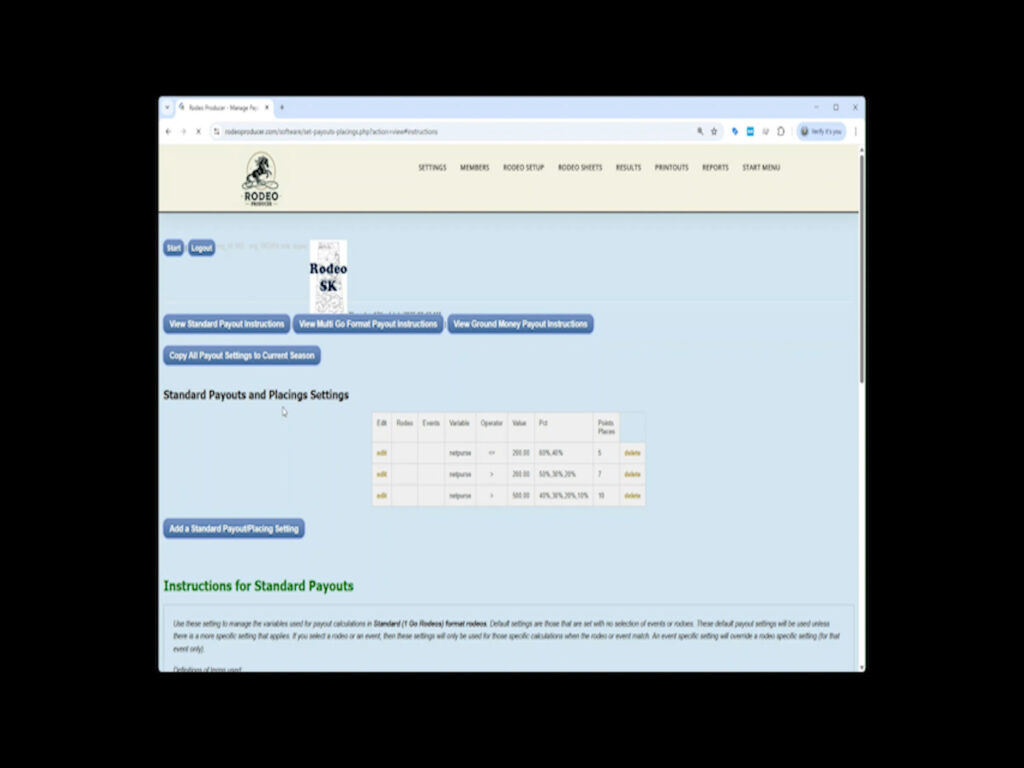
The Settings here are used to determine how much percentage of the prize purse should be paid to each person who places in the event. These settings can become very complex. We will help set these up for new associations or help to change them when needed. This is essentially a set of logic steps that are applied to determine the payout splits. Settings can apply as a default, as rodeo specific, or as event specific. These settings will also determine how points are assigned.
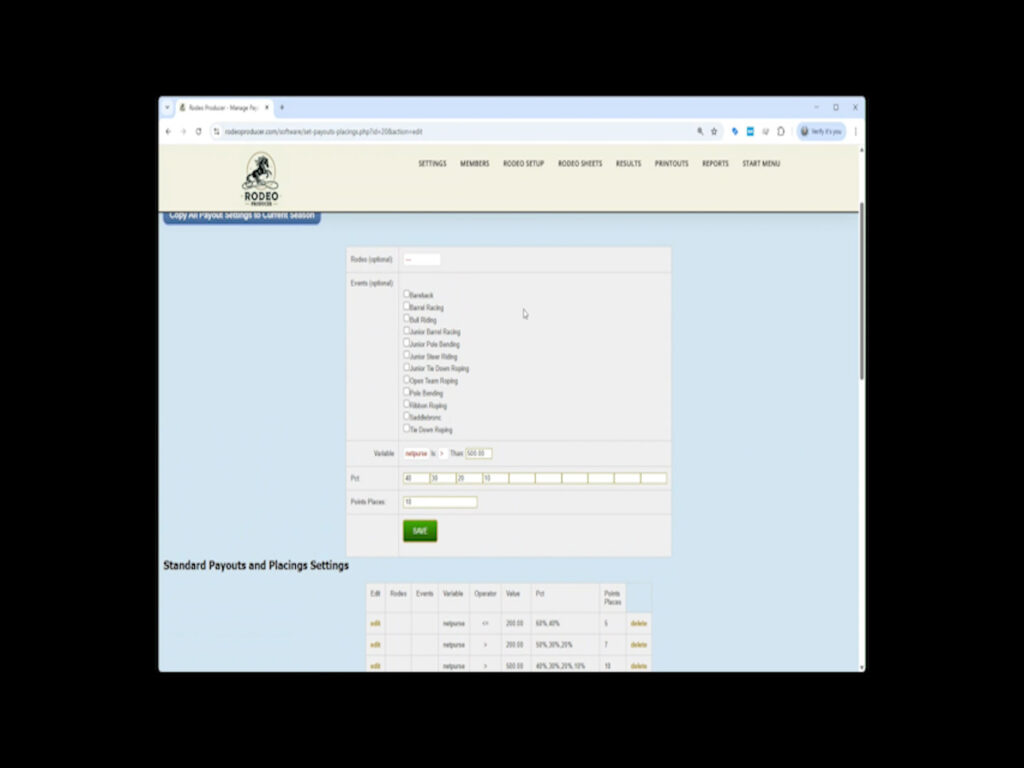
We are going to edit one of the tiers as an example. We will choose the middle tier.
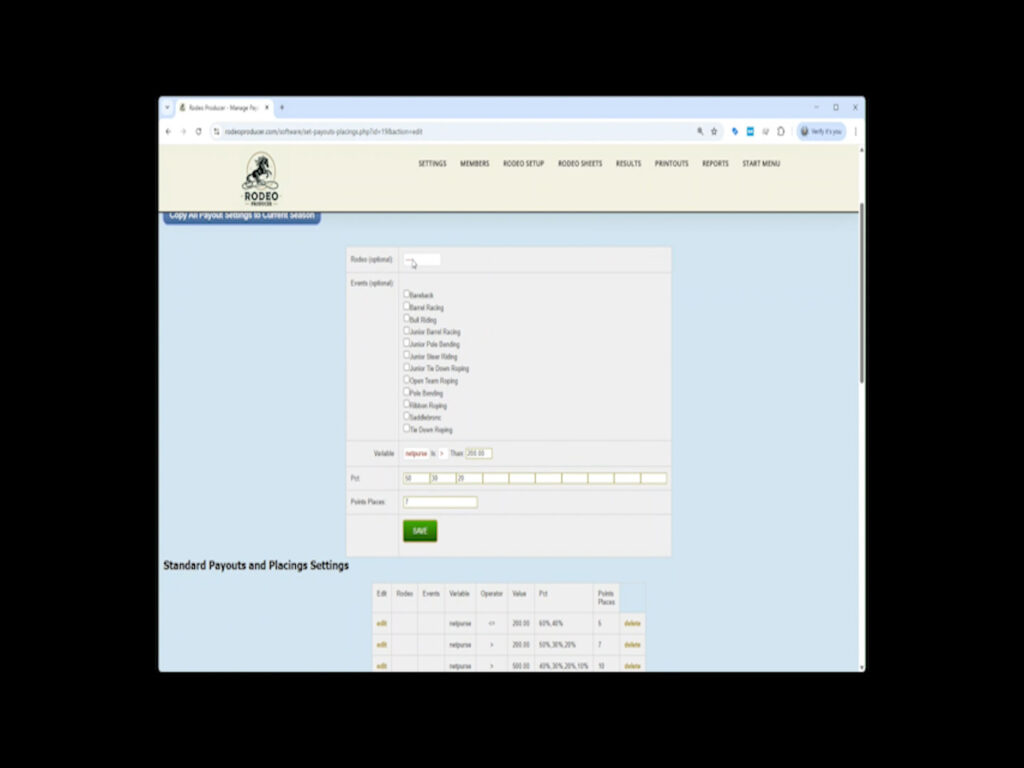
We do not set the rodeo specific option nor do we choose any of the event specific options as these are the default payout settings. We do make sure to indicate what variable the payout tier is based on (net purse, number of entrants, number of scores), in this case, the net purse value of greater than $200. Then we indicate the percentages of the net purse value that will be paid out to the corresponding places. We are paying out 3 places, 50, 30, and 20 % respectively. Lastly, we indicate the number of places to award points. This can be a different number of places than to which we are paying $'s. We are setting this to 7. The first place points (set elsewhere) are 10, decrementing by 1, so the $'s and points will be as follows:
1st Place: 50% of $'s, 10 points
2nd Place: 30% of $'s, 9 points
3rd Place: 20% of $'s, 8 points
4th Place: 7 points
5th Place: 6 points
6th Place: 5 points
7th Place: 4 points
When we are done edit, we click Save.
To add another payout tier (a.k.a. payout split) we click the Add a Standard Payout/Placing Setting and set the fields. We do make sure to indicate what variable the payout tier is based on (net purse, number of entrants, number of scores), in this case, the net purse value of greater than $1500. Then we indicate the percentages of the net purse value that will be paid out to the corresponding places. We are paying out 5 places, 33, 26, 20, 17, and 7% respectively. Lastly, we indicate the number of places to award points. This can be a different number of places than to which we are paying $'s. We are setting this to 7. The first place points (set elsewhere) are 10, decrementing by 1, so the $'s and points will be as follows:
1st Place: 33% of $'s, 10 points
2nd Place: 26% of $'s, 9 points
3rd Place: 20% of $'s, 8 points
4th Place: 17% of $'s, 7 points
5th Place: 7% of $'s, 6 points
6th Place: 5 points
7th Place: 4 points
When we are done edit, we click Save.
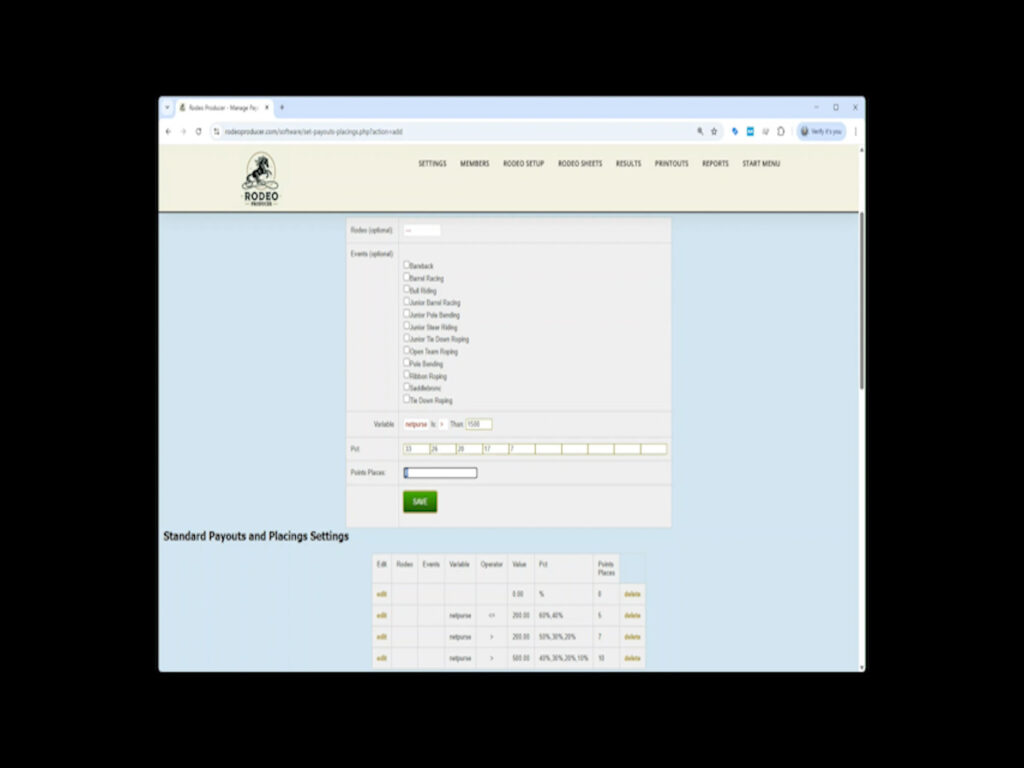
One important part of the logic of the payout tiers is that Rodeo Producer will run through the order of the payouts tiers, as they will show on screen, and use the last tier that passes the logic test. So in our example with the 4 tiers, if the $ amount of the net purse is $1200, it will not pass the test of the first tier, it will the test of the second tier, it will pass the test of the third tier, it will not pass the test of the fourth tier, so it will use the third tier, the last one passed.
Another aspect of the payout logic is in regards to default, rodeo specific and event specific settings. If you do not have rodeo specific or event specific payouts set, it will use the defaults. Rodeo specific will override the payouts, for that specific rodeo. Event specific will override the payouts for that specific event. A rodeo specific and event specific settings will override only in that event in that rodeo.
Lets now look at Multi-Go rodeo payout settings. Most rodeo organizations, when running a multi-go rodeo format, will carry the standard payout settings to the multi-gos. That means that in Go 1, it will determine the payout places, percentages, and points to award based on the payout tier rules of the Standard settings. In this instance, all that is needed is to indicate the portion of the prize purse that should be allocated to each Go (and the Average if applicable). You should also set the draw order for each Go.
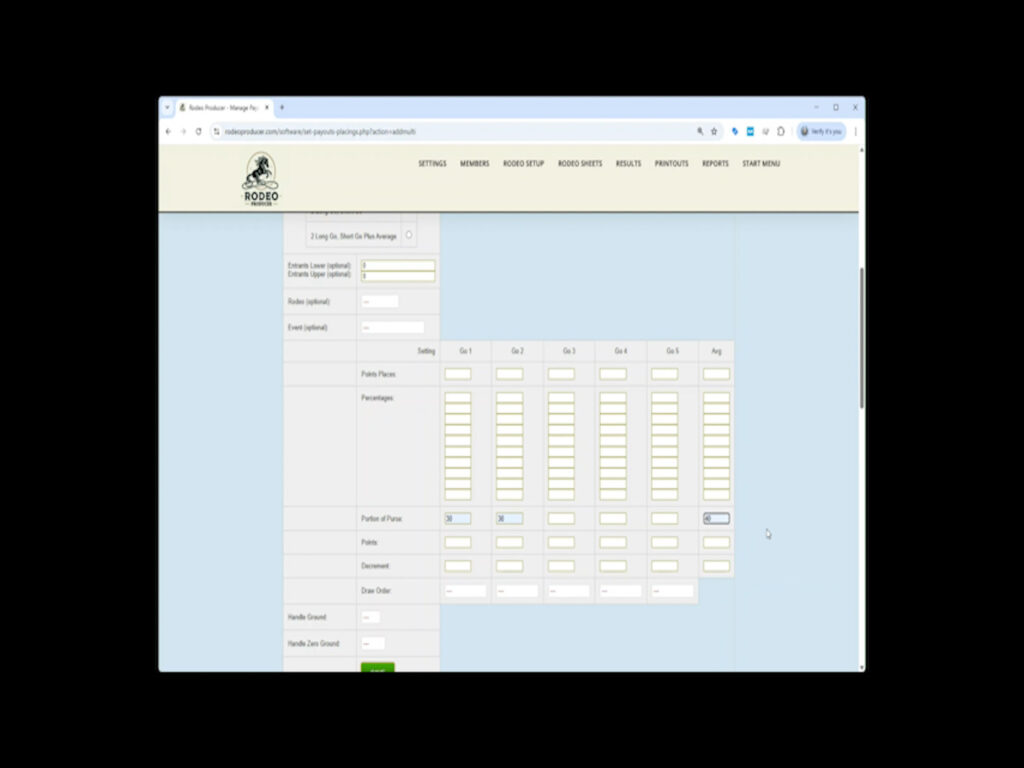
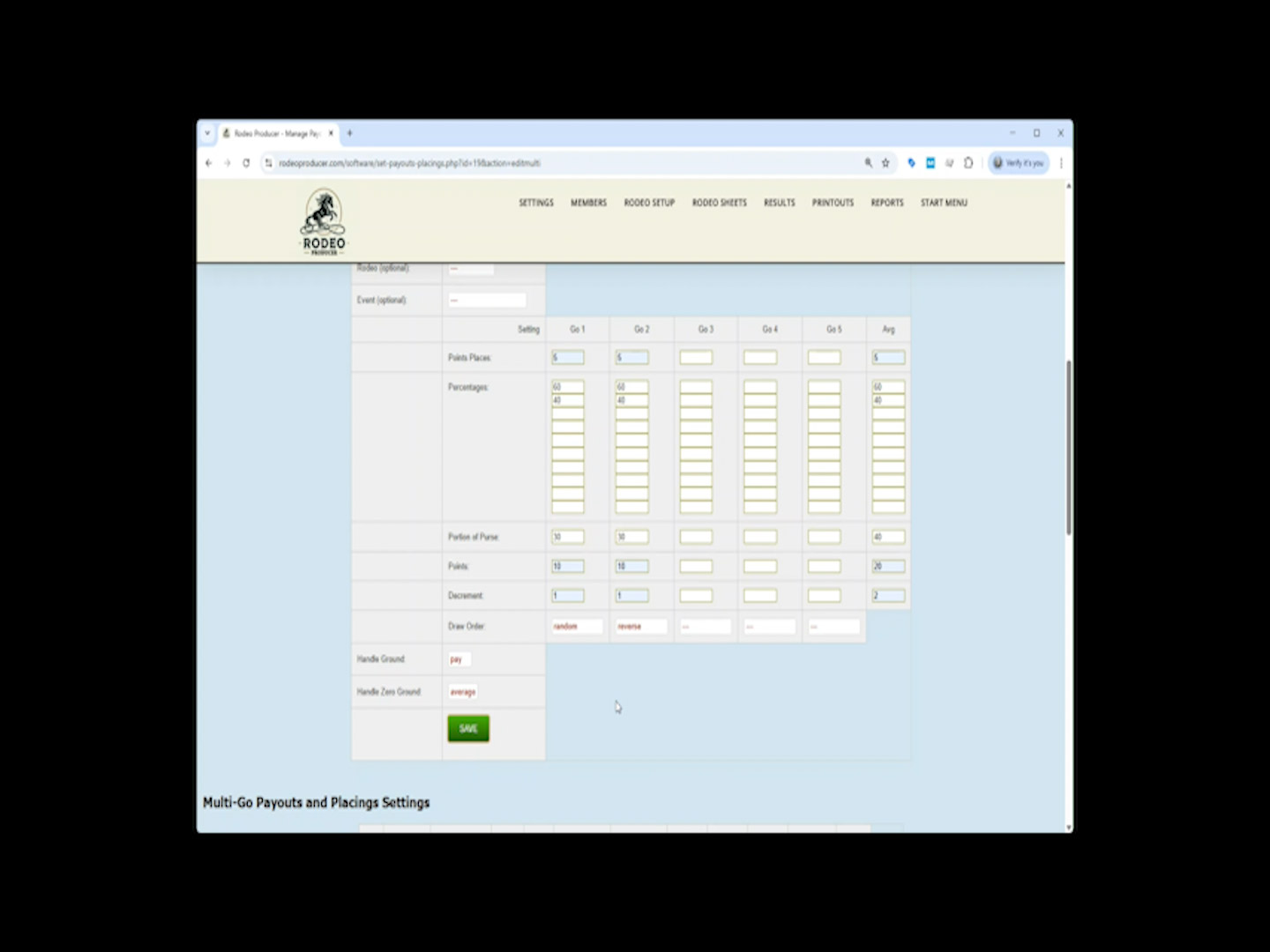
Some organizations use different payout settings in Multi-Go rodeo formats. In our example, we will set the first tier for a 2 Go Plus Average rodeo format to be based on 0 to 10 entrants in the event. (You also have the ability to set these to rodeo specific and / or event specific). We will set the Points Awarded to 5 in each of the Gos, and the same for the Average (they can be different points values). We will payout the first 2 places, 60% and 40% in the Gos and the same for the Average (they can be different percentages). We will award a max of 10 points in the Gos, reducing by 1 for each place and a max of 20 in the Average, reducing by 2 for each place.
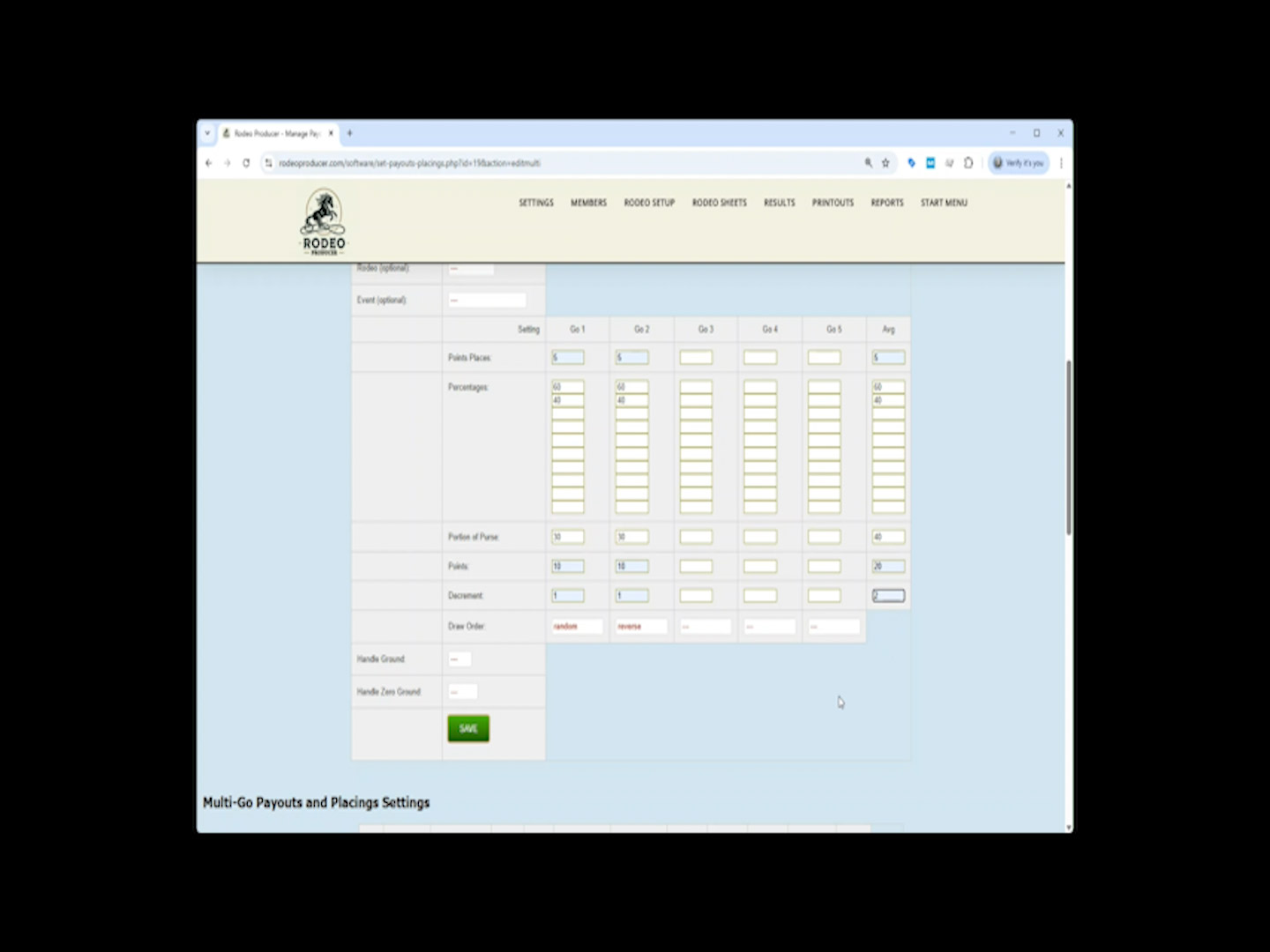
We are going to set the draw order to Random for Go 1 and Reverse for Go 2. Then we set the handling of ground money. If there is Ground Money available at the end of the calculation of Go results, it can be set to pay or nopay (ignore the ground money and do not payout). The last setting here is the instruction on how to handle ground money in a Go if there are zero completed rides. It can be set to Drop, Carry to the Next Go (or Average), or carry directly to the Average.
Click Save when done with the settings.
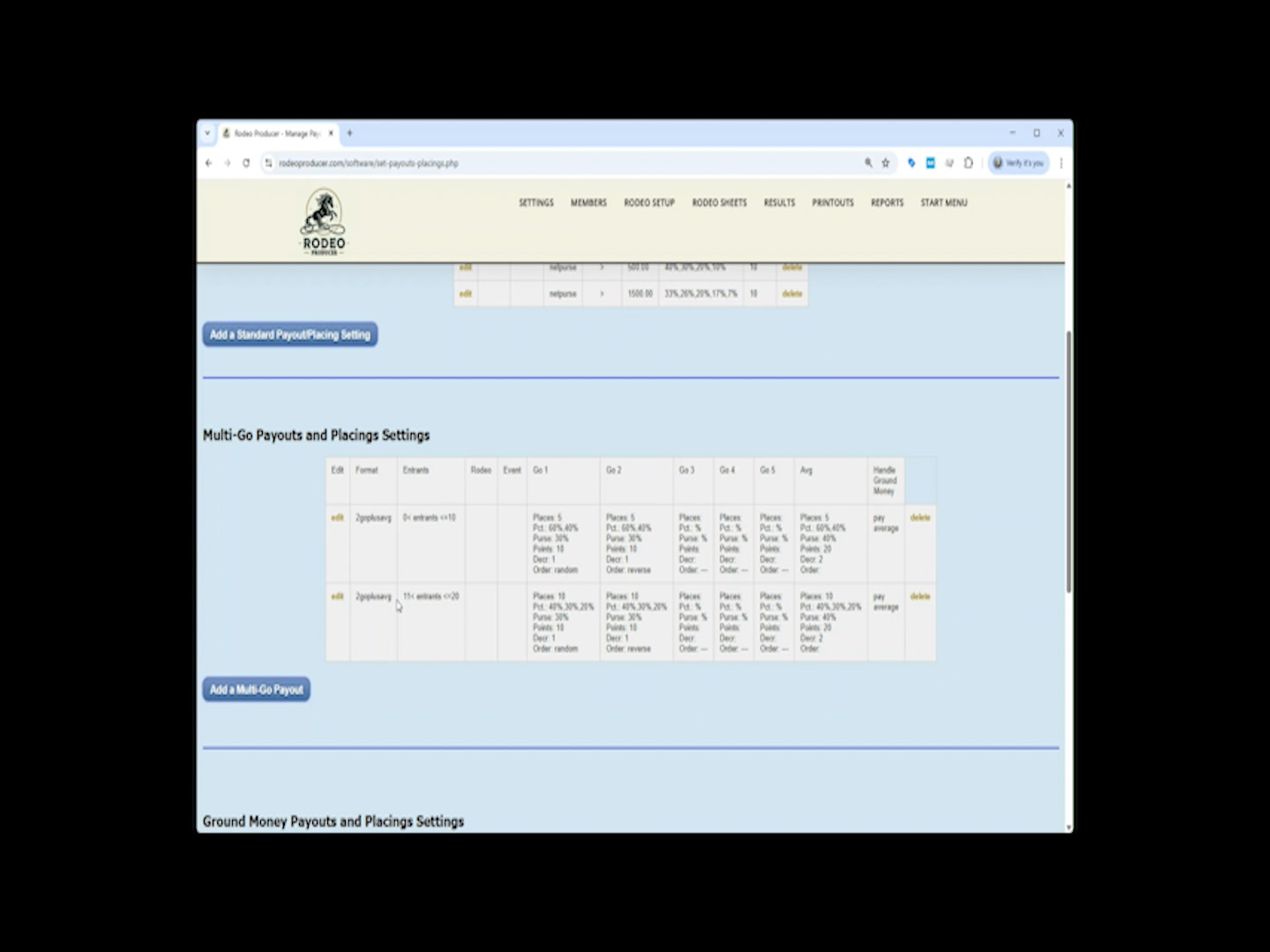
You can continue to add more Multi-Go rodeo format payout tiers for additional ranges of event entrants.
Click Save when done with the settings.
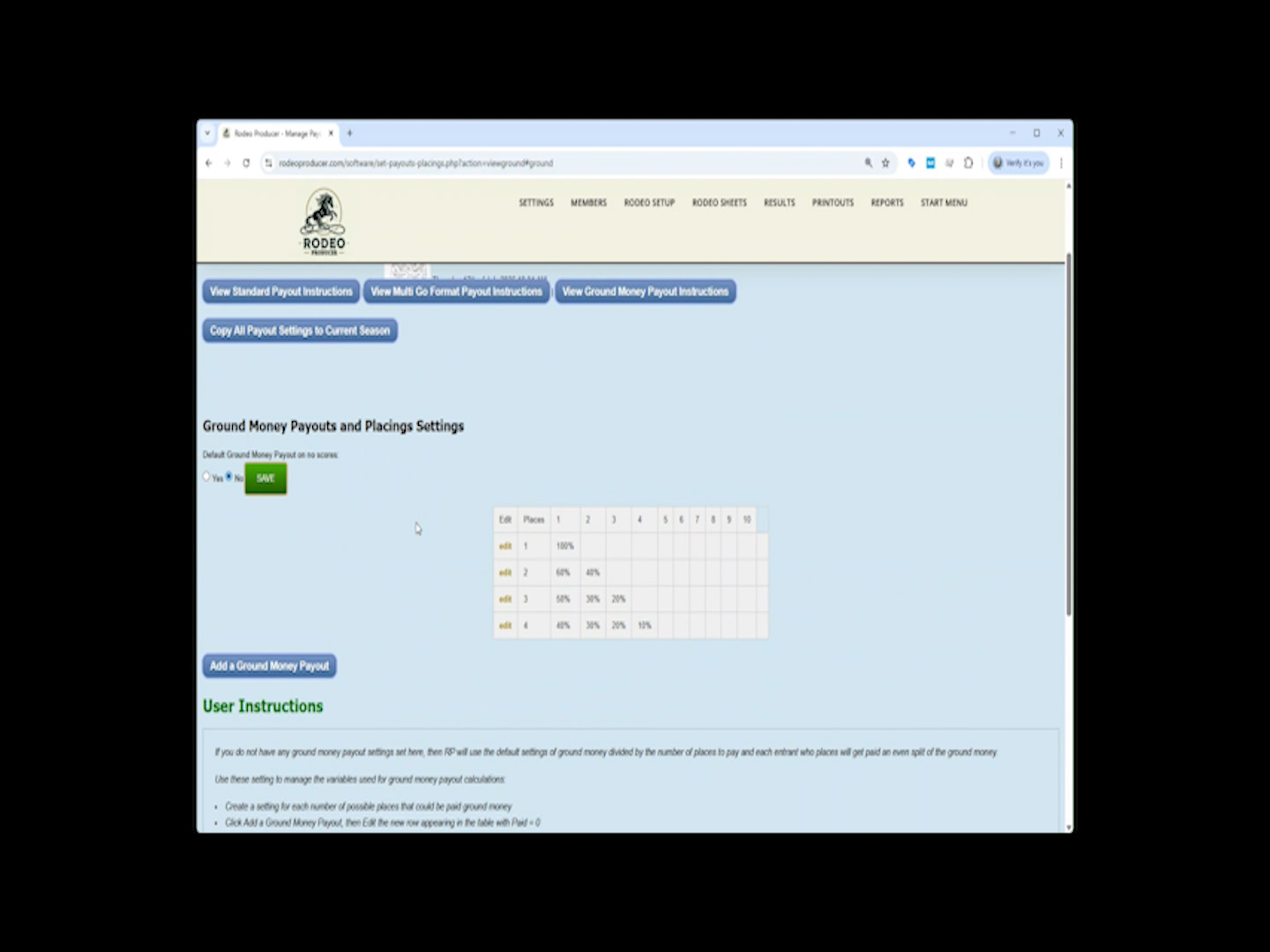
Let's look at Ground Money Payouts now. We have already added 4 tiers of settings. These settings determine how the available ground money will be paid out, based on the number of competitors that completed that ride or that run in that rodeo or in that go. In this example, we are paying out in a similar structure to our Standard payout splits. If only 1 completed, pay 100% of the available ground money. If 2 completed, pay 60% and 40% of the available ground money, and so on. These settings should match your association rule book.
If you do not up the Ground Money payout settings, then Rodeo Producer will use a default an even split of ground money to the completed rides. 100% if one completed. 50% and 50% is two completed. 33.33%, 33.33% and 33.33% if three completed, etc.
Thanks for reading the Settings > Payouts and Placings chapter for Rodeo Producer. We do want to remind users of Rodeo Producer that we offer assistance during the onboarding, and afterwards, to help set these up properly. As these determine the payout calculations (money is always of importance to competitors) and points awarded, both of which may impact season standings and awards, we want to make sure we set these correctly and we test them thoroughly. We encourage you to check out our Support article on Running a Test Rodeo, which something we strongly encourage for all organization.
In addition to these support pages, we also have each Section and Chapter available as a video on our Rodeo Producer YouTube Channel.