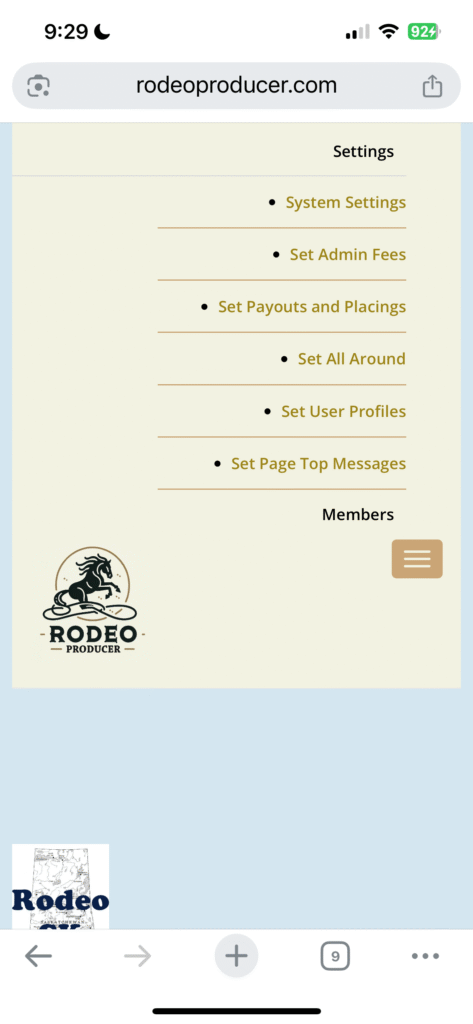
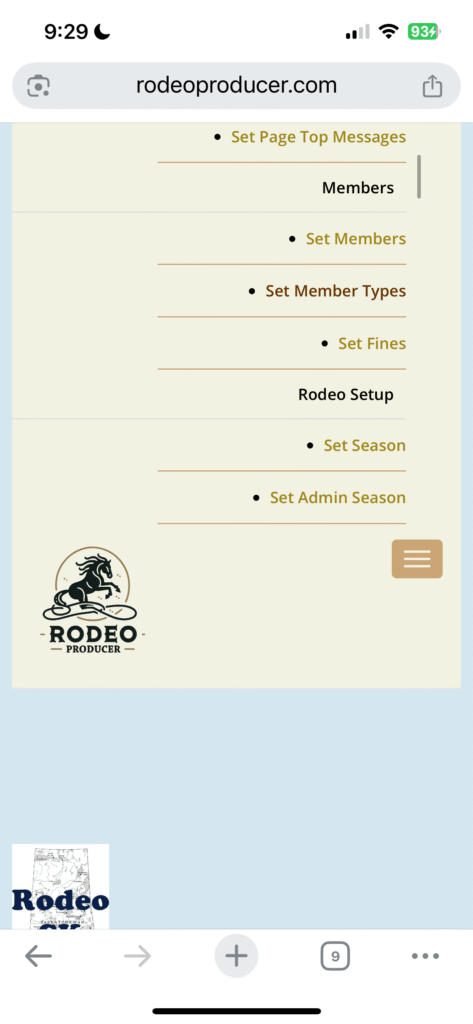
In this chapter, we will be running through a very quick Admin user tip on using the Rodeo Producer admin menu on a mobile device, such as a tablet or a smartphone.
Tablet
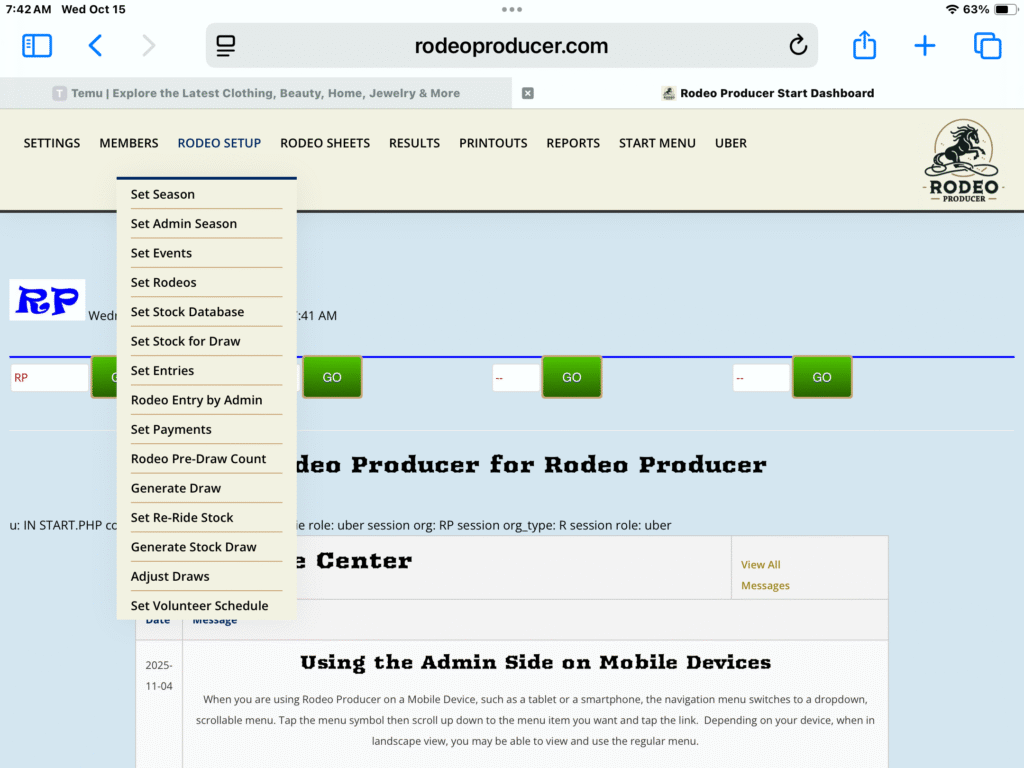
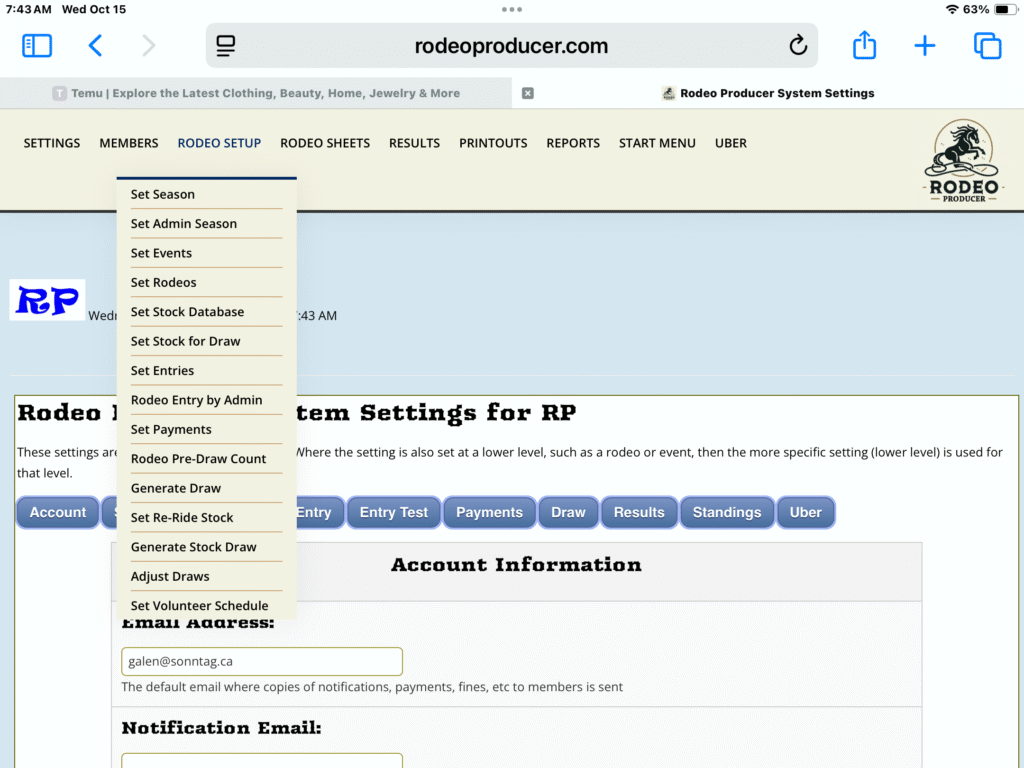
Using Rodeo Producer on a tablet gives you 100% of the functionality of using on any other device. The only 2 differences are that with a smaller screen size, the main navigation menu may display as a drop down menu for the whole list of features and when viewing the tables you may need to scroll horizontally more than on a laptop or desktop. We recommend using your tablet in landscape mode. Depending on the tablet and it's screen resolution, this may display the normal navigation menu at the top of the screen. If this is the situation with your tablet, see the section below on SmartPhones for how the menu will display. In the images below, we are using a 9th Generation iPad and the navigation menu displays normally in both landscape and portrait orientation.
iPad in Portrait:
iPad in Landscape:
SmartPhone
Using Rodeo Producer on a smartphone gives you 100% of the functionality of using on any other device. however, the smaller screen size does make viewing content more difficult and the main navigation menu will display as a drop down menu for the whole list of features. Many of the tables are designed to allowed you to scroll horizontally. While you do have access to all of the features, we suggest that a laptop or tablet is an easier device to use. A smartphone is a perfect option for utilizing the Online Judges Cards.
When accessing the main navigation menu, begin by tapping the menu icon.
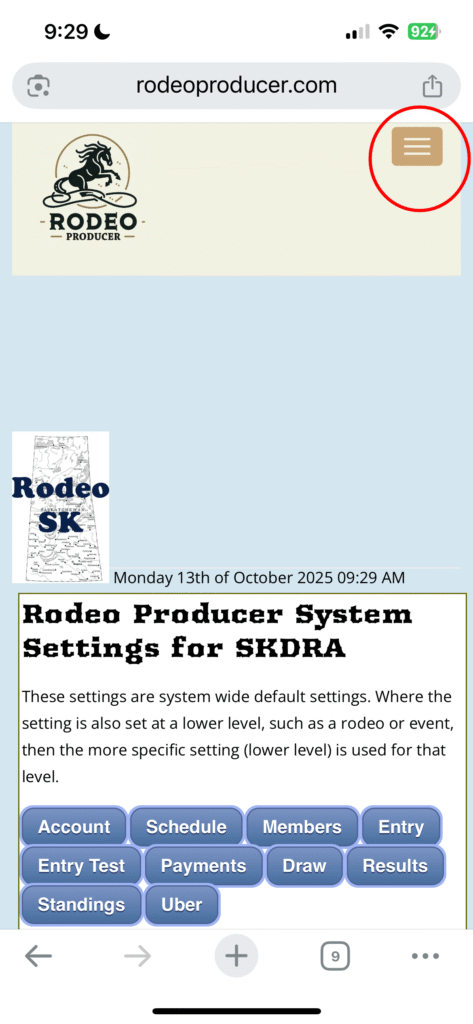
Then simply scroll through the menu choice and tap on the feature of your choice. Note that the menu headings are bolded and the individual selections are normal typeface.