Part III: Rodeo Draw, Rodeo Results, Rodeo Standings, Organization Logo
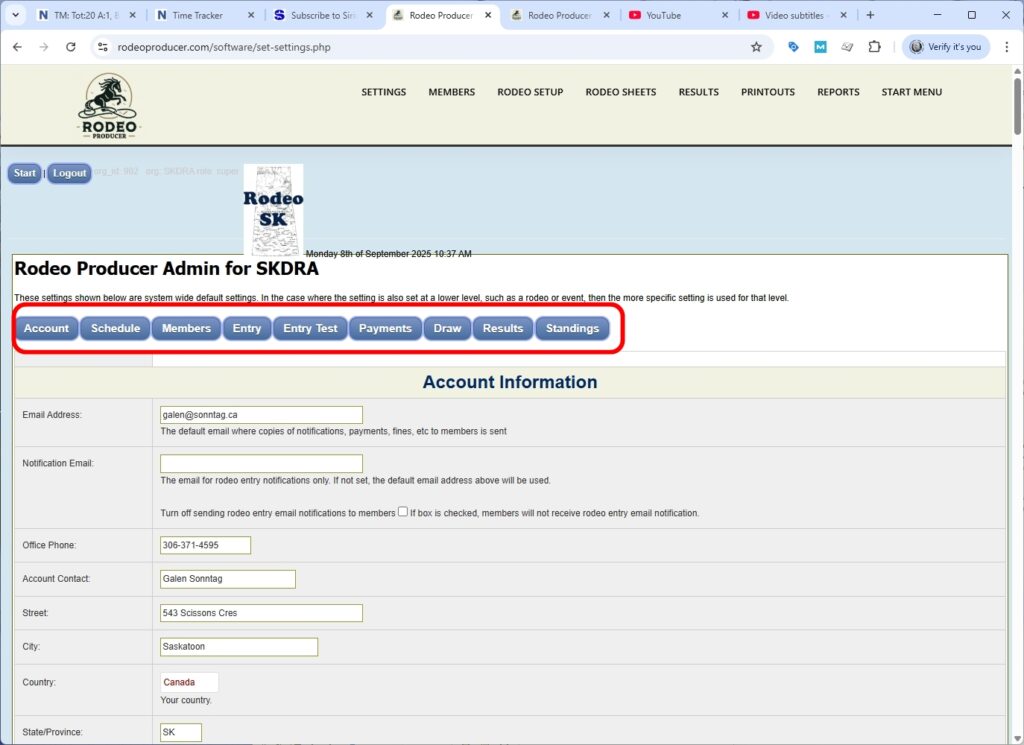
Under Advanced Settings, we will be talking about Part III of the System Settings. We are logged into our Demo Rodeo Association. Click Account Settings > System Settings and click the jump button for Draw Settings. The majority of these settings have some brief descriptions included on the form. We have provided additional descriptions here.
Draw Settings
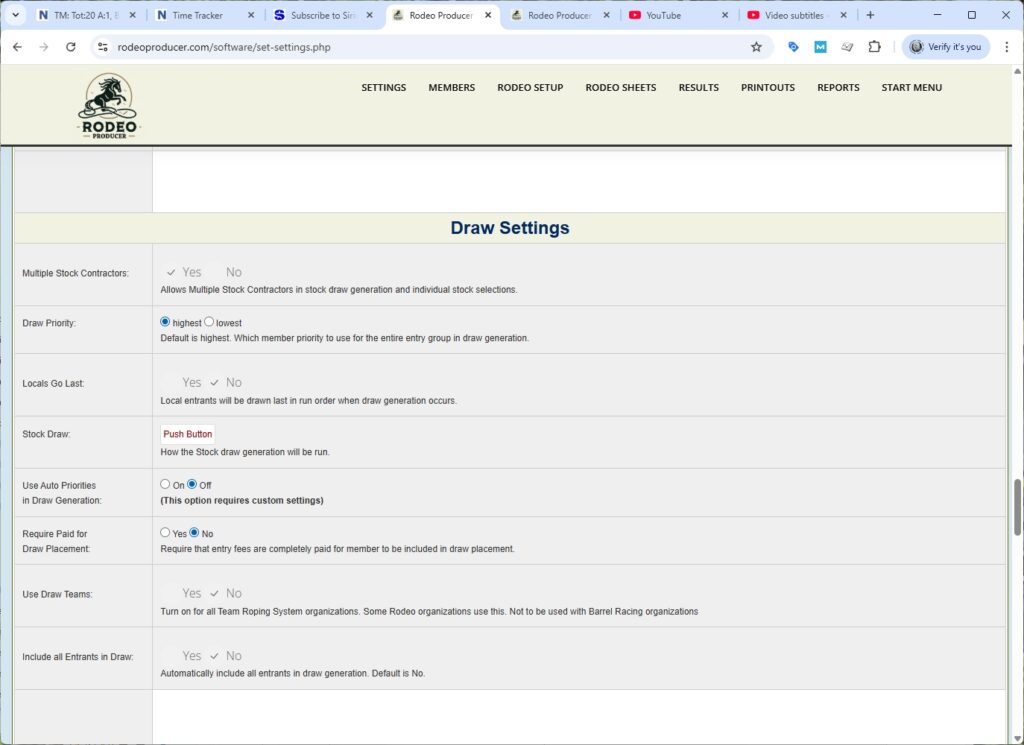
Onto some draw settings. Multiple stock contractors. This allows you to specify more than one. Some organizations restrict this to just one. Draw priority. In a entry group, if you have multiple members in an entry group or a buddy group, is the priority of that group based on the priority the highest priority member or the lowest priority member? Locals go last. In some associations the locals are drawn to last in the run order when the draw generation occurs. The stock draw can be entirely manual, can be push button. Which means that after you run your placement draw, then separately you would run the stock draw. You can set this to automatic. What that will do is when you generate the draw, it will run the placement draw and then it will automatically run the stock draw as well. Using auto priorities and draw generation. This requires some custom settings. If you require auto priorities to be set, then you'll need to contact us and we'll discuss how we can do that. Require paid for draw placement. Some organizations require anybody who has entered the rodeo to have paid prior to the draw generation and if they have not paid then they will not be included in the draw. Use draw teams for team roping associations, for team roping organizations, this will always be set to yes. What this does is it also allows organizations to have team roping events where where the entry is a single entry. It will specify if they are a header or a healer and then when the draw runs it will match up headers and healers that do not have partners. Include all entrance in the draw. This automatically overrides any other settings and it will place all of your entrance in the draw. If it is set to no then you can limit the number of entrance that are placed into individual events. Those settings are in your generate draw settings.
Result Settings
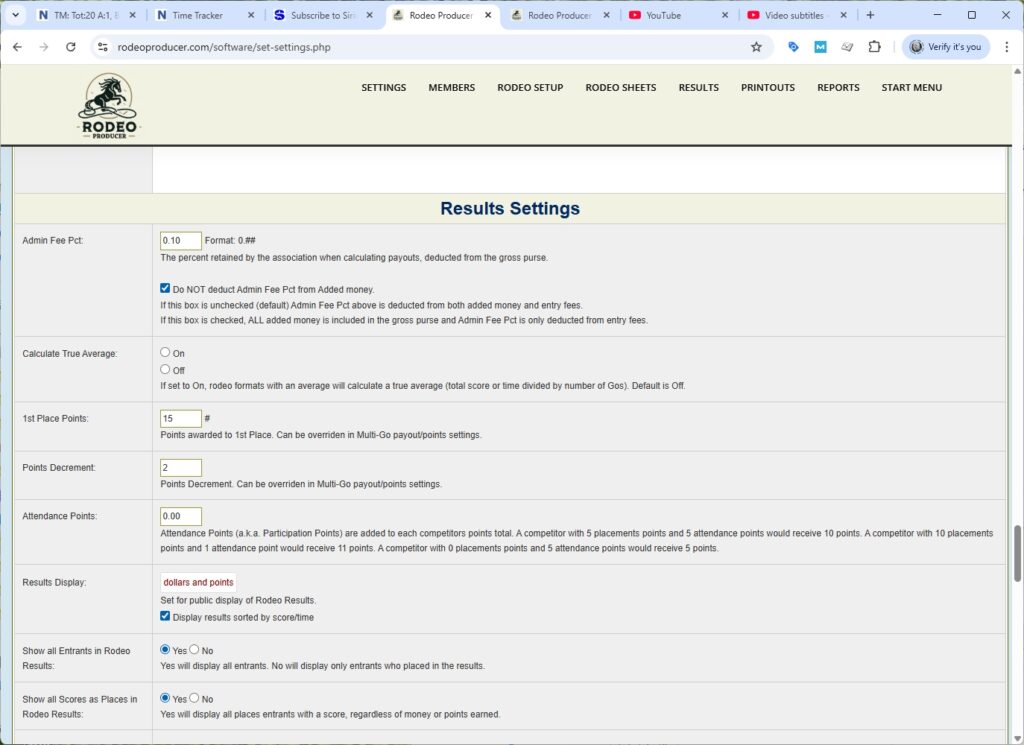
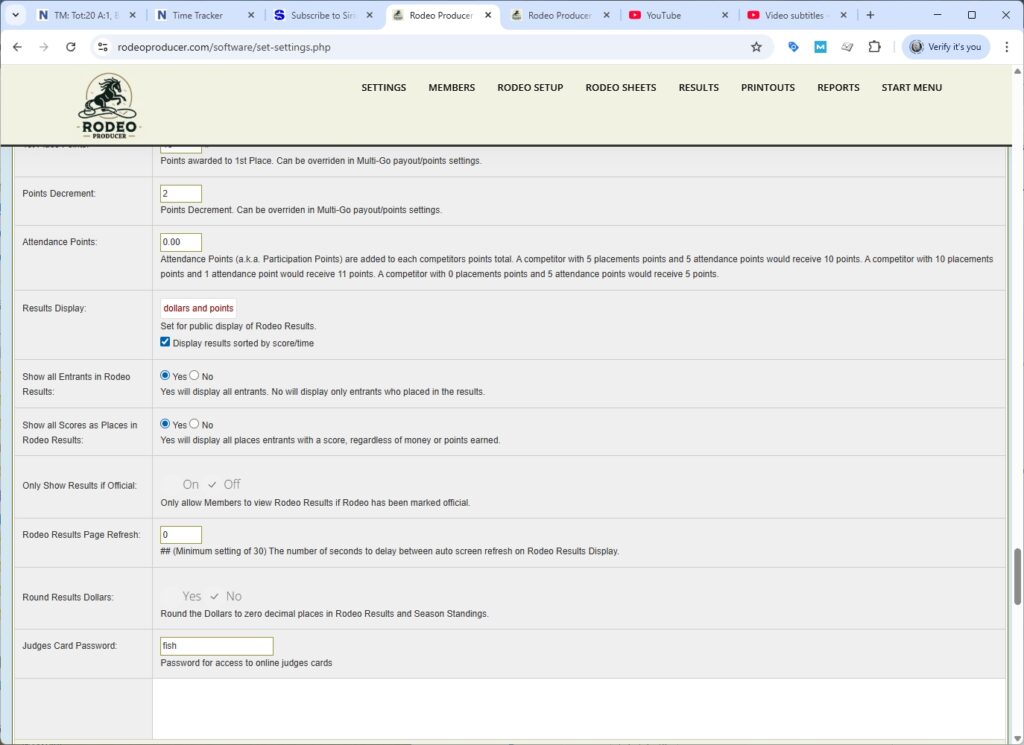
Result settings. The admin fee percentage. This is the percent that the association retains from the entry fees. Do Not Deduct Admin from Added Money. If we have this box checked off, then it is going to subtract in this case 10% from entry fees as well as any added money. If we turn this on, then it's only going to subtract that 10% from the entry fees. Calculate true average. This is mostly an international barrel racing setting. So if this is turned on then it is going to calculate the true average such as in a 2 Go rodeo plus average it will add Go 1 time plus Go 2 time and divide by two. In North America most of these are set to off where the average is Go 1 plus Go 2, not a true average. First place points. This is what's awarded to first place finisher in an event. It can be set as whatever you need it to be. This is the default points amount. You can override these in multi-go rodeo formats. Points Decrement. Points and Points Decrement work together. If set as 15 and 2, first place would receive 15 and then second place would receive 13 and then third place would receive 11. These can be set to whatever matches your rule book. If set to 8 and 1, points would be awarded 8, 7, 6 and so on. Attendance points are additional points sometimes called participation points added to the competitor's points. If you have participation point of five and the member receives one point through their placement they would receive 1 + 5 is 6 points. If they receive eight points for first place plus their attendance points are 5, they would receive 13. This is common in junior and youth rodeos. Results displays. This sets what will be displayed on your results report. Dollars only, points only, or both dollars and points. Show all entrance in the rodeo results. If this is set to yes, then all of the participants in that rodeo will be shown regardless of whether they placed or not. If we set this to no, only those receiving dollars or points will be shown. Show all scores as places. What this does is it's going to show all those competitors who recorded a score or time. In a rough stock event for example, if the member received a zero score they will not be shown on the rodeo results page.
Only show results if official. If this is on and results have been entered by the admin but the rodeo is not yet set to official then all the members will see is scores and times. If this is off they will be able to see the dollar calculations and points calculations as well. Rodeo results page refresh. We set this to 30. Then the rodeo results page automatically refreshes and displays any updates to rodeo results. This is something that members or spectators can use during a rodeo, but this is set by the admin. Uh so it will refresh their screen. Round results dollars. This would round a payout from $25.50 to $25, which is the way some organizations requested. They don't want to show the the cents. Judges card passwords. If you're using online judges cards, share this password with your judges and they will be able to log in and enter scores directly into the system. Note that it is NOT a separate password for each judge. They will all use the same password and multiple judges can be logged in at once.
Standing Settings
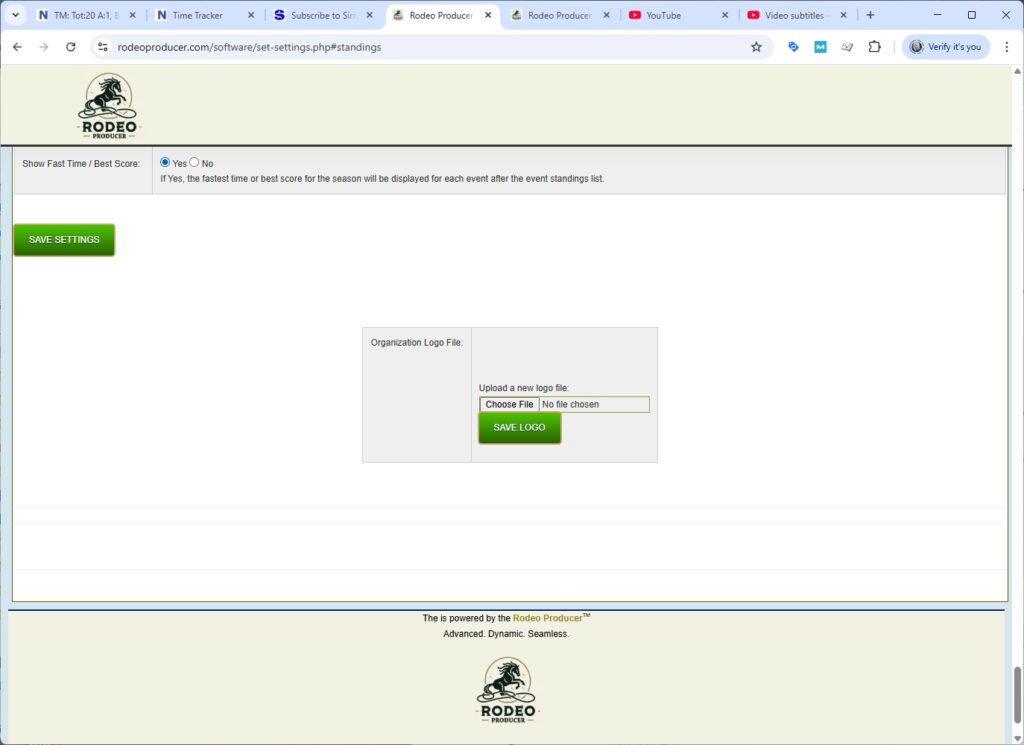
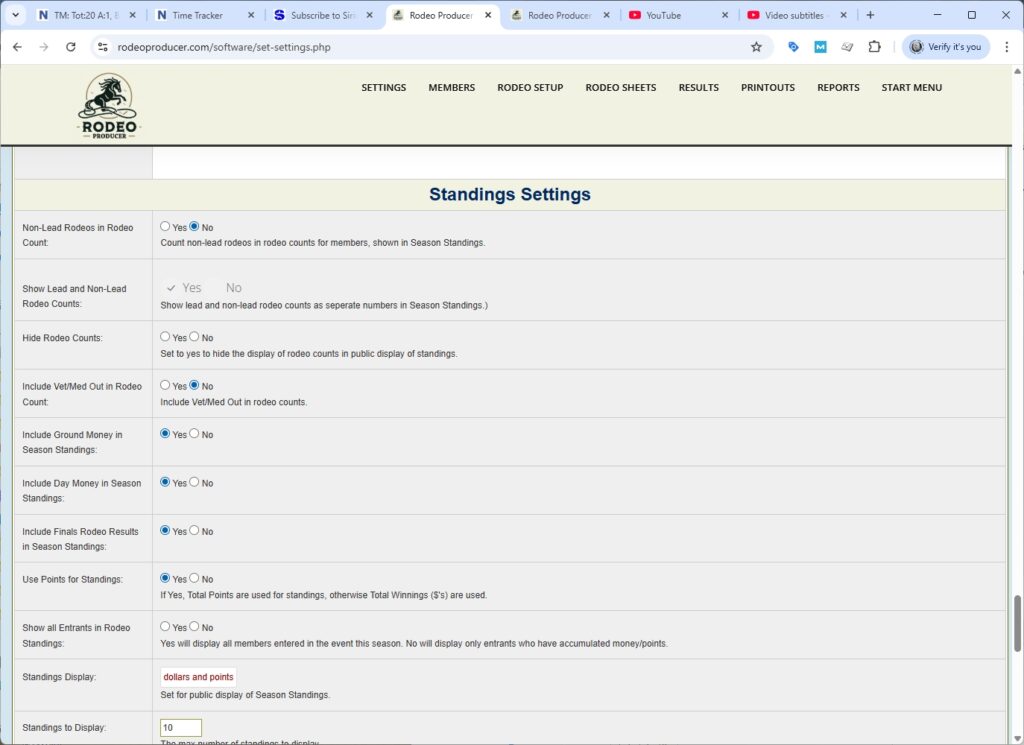
Standing settings. Non-lead rodeos in rodeo counts. If your organization co-sanctions other rodeos and we include yes on this then those rodeos which are produced by other associations, your partner associations, will be counted and shown in the season standings for rodeo counts. Show lead and non-lead rodeo counts. This will separate the rodeo counts between the lead rodeos, those that you produce, and a separate count for the partner associations. You can hide the rodeo counts if you need to. Include vet met out in rodeo counts, yes or no. Include ground money in season standings, yes or no. Include day money in season standings, yes or no. Include the final rodeos in your season standings. Most organizations will have this set to no. Some organizations will include the finals rodeo in the season standings. This will only apply to the rodeo if it is set in Rodeo Setup > Set Rodeos as a finals rodeo. Use points for standings. If this is set to yes then points will be used instead of dollars. If it is set to no then the dollars will be used. Show all entrance in rodeo standings. If yes then everybody who has entered that event in the season will be shown in the standings. If no then it will only display those who have accumulated money or points this season. Standings Display. You can choose to display both dollars and points in your standings, or dollars only, or points only. If you're using points for standings, then you would definitely want to use dollars and points or points only. You would not use dollars only. Standings to display. Here you can limit the number of standings to just the top 10, the top five, the top 20, uh whichever you wish.
On the admin side, when they're viewing the standings report, the Admin can also view the standings email list, which is a list of all of the top finishers in that event, which includes their member number, member name, and email address. We can set this to include only the top 10, only the top five, or what you wish. If we set this to zero, then it's not going to display that portion of the report at all. You can also set a minimum qualifying rodeo count for this report. Maybe you have 10 rodeos in your season and you only want to see that email list display when you have eight rodeos completed. Top rodeos for standings. If you set this, let's say you have 10 rodeos, and you set this to 7, then the standings per event are going to be based on the top 7 rodeos for that event for that member. For each member, it will only count the points or dollars awarded for the top 7 rodeos, their best 7. It will drop the other 3 per event. Show only qualified in standings. If we turn this to yes, and you require that your members compete in 50% of your rodeos to qualify for standings, then RP is only going to display those members who are qualified. You would only set this later in the season just to make it clear who is qualifying for standings. Perhaps you would set this after your last season rodeo so that everybody can see who qualifies. Show the fast time or the best time score in the season standings after each event. If set to yes, it will show the member who has recorded the fastest time or the best score from the entire season for that event. If we set this to no, then it simply will not display that.
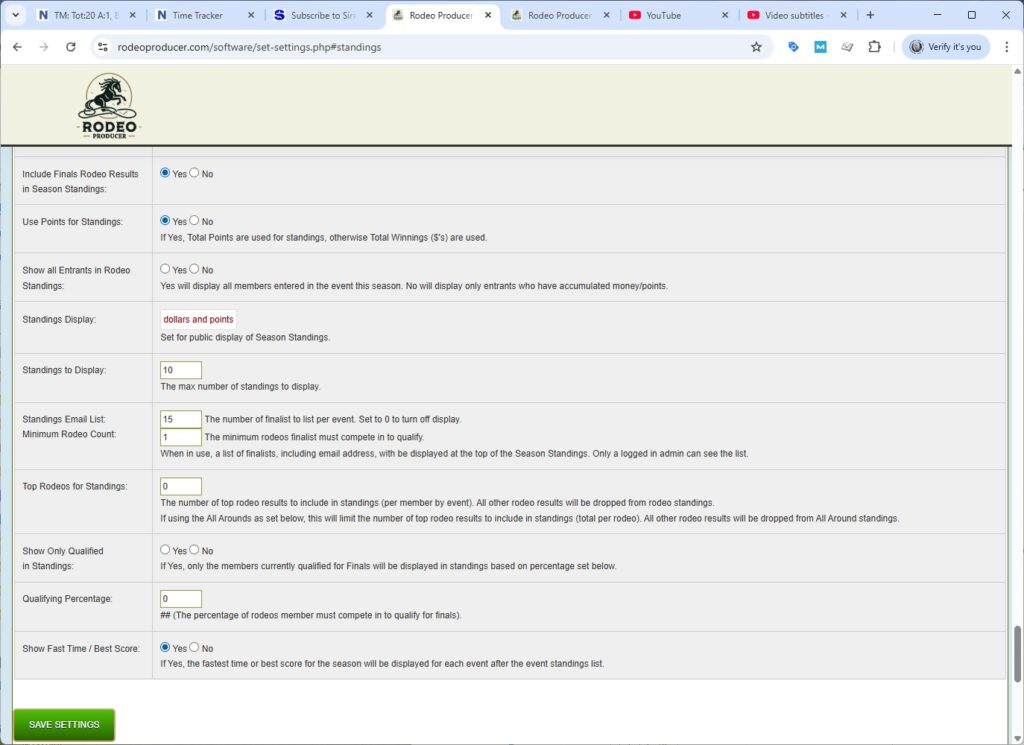
So once you have made all of your changes, then you would want to hit save settings. Now, we want to stress here that these settings are the systemwide defaults. We also want to strongly recommend that prior to your season starting, test out these settings by having a test rodeo or several test rodeos. So, you can see how your settings work along with other settings such as payouts and placings and any of your all-around settings. Make sure that those are calculating properly and we will help you with that test rodeo. We have a video and a support article on running a test rodeo as well.
Organization Logo File
One last feature here you can upload your organization logo file. Make sure if you have made changes above you save settings first. This save is for all of those settings above. This is for just the logo. To upload your logo file simply choose it from your device. uh hit save logo and it will upload it to Rodeo Producer and use that as your organization logo such as displaying it.