
In this chapter, we are going to show you quickly how to set up and run a 2 Go Plus Average rodeo. We will be showing you the rodeo settings. We will be checking to ensure payouts and placings settings are in place. And we will put in some test entries, run a draw, and we will also enter some results to view the process of entering the results and and using the average calculations. Let's get started. We go to Rodeo Setup > Set Rodeos.
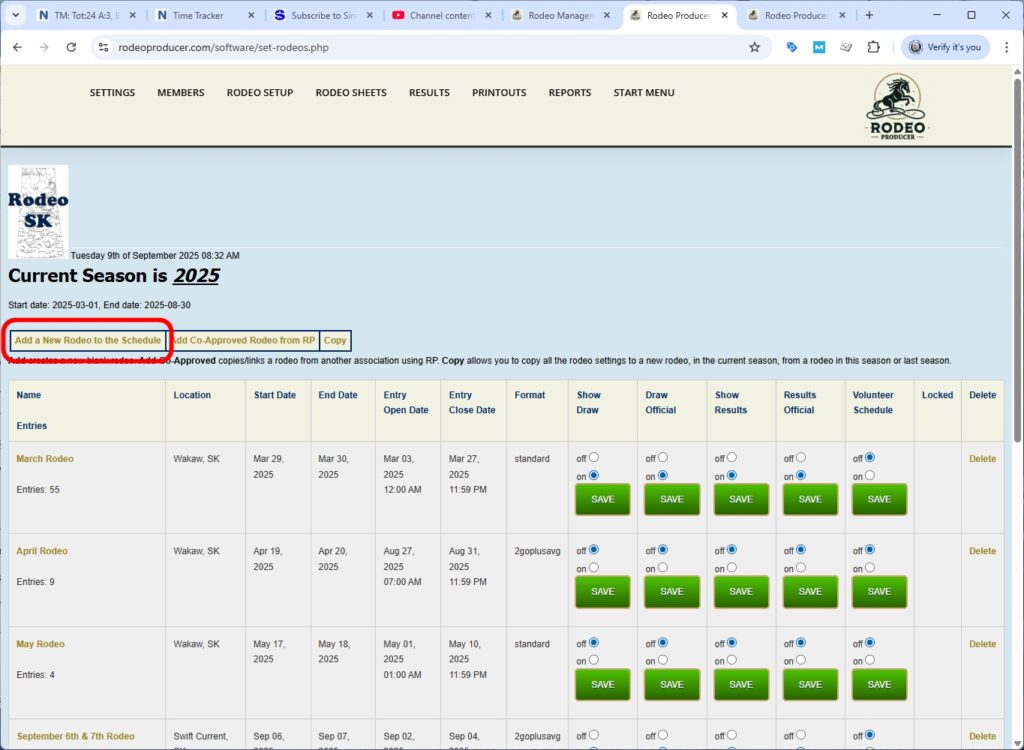
We will add a new rodeo.
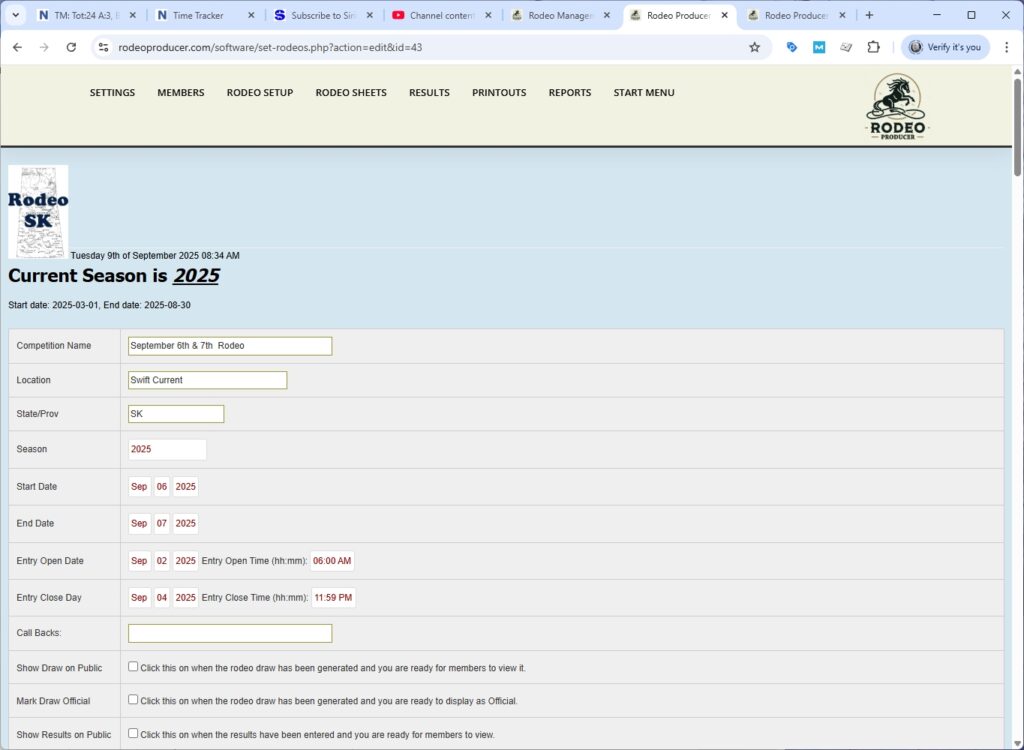
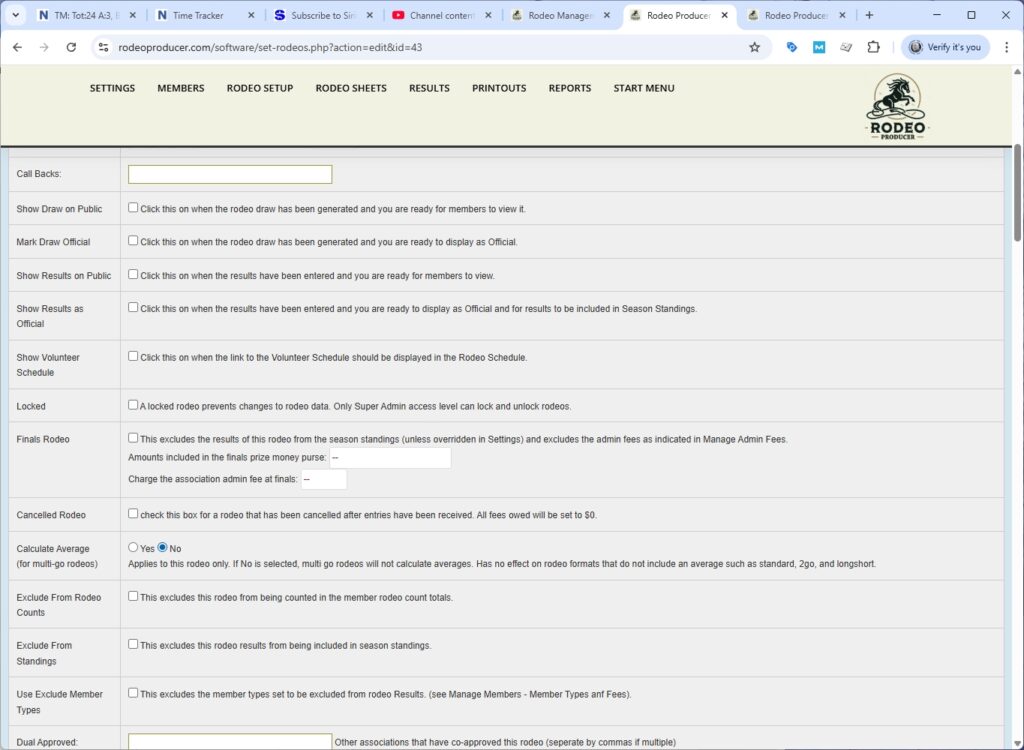
We will call this the September 6th and 7th rodeo. So again, this is a 2 Go Plus Average rodeo. So we'll have Go 1 on the 6th, Go 2 on the 7th. We'll give it a location. It's in the 2025 season. We'll now set our dates. So we've entered our dates for start date on the 6th, end on the 7th. We are going to leave online entries open for a couple of days, beginning at 6 a.m. and closing on midnight on the 4th. We will not be setting any of these to show on the public side yet as we are just setting up the rodeo. For calculate average. We'll turn this off. We'll be showing that feature off a little later in the chapter.
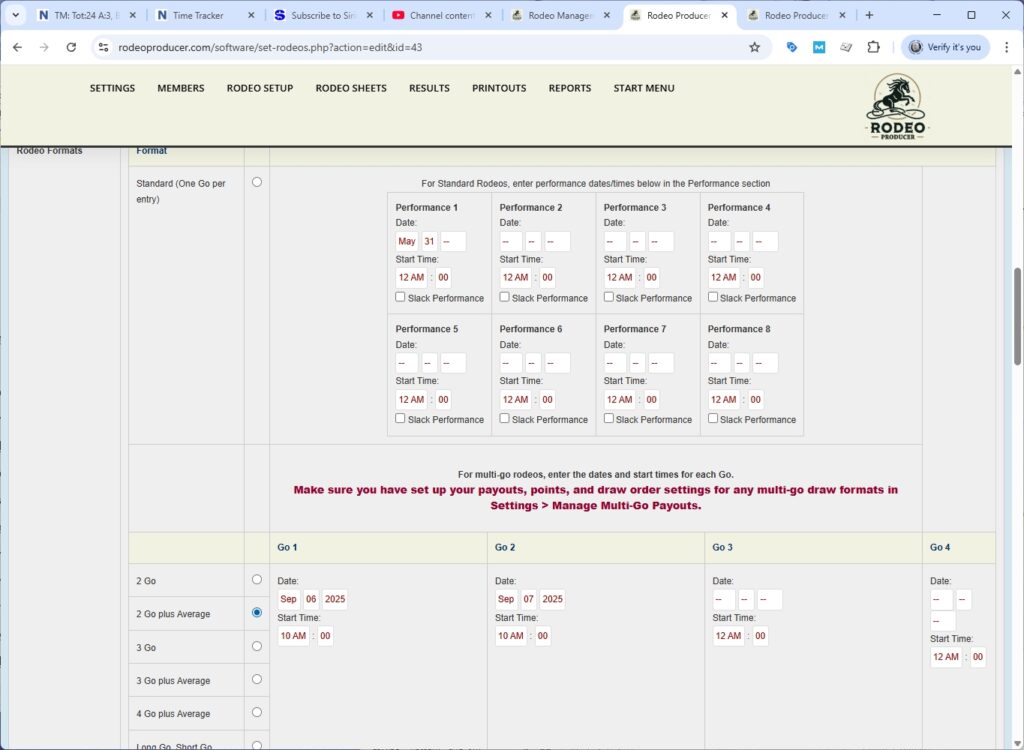
Now we're into the rodeo formats. This is not a standard. This is a 2 Go Plus Average. We'll set the dates of the goes to match the dates we set up above in the schedule and the start times to 10:00 a.m. both days. Note that we selected 2 Go Plus Average and not the 2 Go. This ensures that the average is calculated when we tell it to calculate.
Because this is a test rodeo, we are only going to include a few events just to simplify this. The way we are setting this up is very similar to the way we would set up a test rodeo prior to the season. (That is another video/chapter in the user guide.) So we will pick a timed event, a team event and a rough stock scored event.
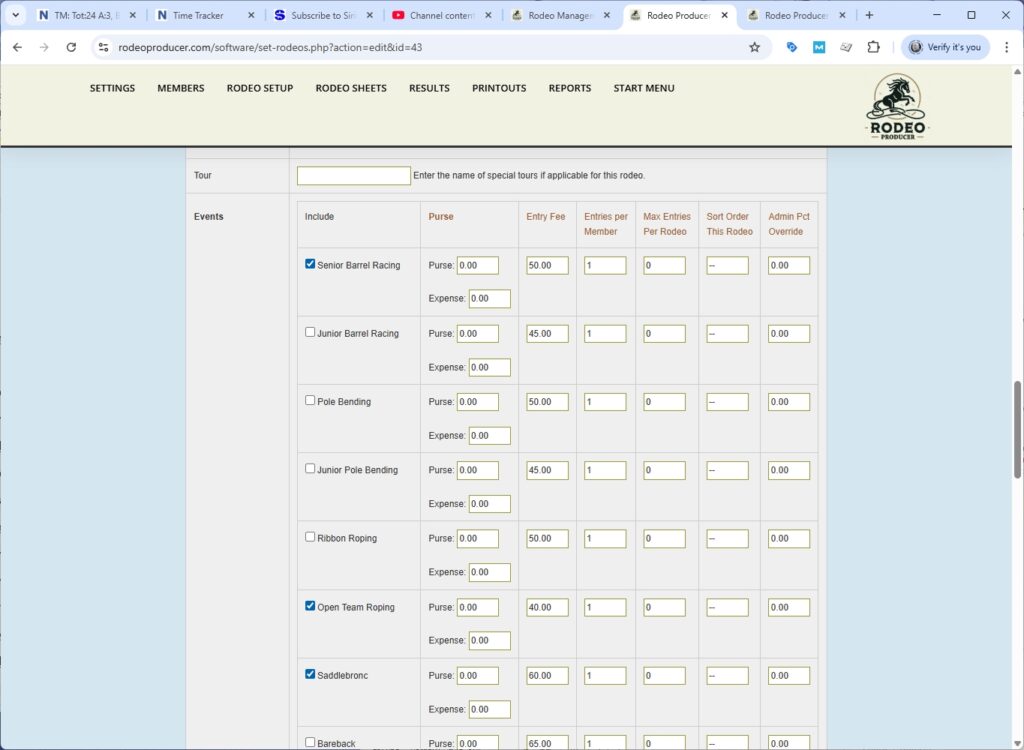
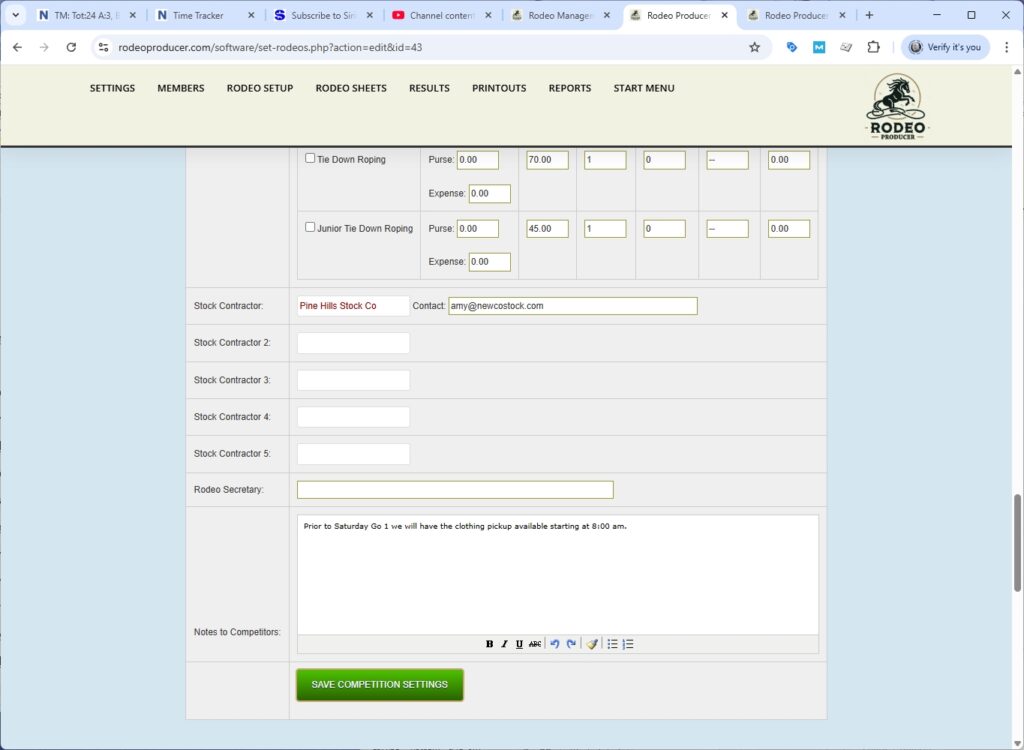
We will choose just one stock contractor for this and add the contractor contact name. We'll put a note to competitors in here. And then we will save the competition settings.
Now we have our September 6th and 7th rodeo in the table all set up to go. What we want to check next is that we have payouts and placings settings in place for a 2 Go Plus Average rodeo. We will go Settings > Set Payouts and Placings. We want to scroll down to the multi-go payouts and placings (or click the jump button). These are the settings for the 2 Go. We have three tiers of payouts and points. Depending on the size of your organization and the number of entrance you typically have, you may need additional tiers here. You can add more payout/placing tiers following the instructions in that Chapter. For the purposes of our demo here, these will be sufficient. We now have our rodeo settings in place. We have our payouts and placings in place.

What we are going to do is for the three events that we have, we are going to add some entrants so that we have some data to work with. We'll do that offline from the chapter [...]. In Rodeo Setup > Set Entries we see a number of entrants to Senior Barrel Racing, Open Team Roping and Saddlebronc so that we can run draws and look at results. If you needed to manage any entries, then you are in the proper page right now.
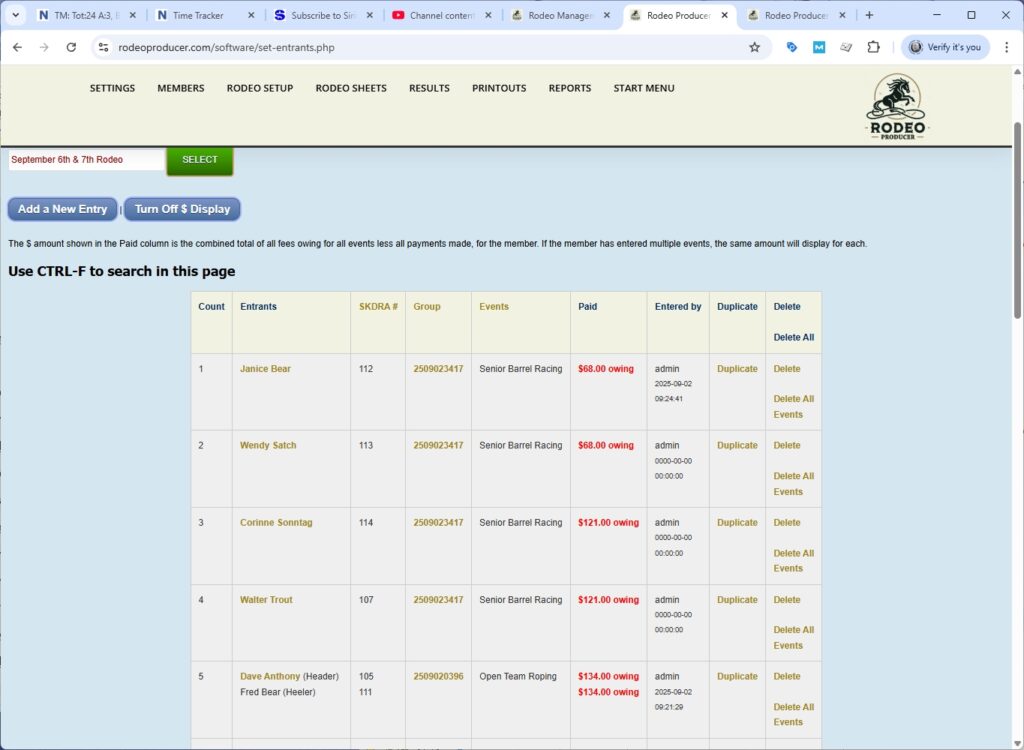
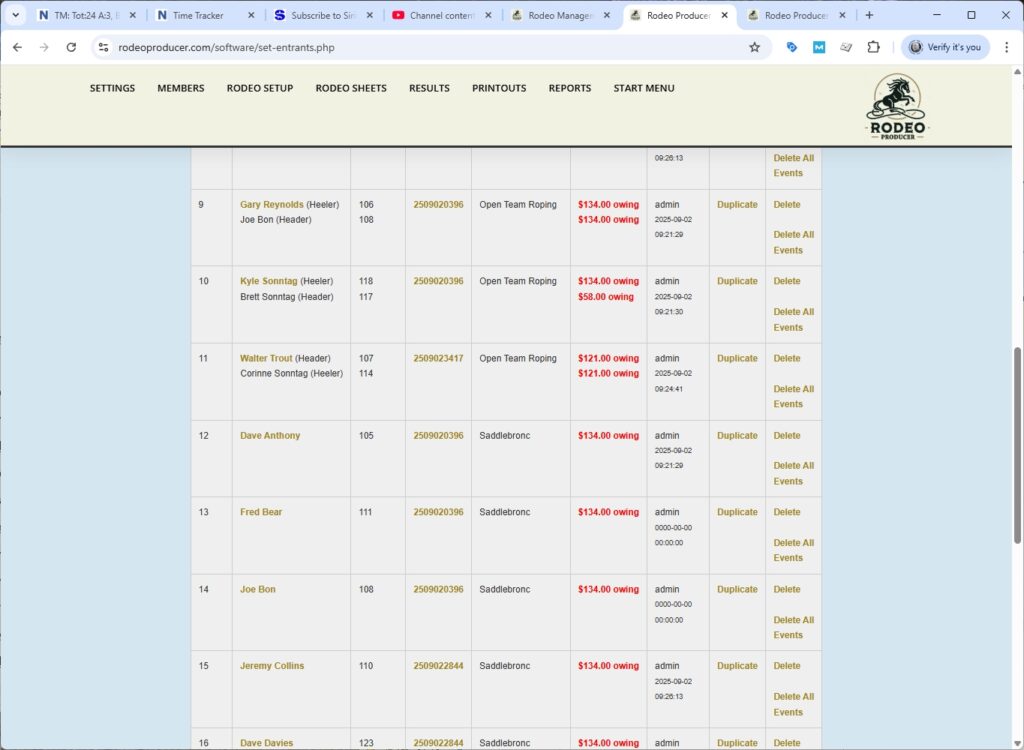
Now that we've seen the entries, we'll have a quick look at one of the reports, Rodeo Setup > Rodeo Pre-Draw Count.
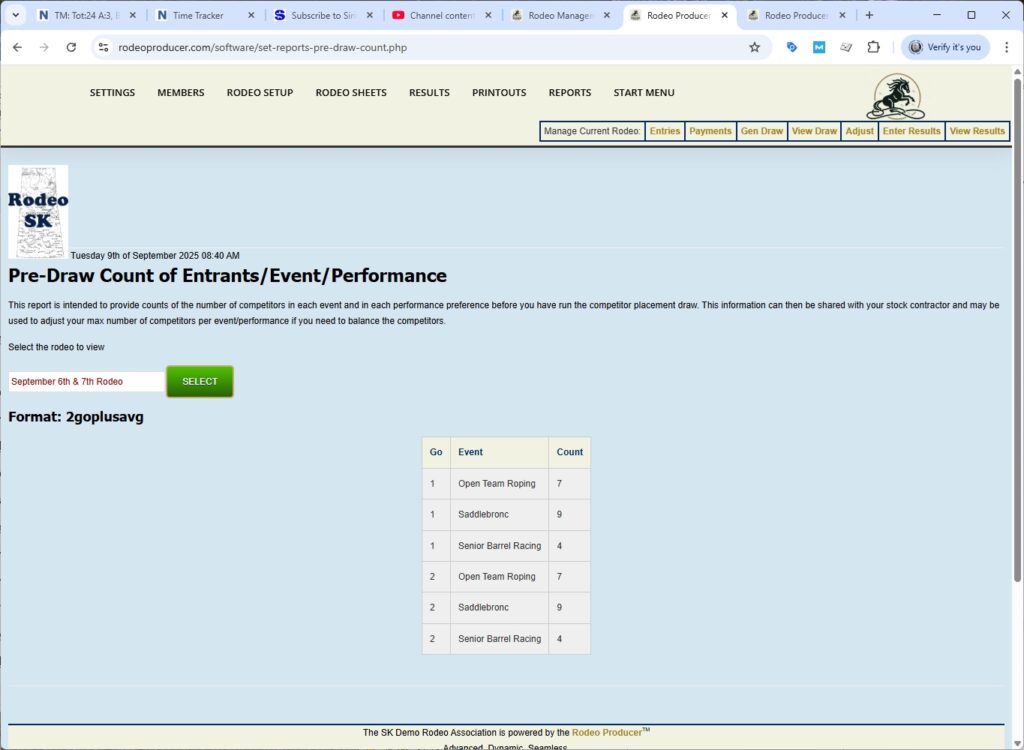
We have our September 6th and 7th rodeo. So, if we look at the Gos, we look under Saddlebronc, we have nine for Go 1 and for Go 2 we have nine entrants as well. So, we know that we will need stock to handle those entries. We're now going to set up the stock. And we go to Rodeo Setup > Set Stock for Draw.
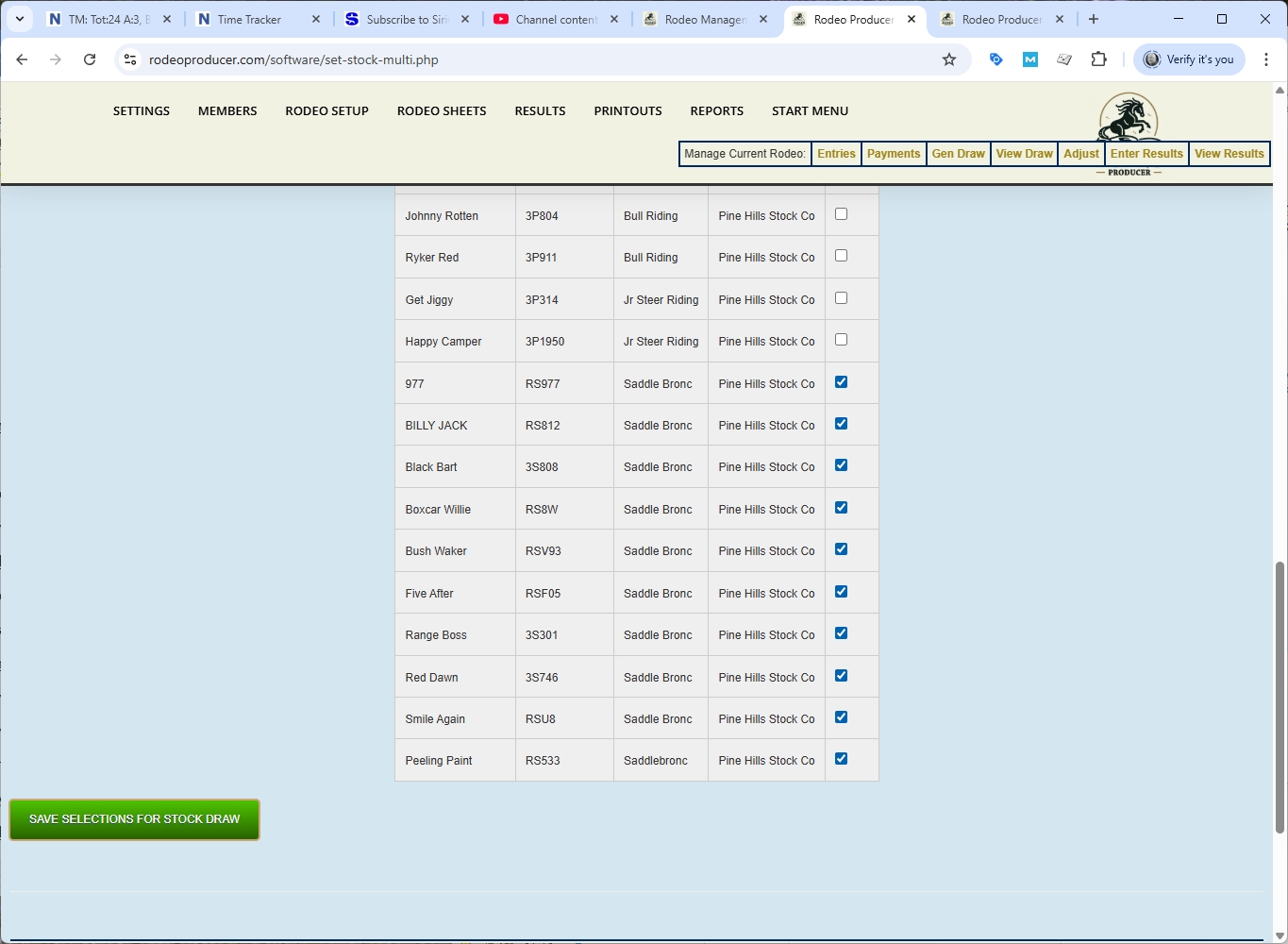
When we load up this page, we see that we have Pinehills Stock Company s the contractor, which is what we set up in the Rodeo Setup. We're just going to select all of the Saddlebronc stock. We don't need the other stock from this contractor because we skipped those events. We'll just check mark all of these and make them available for the rodeo. While we're here and having a look, we will choose one of them, typically this would be provided by the stock contractor, to specify the re-ride stock. Let's take Box Car Willie and we'll just remember that one. We'll save our selections for the draw.
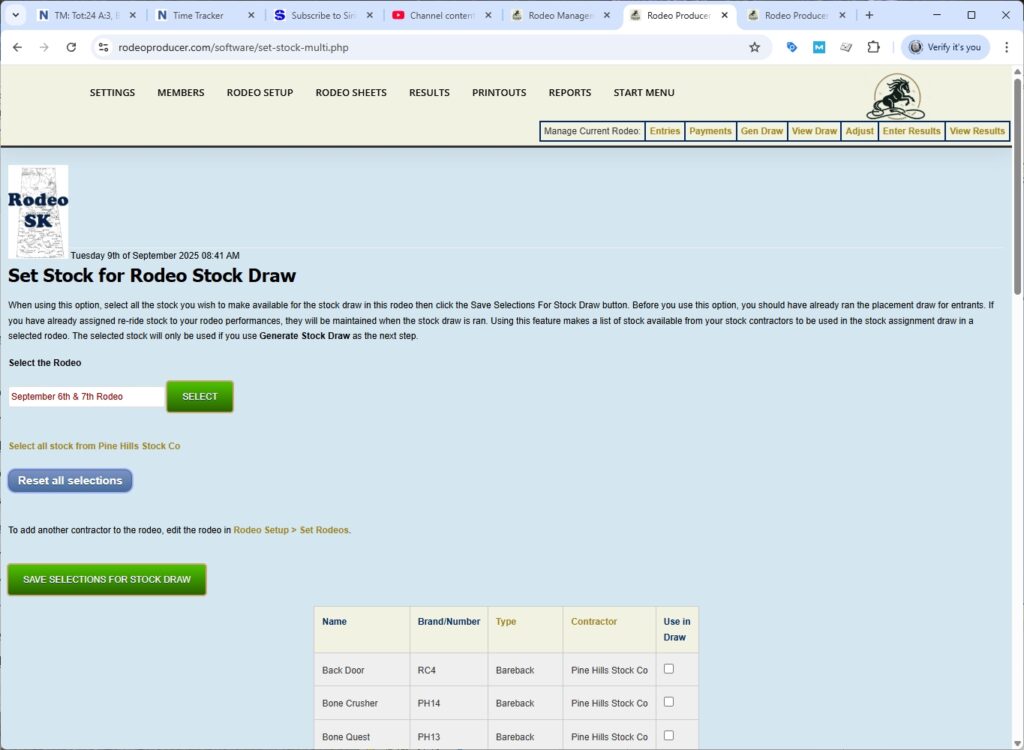
So, we have our stock set. We have our competitors in place. We are ready to Draw. We go to Rodeo Setup > Generate Draw.
We'll choose our rodeo. We will initialize the draw and select the rodeo.
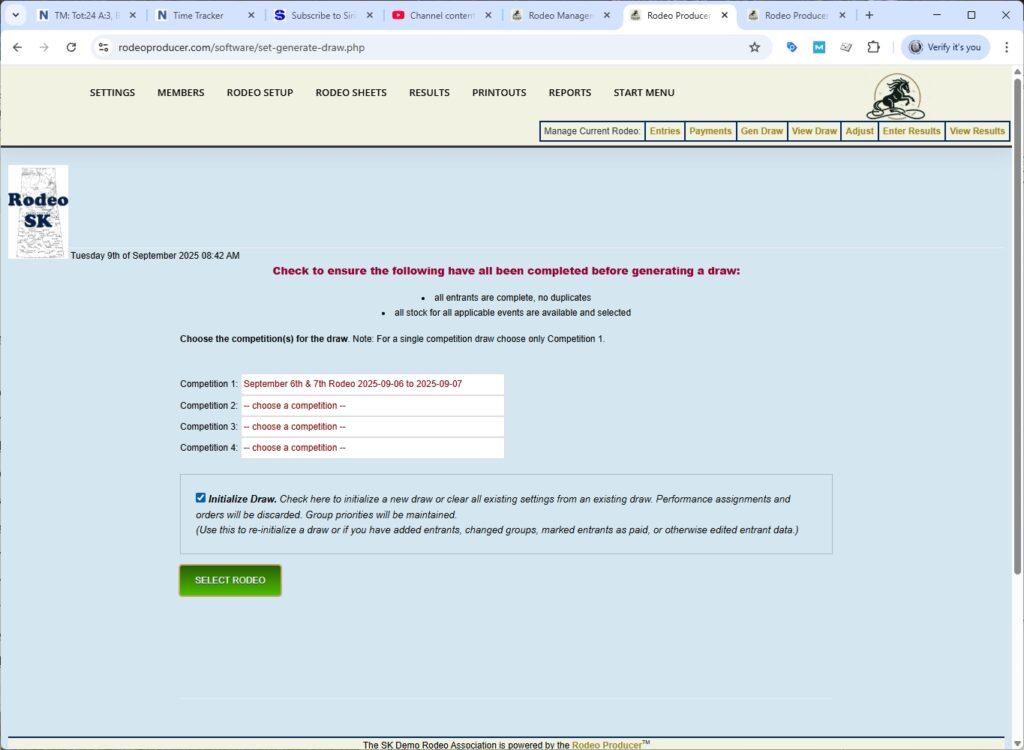
Draw initialization is complete.
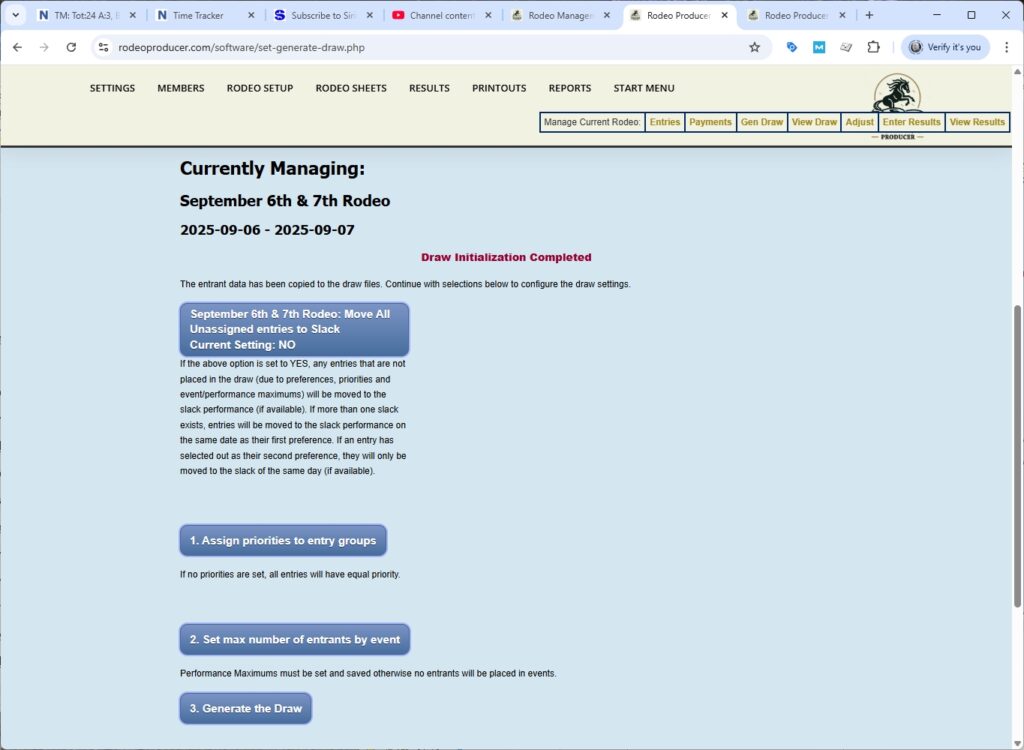
We will not assign any priorities so that essentially all entries will have equal priority. As a multi-go rodeo, the entrants are typically all entered into the draw so no prioritization needed. We will set the Max number to unlimited and save the max settings.
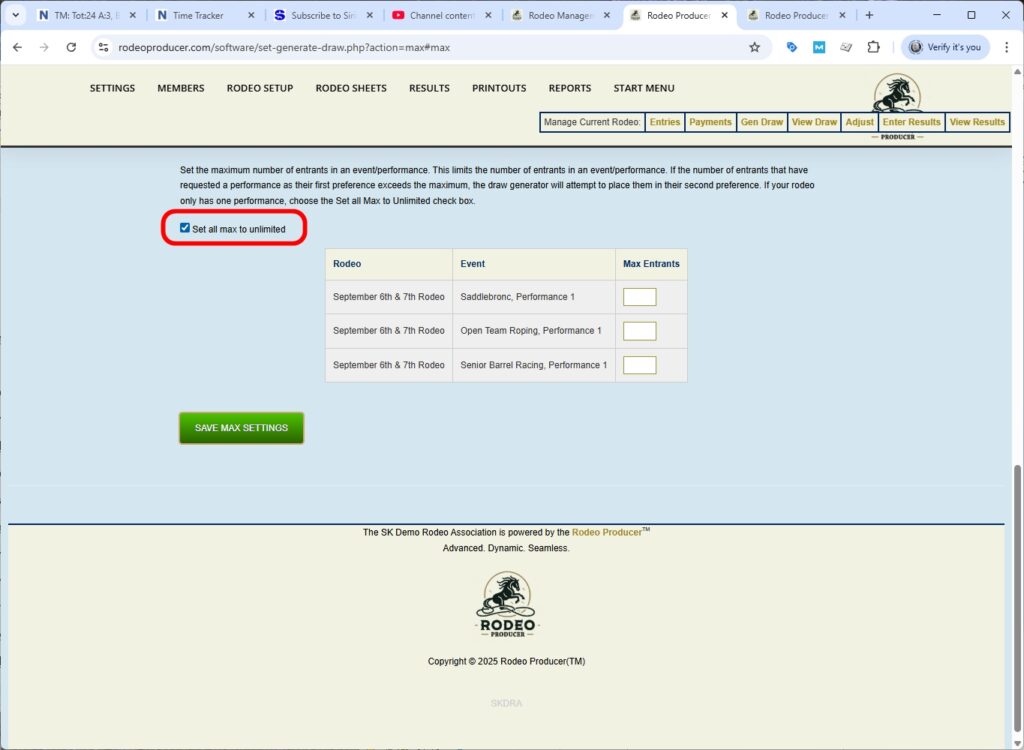
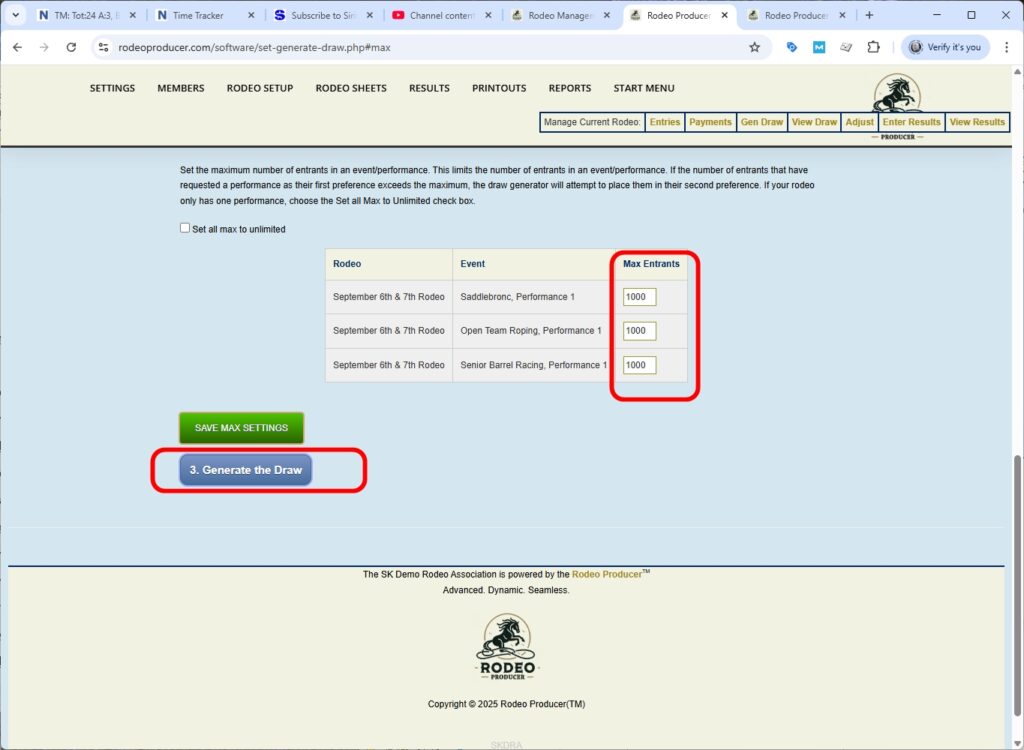
That will show the max's as 1000, which is effectively unlimited. We'll hit the Generate the Draw button.
Now we have our draw placements all in place. Everything is performance one. As it's a 2 Go Plus Average rodeo, it does show us the Go 1 order and the Go 2 order. We'll see a message here that all entrants were placed in the draw.
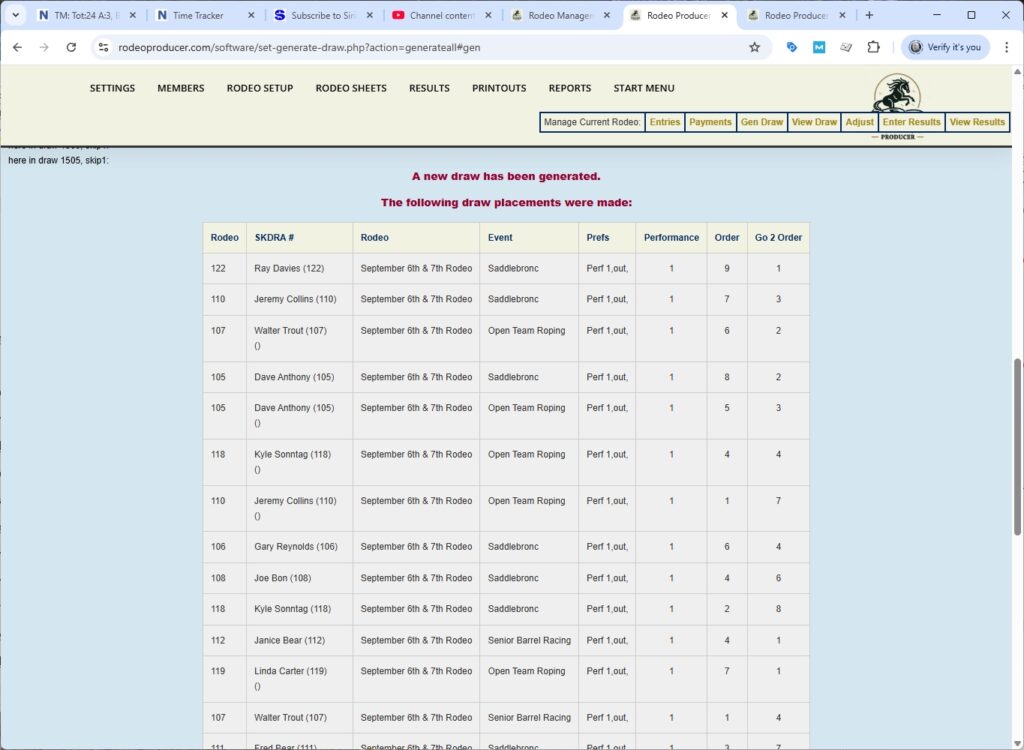
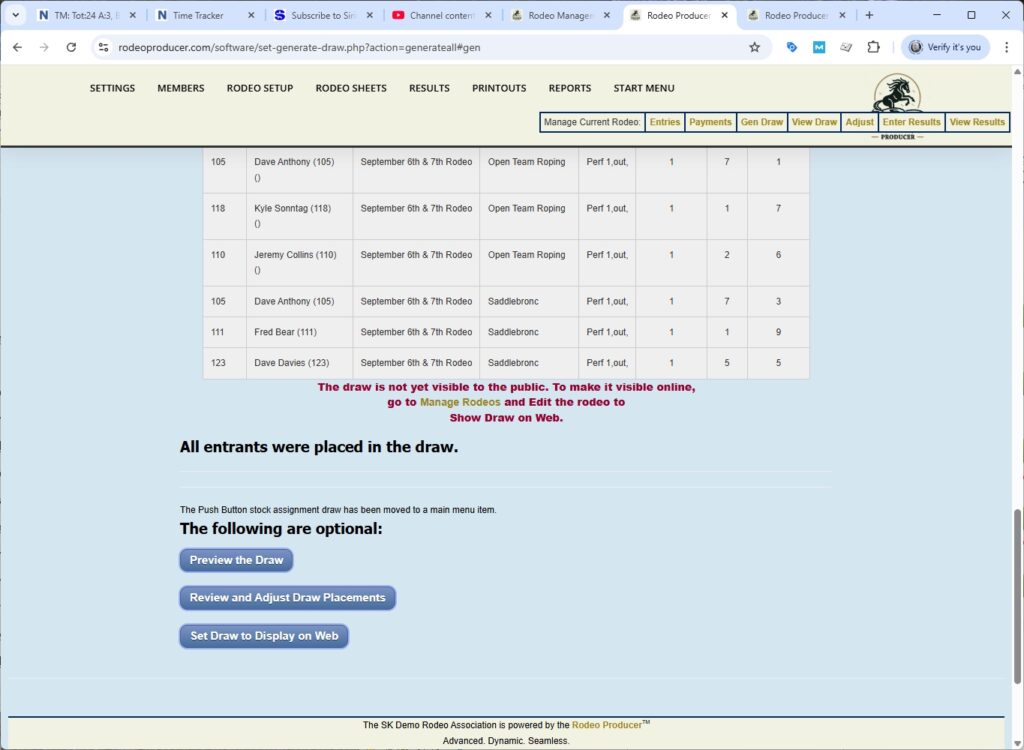
We have now generated the draw.
We will set our re-ride stock for the Saddlebronc event in Rodeo Setup > Set Re-Ride Stock. This was for this was for Saddlebronc. And we are setting this to Box Car Willy. We can set this now for Go 1. We can reserve the same stock for Go 2 as the re-ride stock.
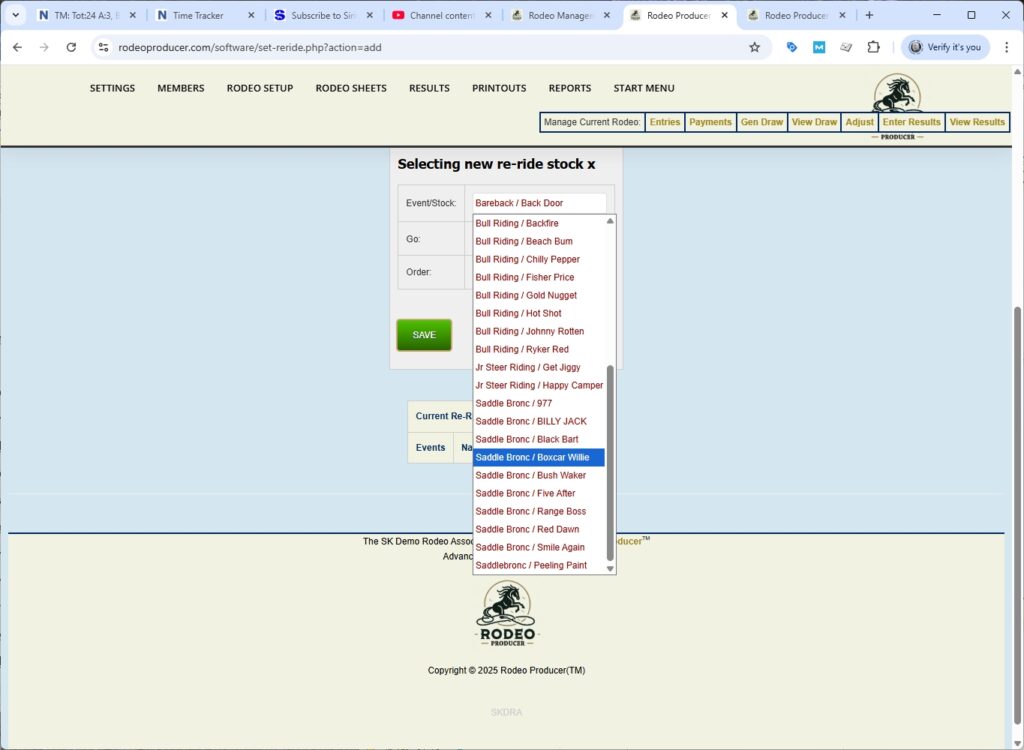
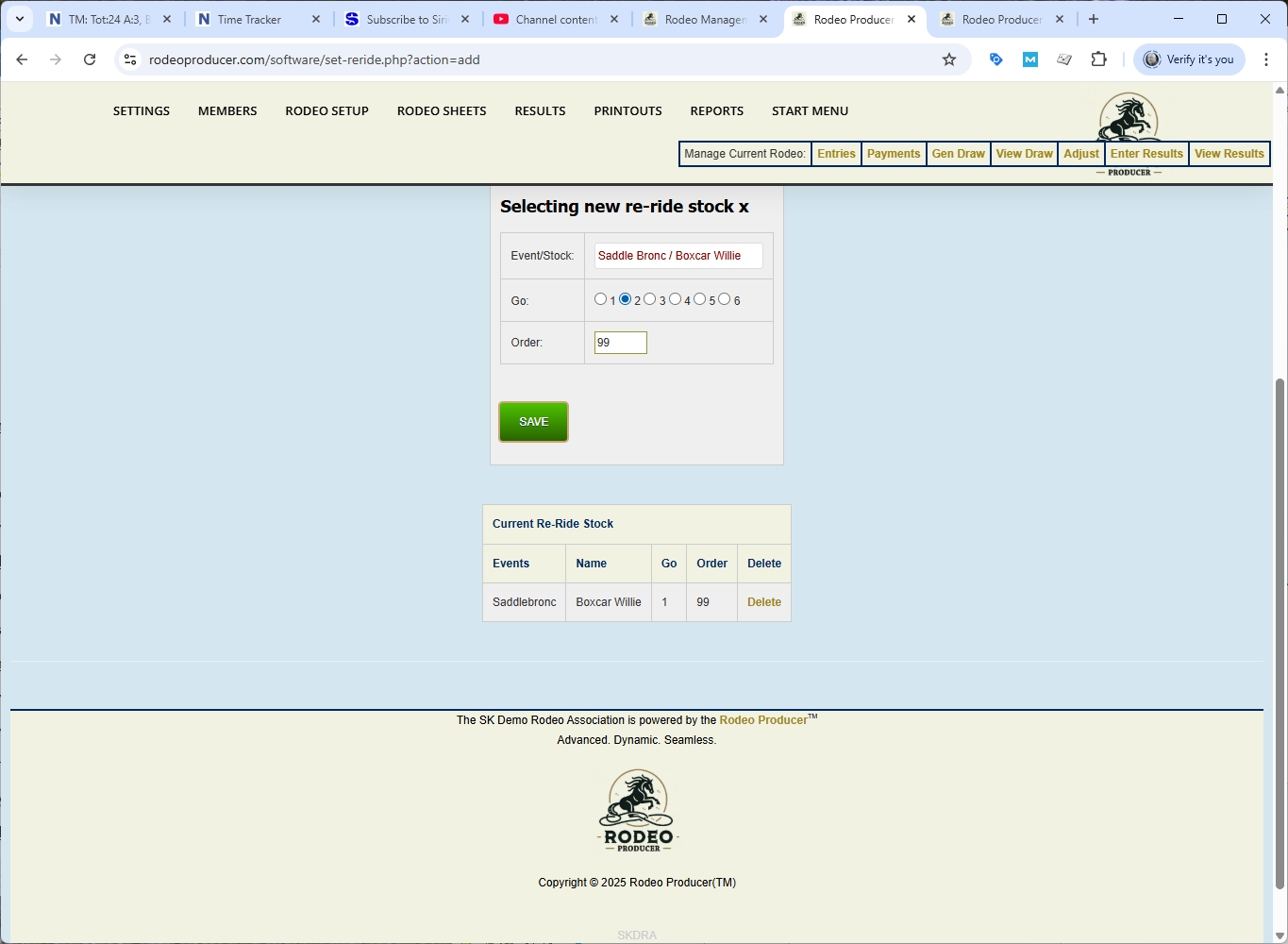
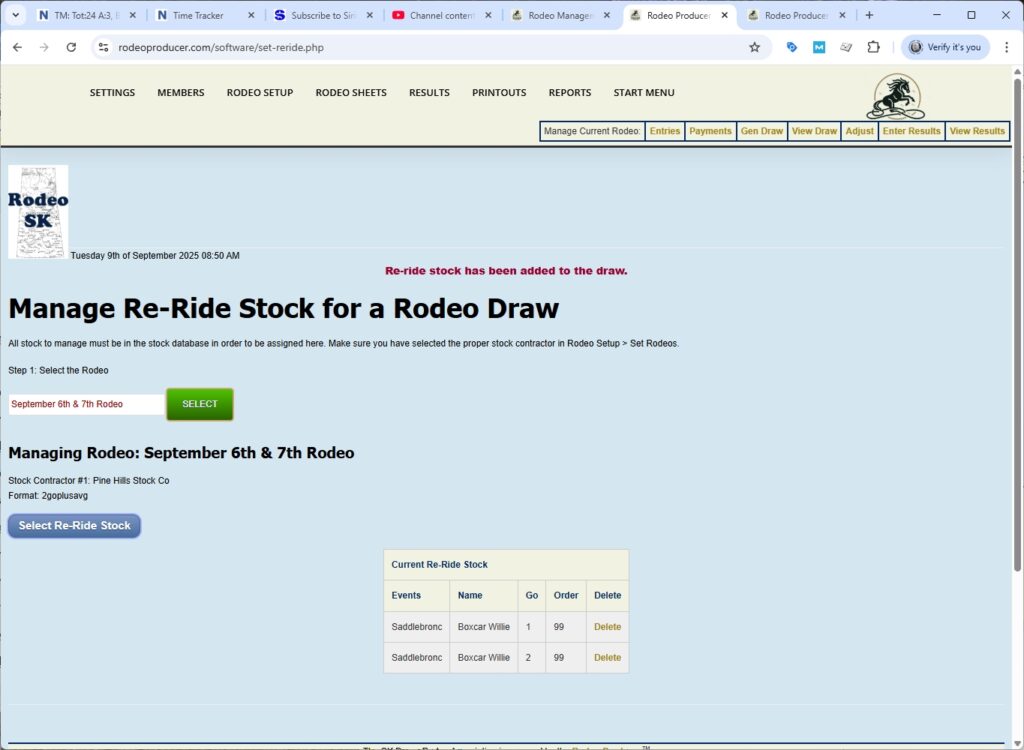
We have re-rides set up. Next we will generate the stock draw in Rodeo Setup > Generate Stock Draw.
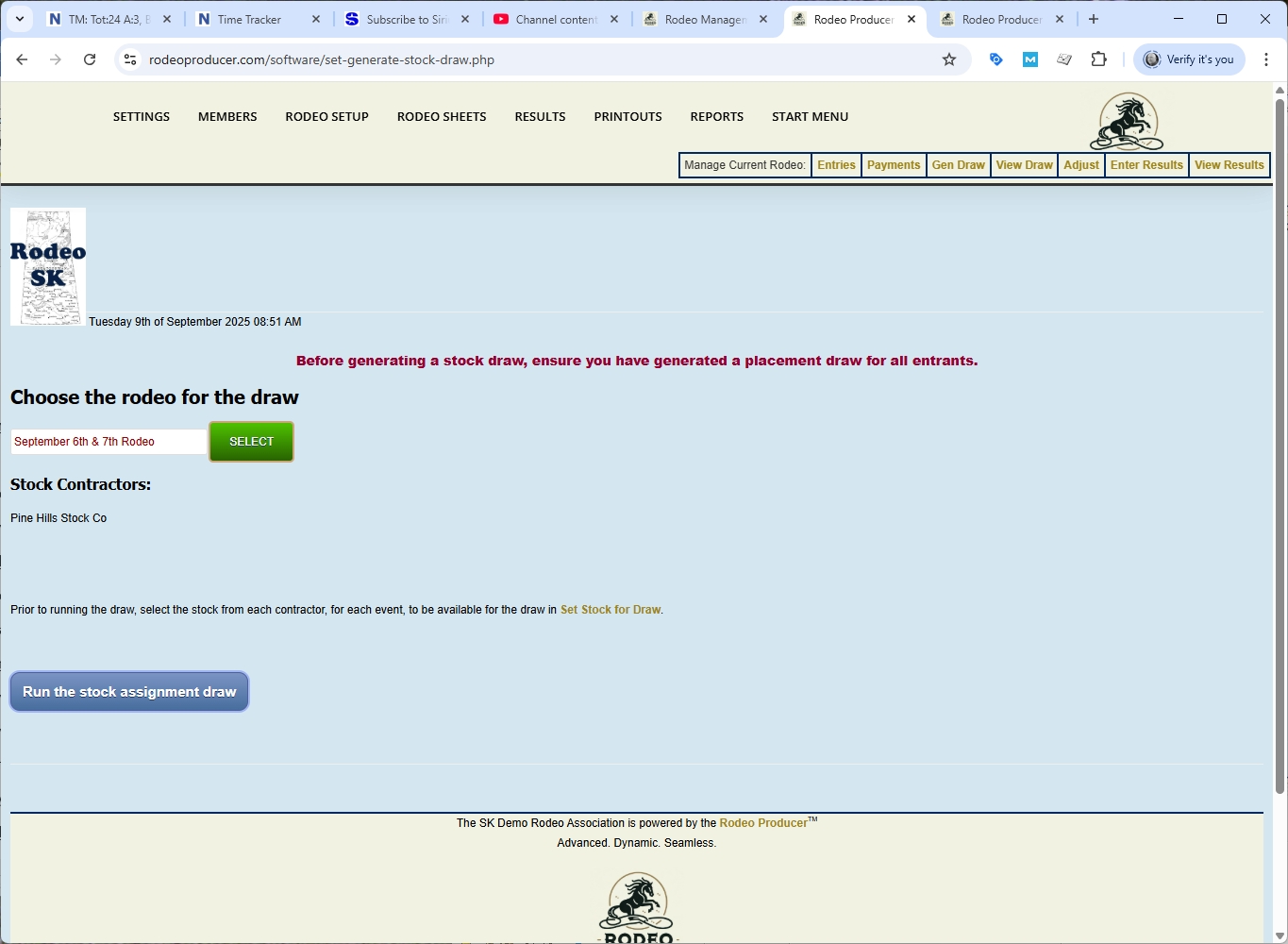
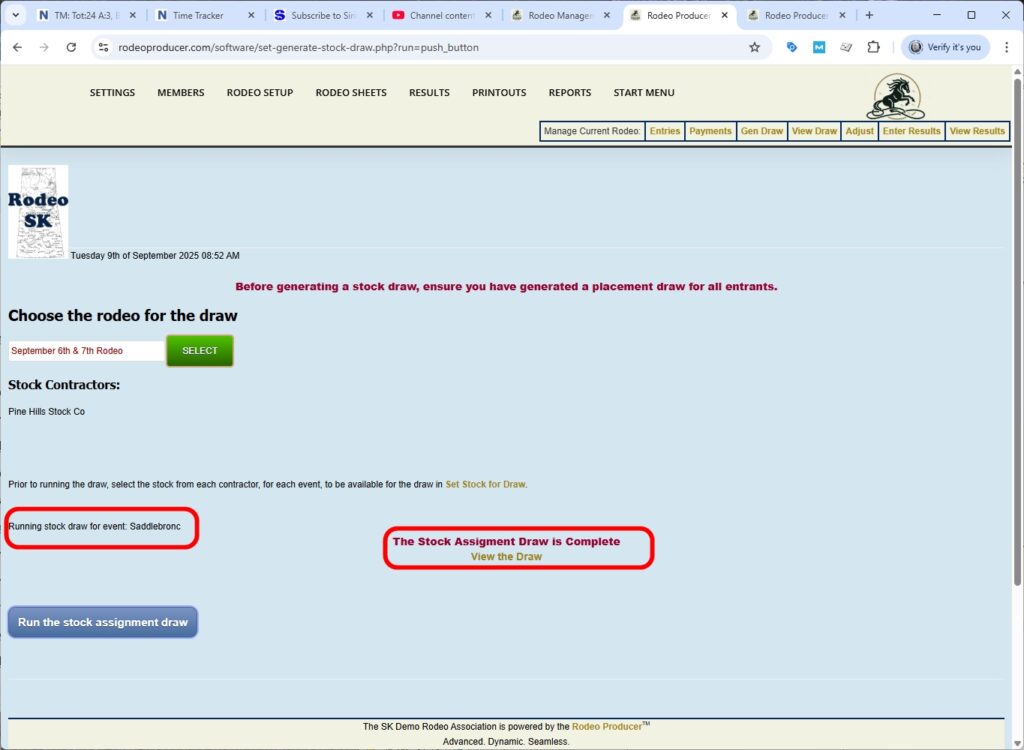
We have selected the rodeo. We know which stock contractor we have in place. We confirm that we have re-ride stock assigned and we click the Run Stock Assignment Draw button. We receive a message that it has ran the draw for Saddlebronc as that was the only rough stock event in the draw.
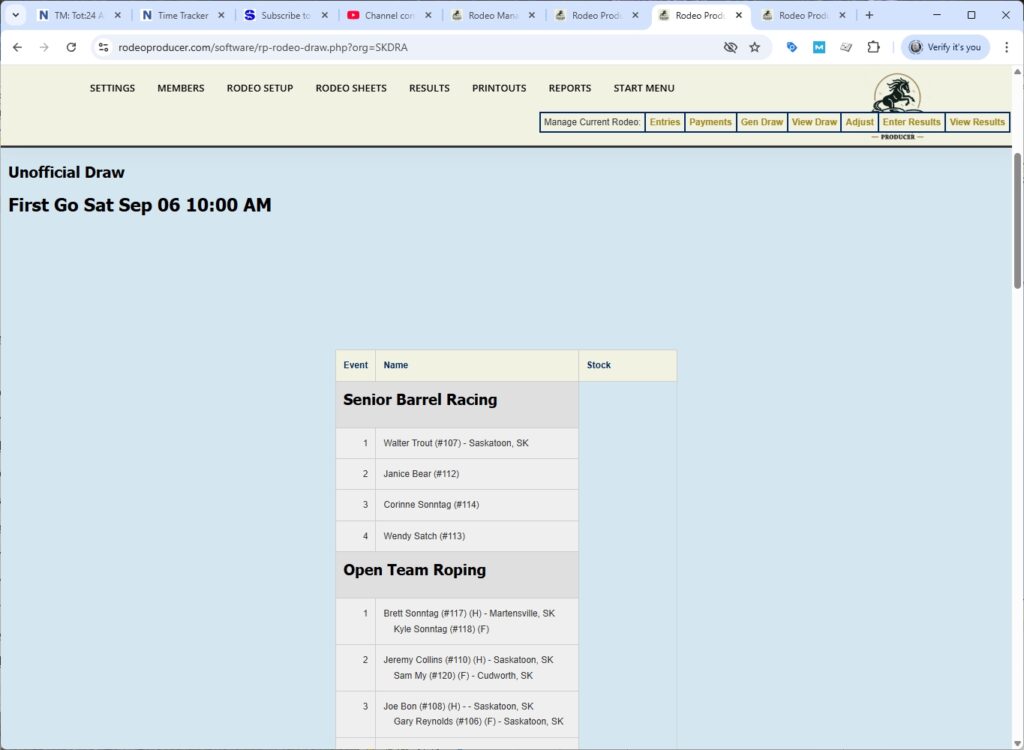
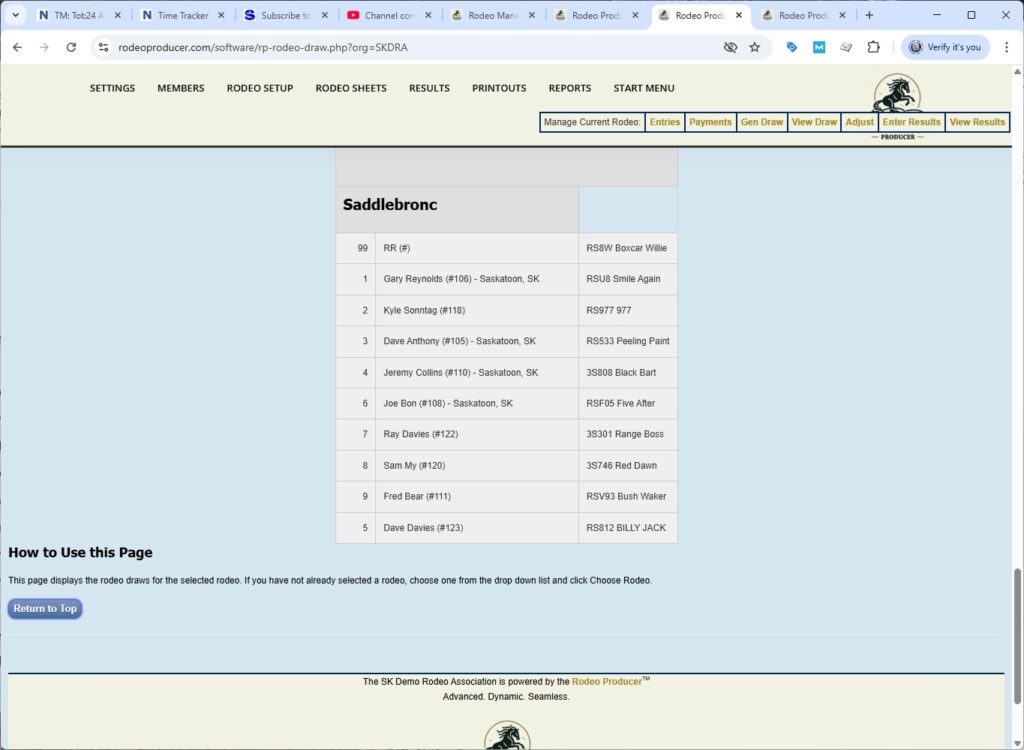
After generating the stock draw, you can go have a look at the draw preview in Rodeo Sheets > Draw Preview. We've got the September 6th and 7th rodeo selected. We see Go 1 (First Go) and we have Senior Barrel Racing, Open Team Roping and then we have Saddlebronc. As we scroll down we will see Go 2 as well.
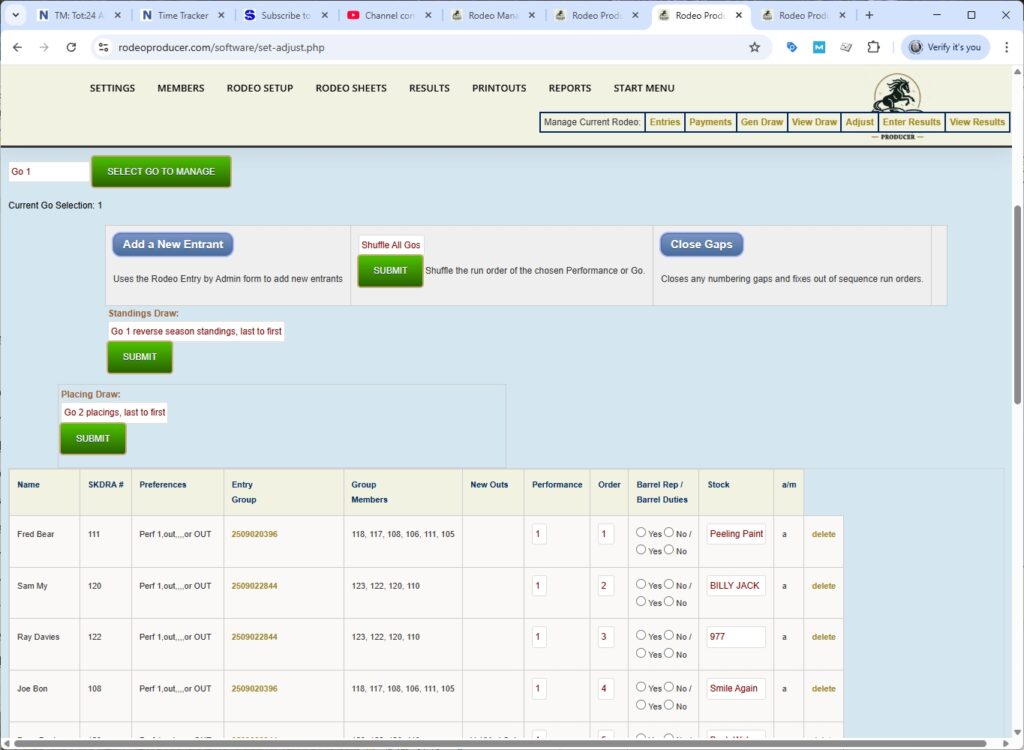
If you need to make changes to the draw, you would go Rodeo Setup > Adjust Draws. Select the event you need to work in. Select the go you need to work in and make your adjustments.
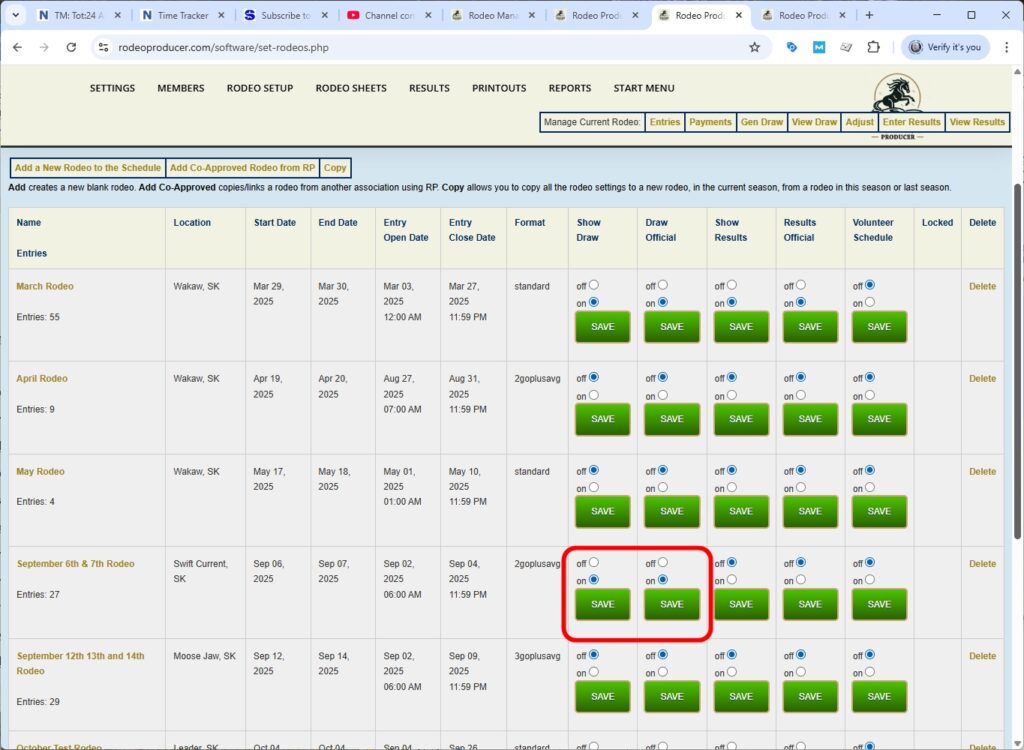
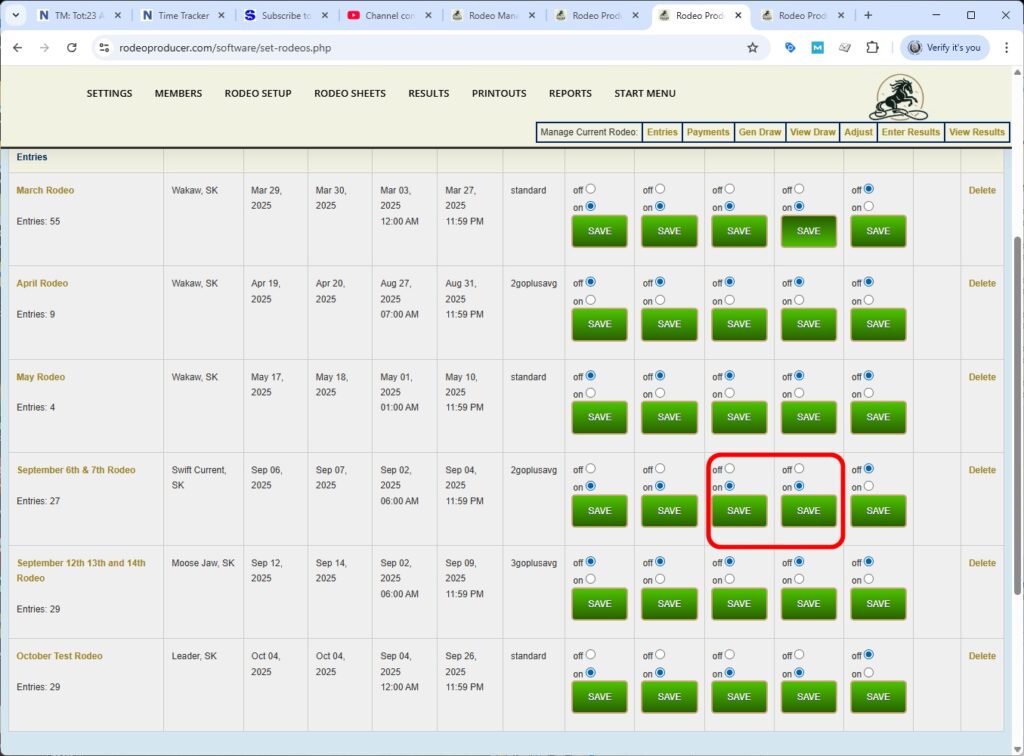
Once you're satisfied with the draw, we can go to Rodeo Setup > Set Rodeos, and we can manage it right here by clicking these individually, turning the show draw to on and the draw official to on. Now the draw is available on the public side for members to see as well. And you can see we have these turned on. Once you have reviewed the draw and you're ready to show the draw on the public side and you've marked it official, this is when you would generate the rodeo sheets, the tools you use during the rodeo.
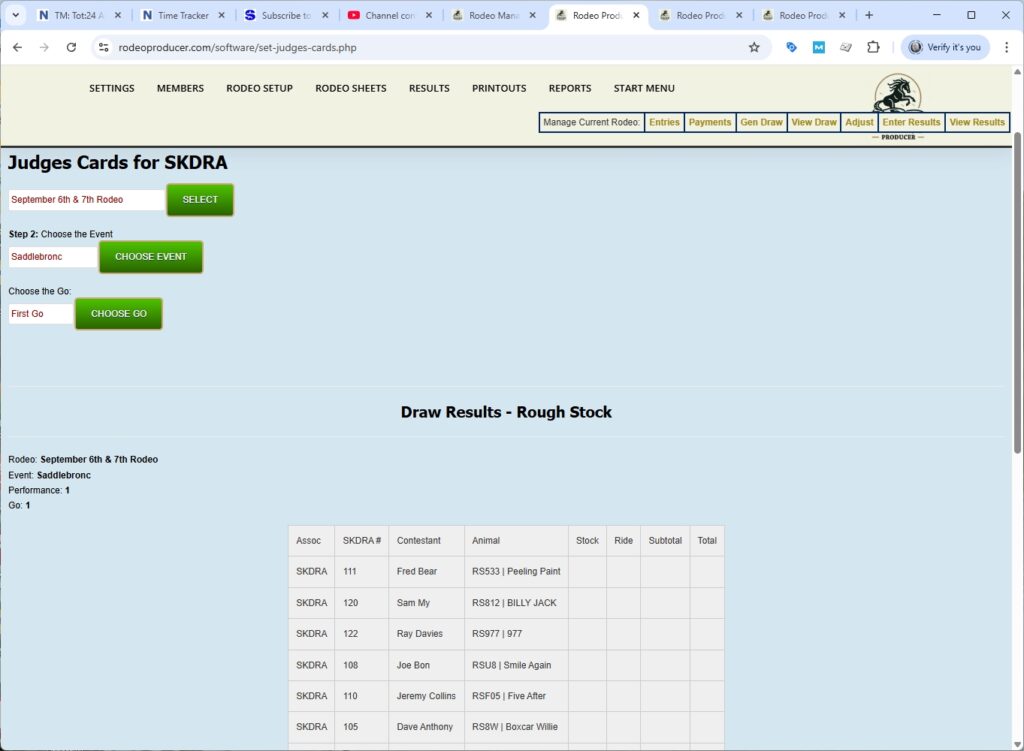
So you can go to Rodeo Sheets > Judges Cards and you would select the rodeo, select your event, choose which PDFs you want to generate and one of the options is you can generate PDFs for All Gos All Events. If you're ready, make the selection as necessary and generate.
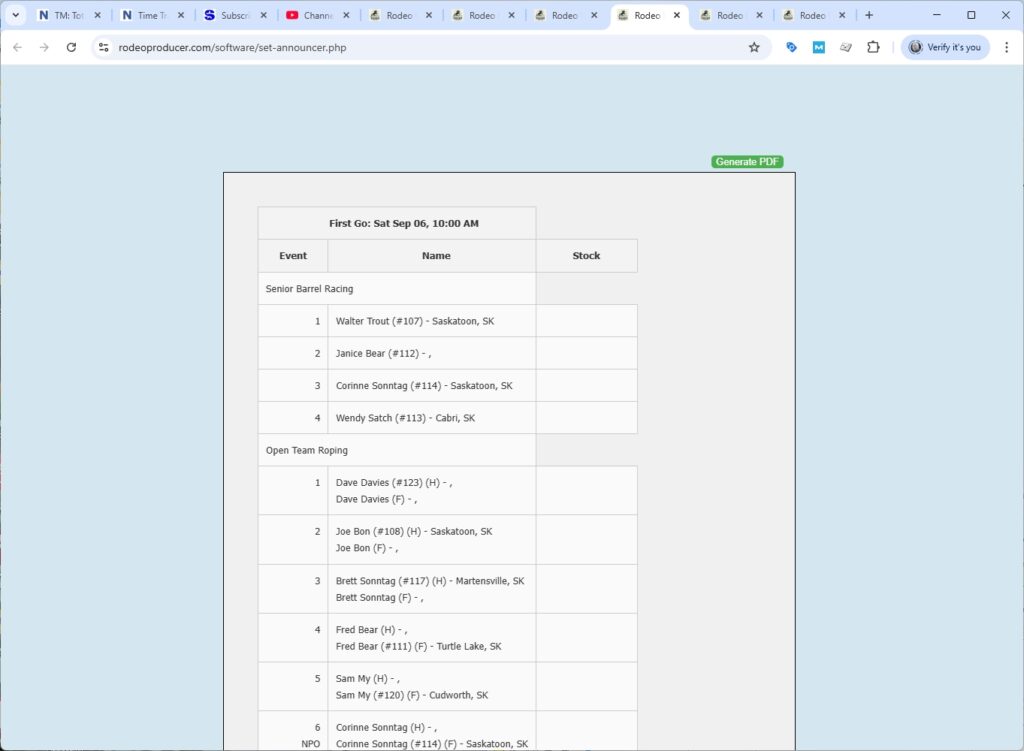
You would also go to Rodeo Sheets > Announcer Sheets. You can also generate this to a PDF or a CSV file.
If you wish to use Rodeo Sheets > Day Sheets, you can select your September rodeo and generate them to PDF or to view them on screen as well. And then you can generate the PDF from there.
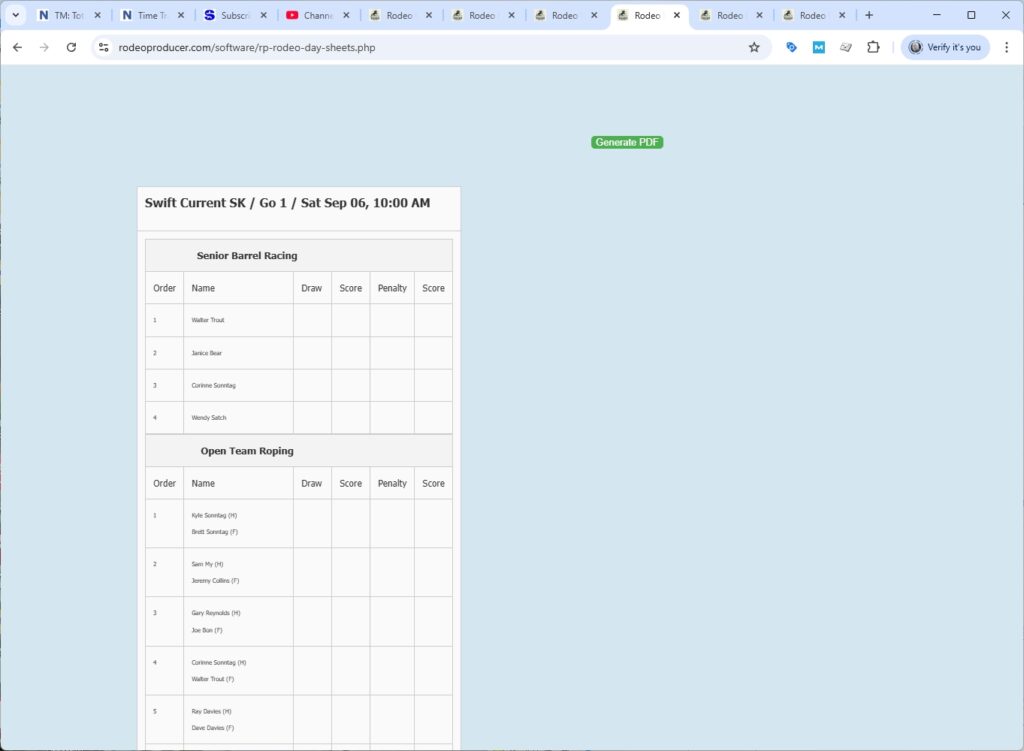
You now have your draws in place, you have all your tools in place and the next thing would be rodeo day. And so then rodeo day comes and it's time to enter some results. We will go to Results > Enter Results.
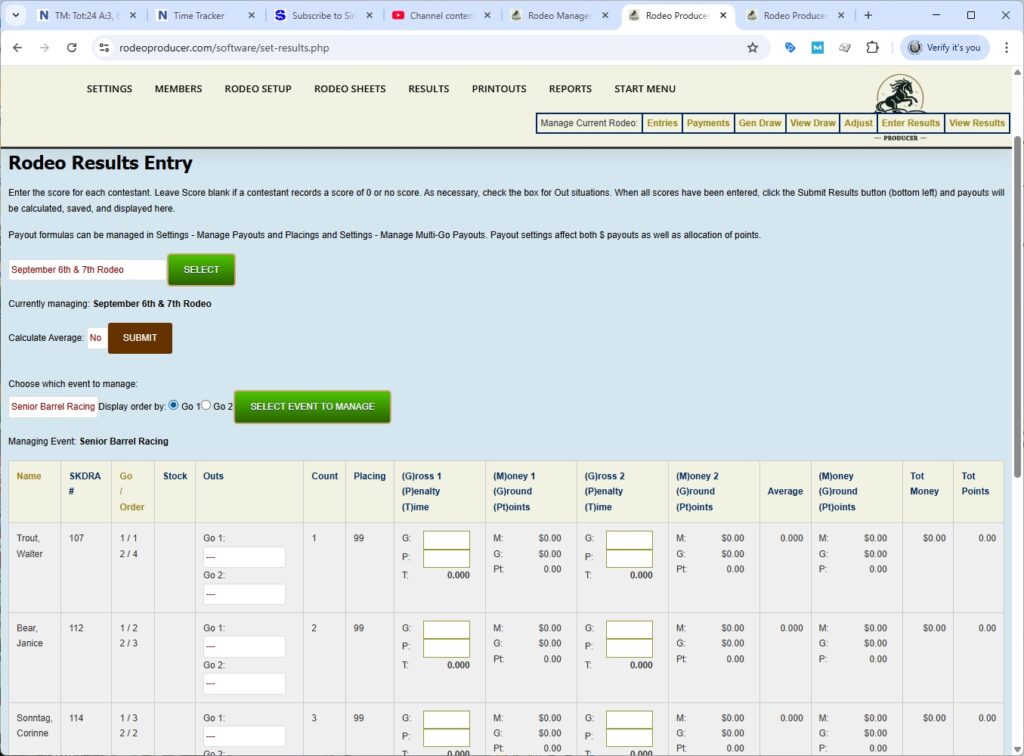
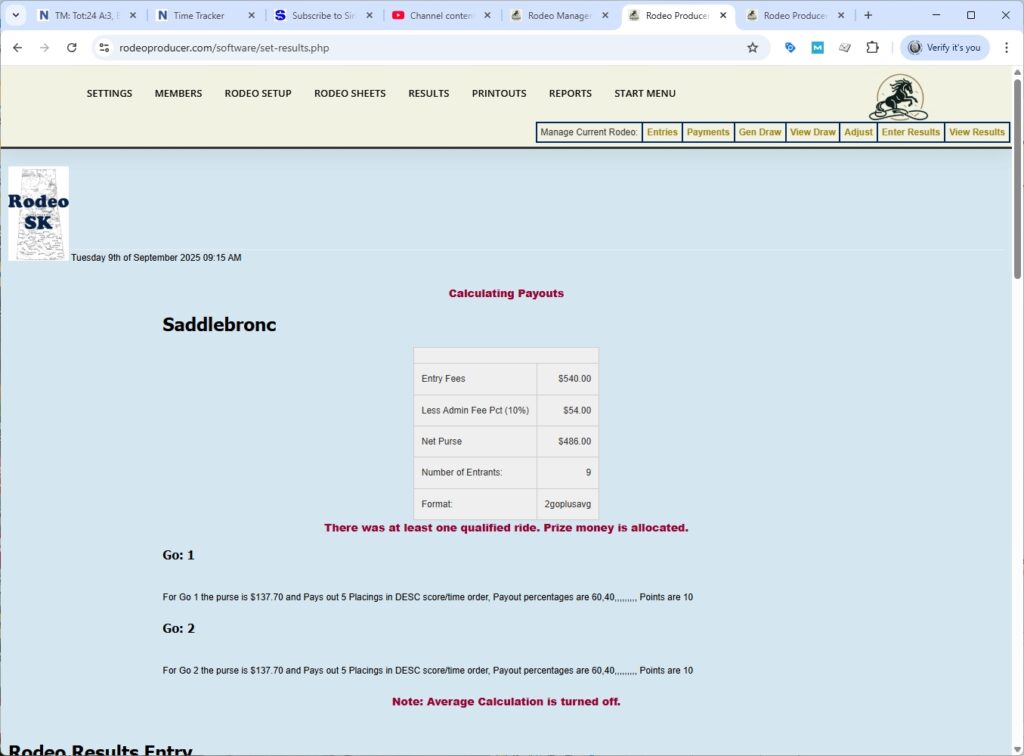
We have our rodeo selected. We want to make sure calculate average is set to no. We will choose the event, Senior Barrel Racing. Typically in a Barrel Racing competition, you'll have many more entrants than in our small demo, but this is going to be enough, our quick show of how 2 Go Plus Average would work. We would enter and submit the times.
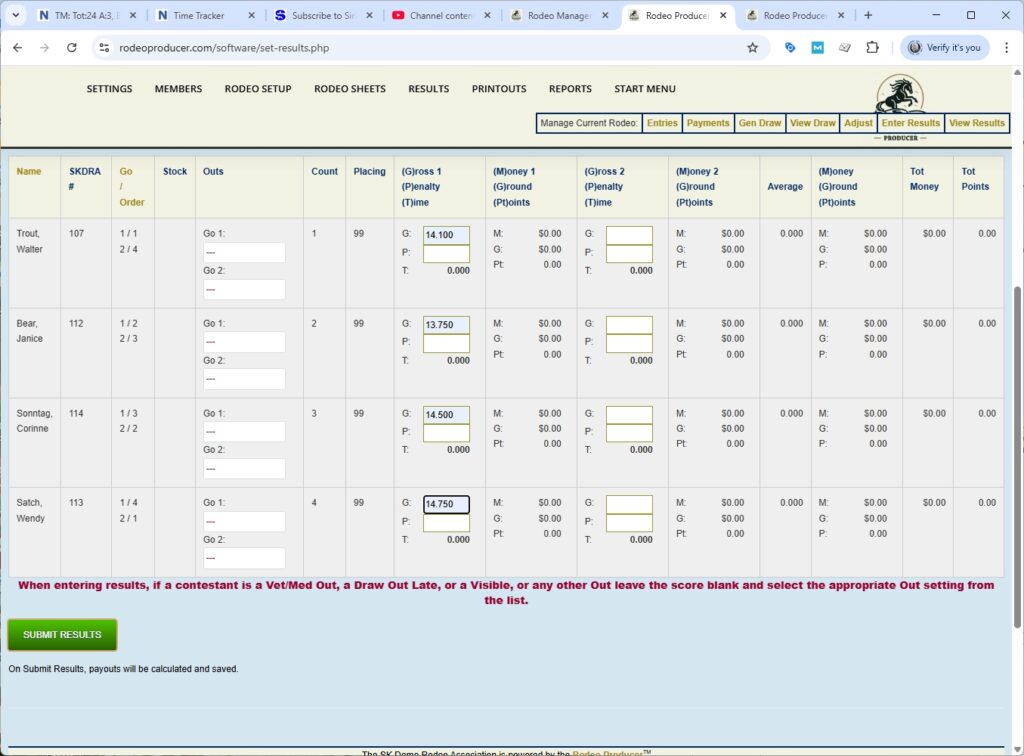
RP will calculate the net purse values.
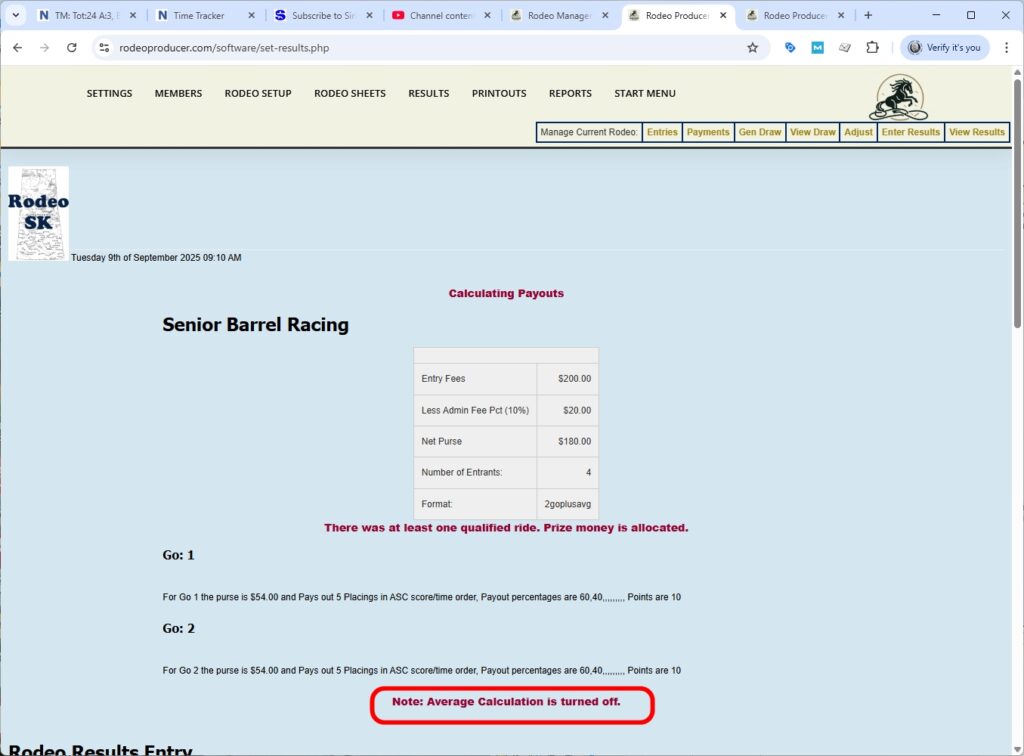
Because we have the average turned off, it's not going to calculate anything there. We haven't entered anything into Go 2. So it will calculate the dollars for Go 1.
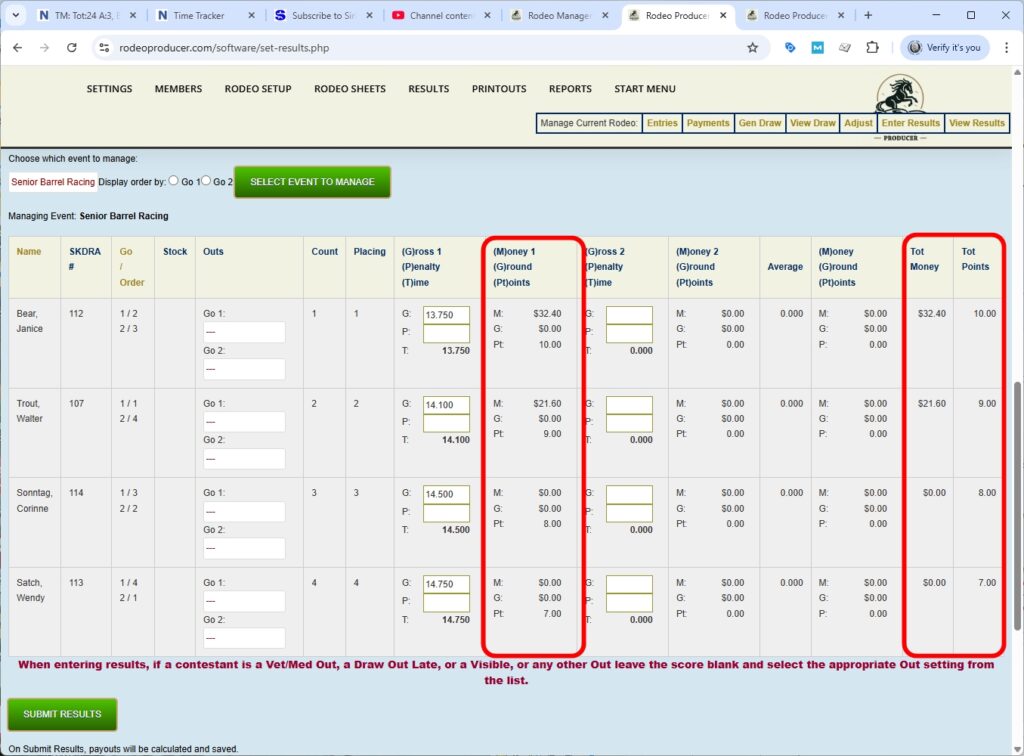
We would next move to another event and do the same, we will go to Team Roping.
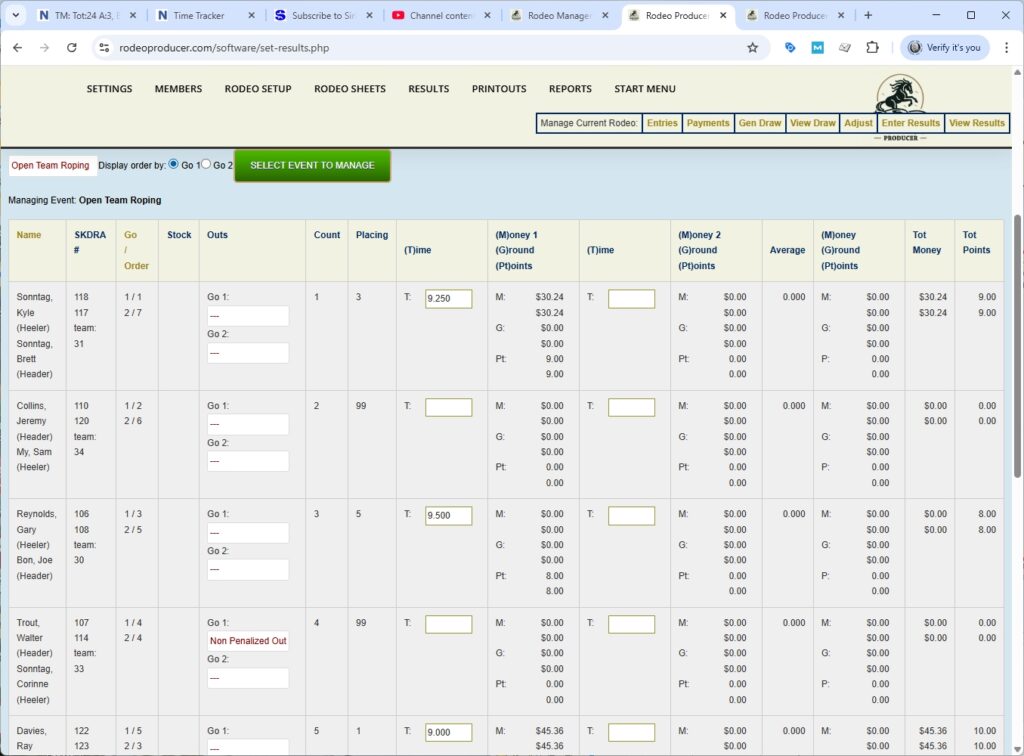
We will enter the times and if anybody has an out, we would select that out for the Go. If anybody did not catch in this event, we can enter zero as a placeholder or just leave it blank. When we have all of our times entered, we hit the Submit Results button.
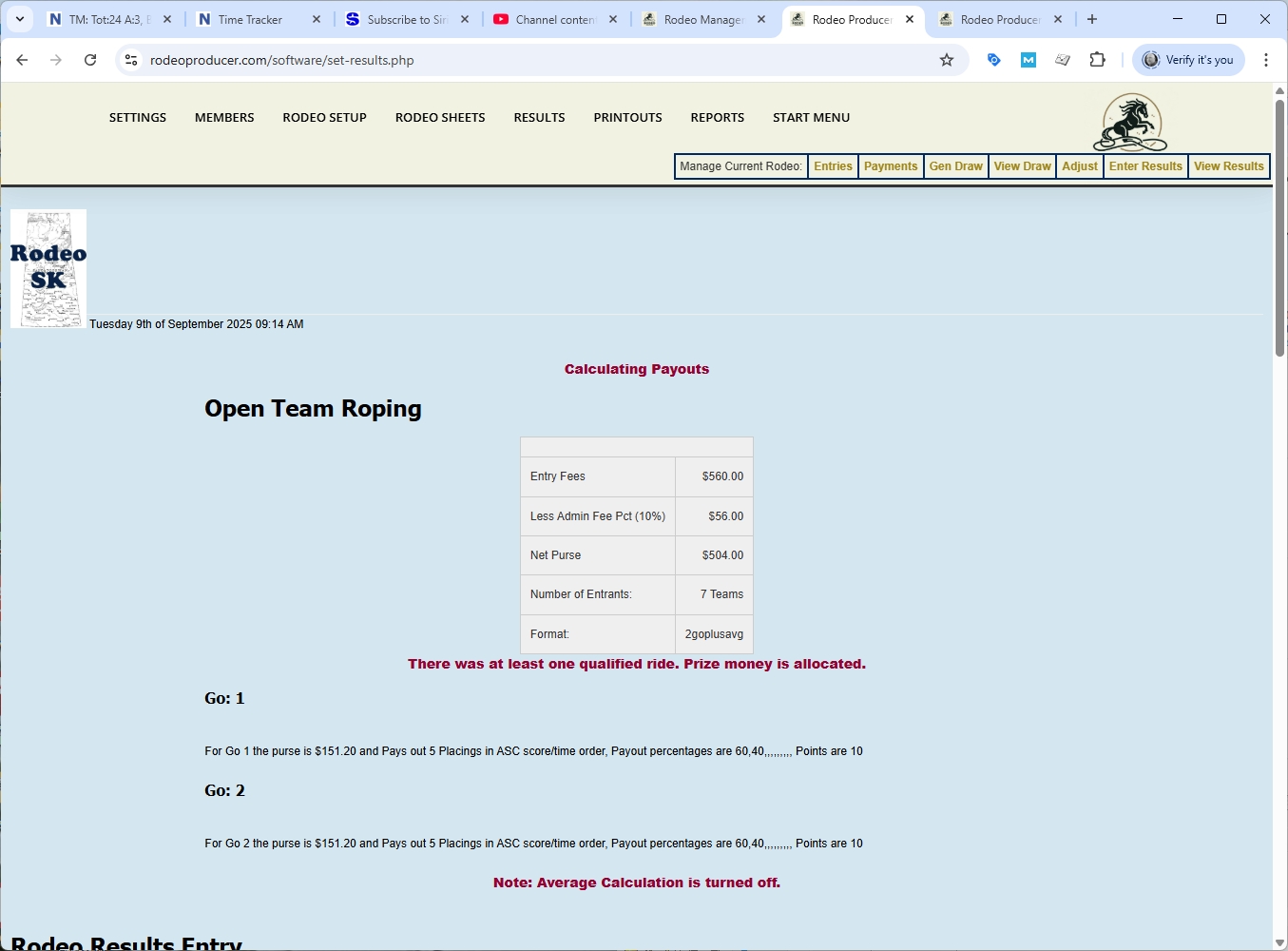
RP calculates the purse values and generates the payouts. You'll also notice it's generating the points and it's generating points for everybody who has received a score.
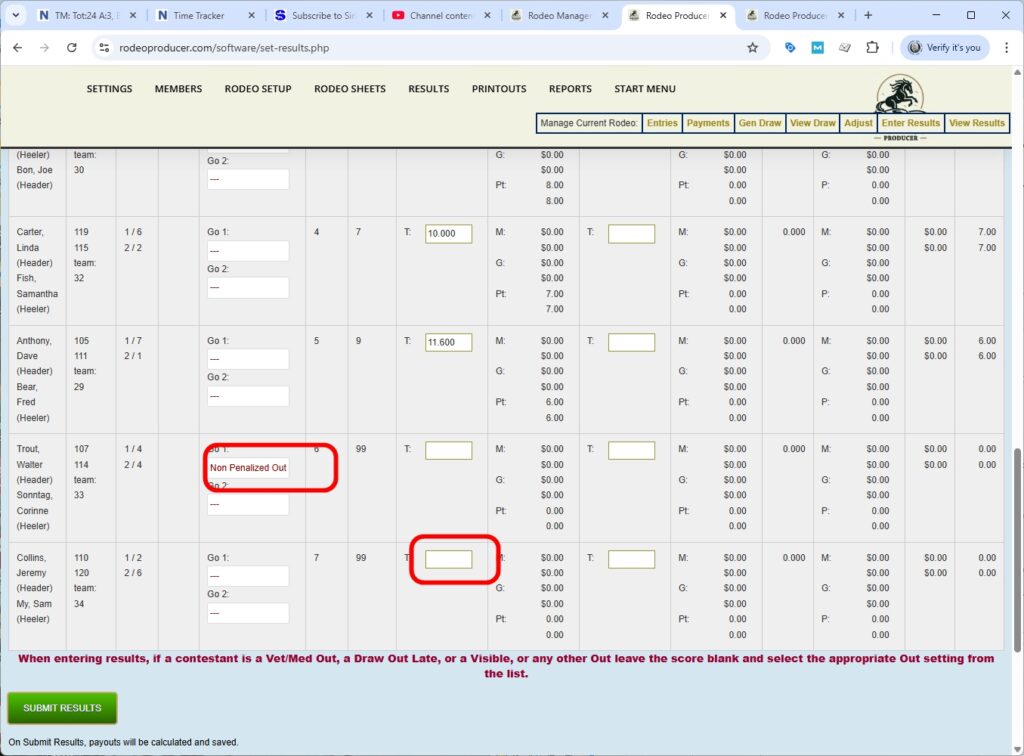
We'll do the same for Saddlebronc.
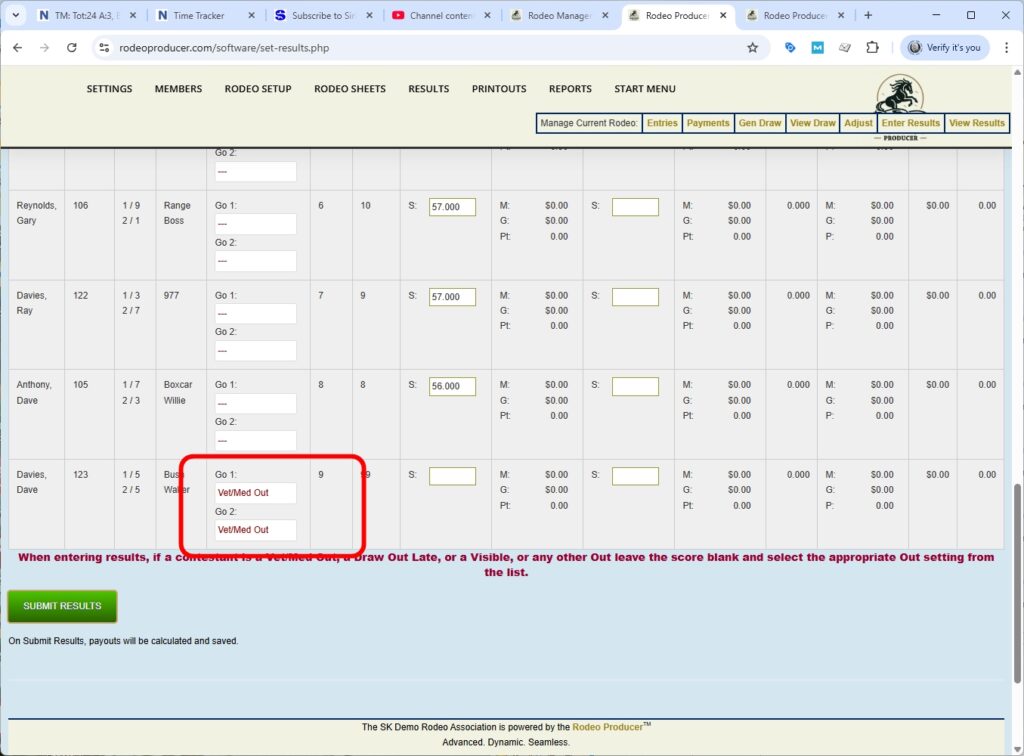
We have some scores entered into the boxes here. We've set one of these competitors to a Vet/Med Out and we will Submit.
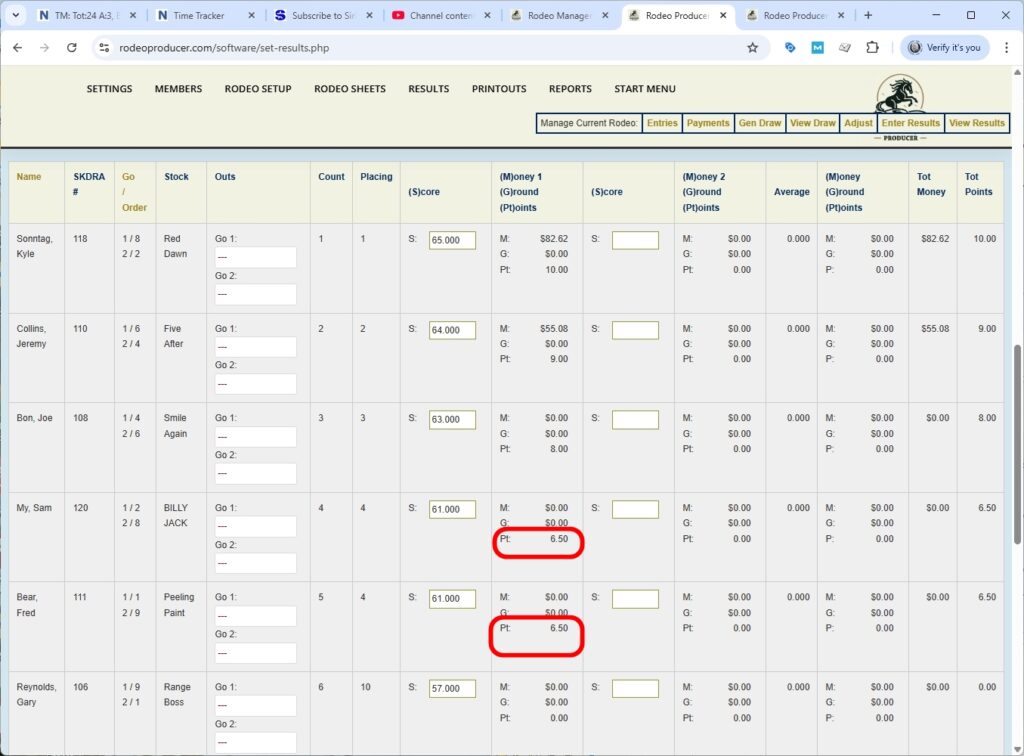
The purse values were calculated and the prize and points were paid out. Now one thing we want to draw your attention to, we did this intentionally, we put in a tie and so RP is going to split the money and points across those placings. In this case that that placement did not receive any money, but because they were tied they are going to split the points for seventh place and sixth place and each receive 6.5 points.
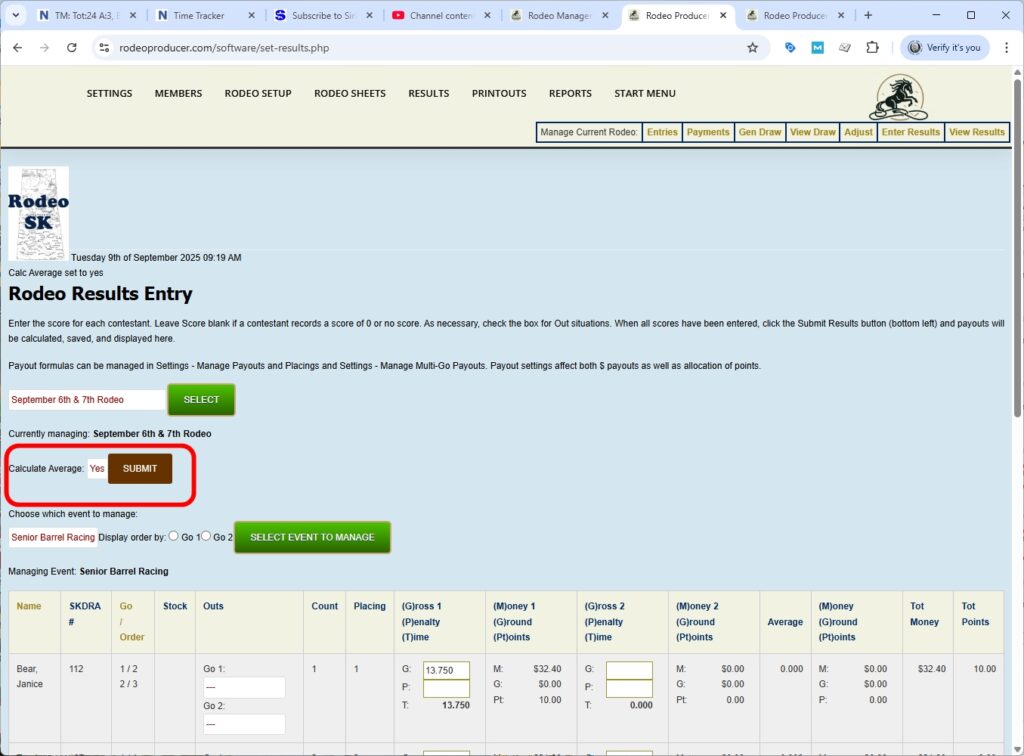
Then day two of the rodeo, Go 2 of the rodeo, will come around. When we submit our scores we will now want to calculate the Averages because this is the final Go. So we have turned that to yes and we will submit the scores. Now that Calculate Average is turned on we have calculations for money and points for Go 1, for Go 2, the Average and total money and total points over in the far column.
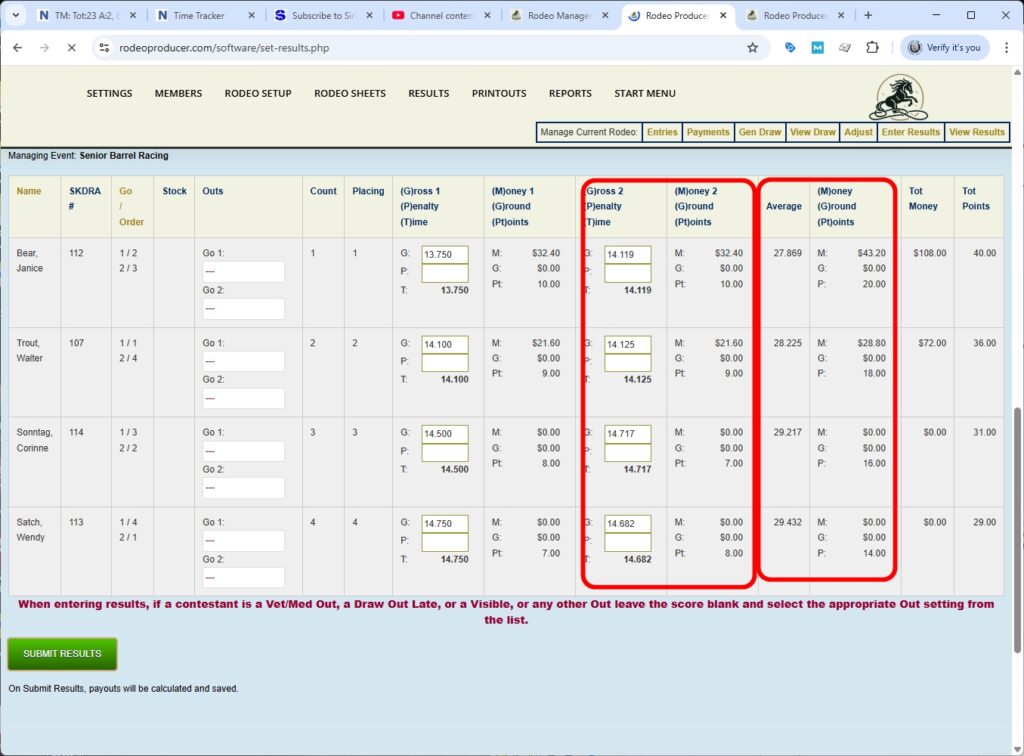
We'll do the same for the other two events. [...] Something you may want to do when you are entering for Go 2 is you may want to set the display order for the Go 2 run order. Previously after it has calculated Go 1 it would have displayed the order in placing order. It be a little bit easier if we set the display to the Go 2 run order as this is the order that the scores will occur in the draw. We enter the scores and we hit Submit Results. RP will calculate the Averages again and show us the order in terms of placing. So we see our money and points for Go 1, Go 2 and the Average.
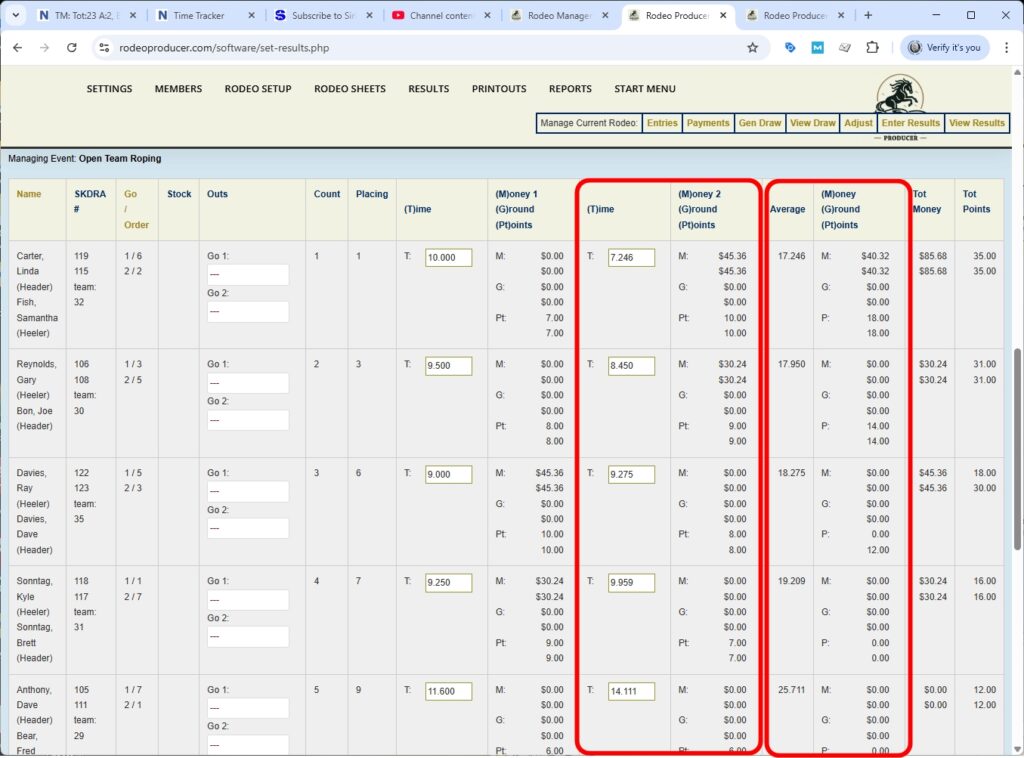
Now and we'll do the same with Saddlebronc.
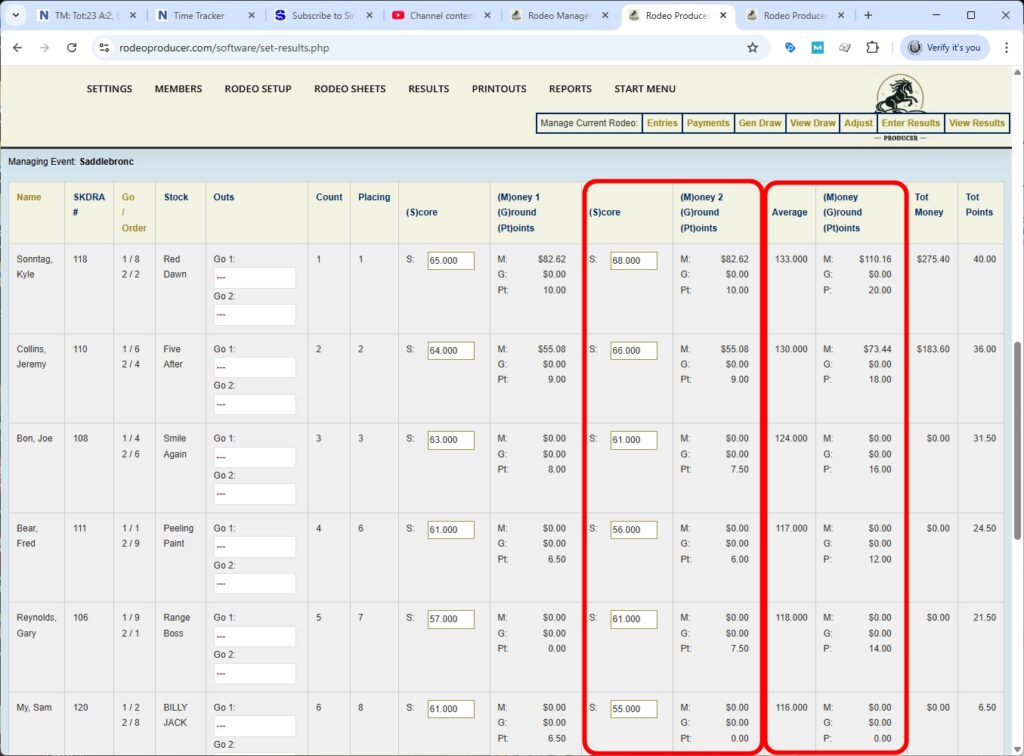
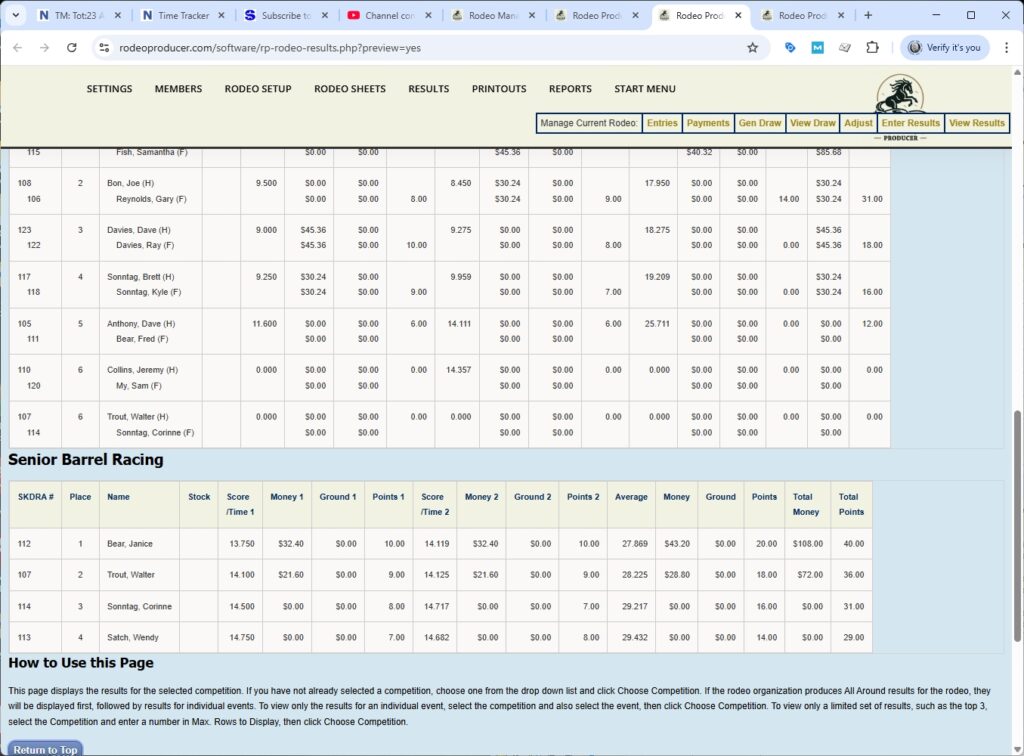
This was our final event. We have all of the dollars and points, Go 1, Go 2 and the Average calculated for all events. Now we can go and have a look at results by going to Rodeo Results > Results Preview.
We see as we scroll down here that we have all of our results on display. This is the Admin Preview mode, only the Admins can see the dollars and point. On the member side, when viewed by a member, this does not show all the detail, all the the dollars and points, only the the times and placings. If we're ready to show this to our members, we go to Rodeo Setup > Set Rodeos.
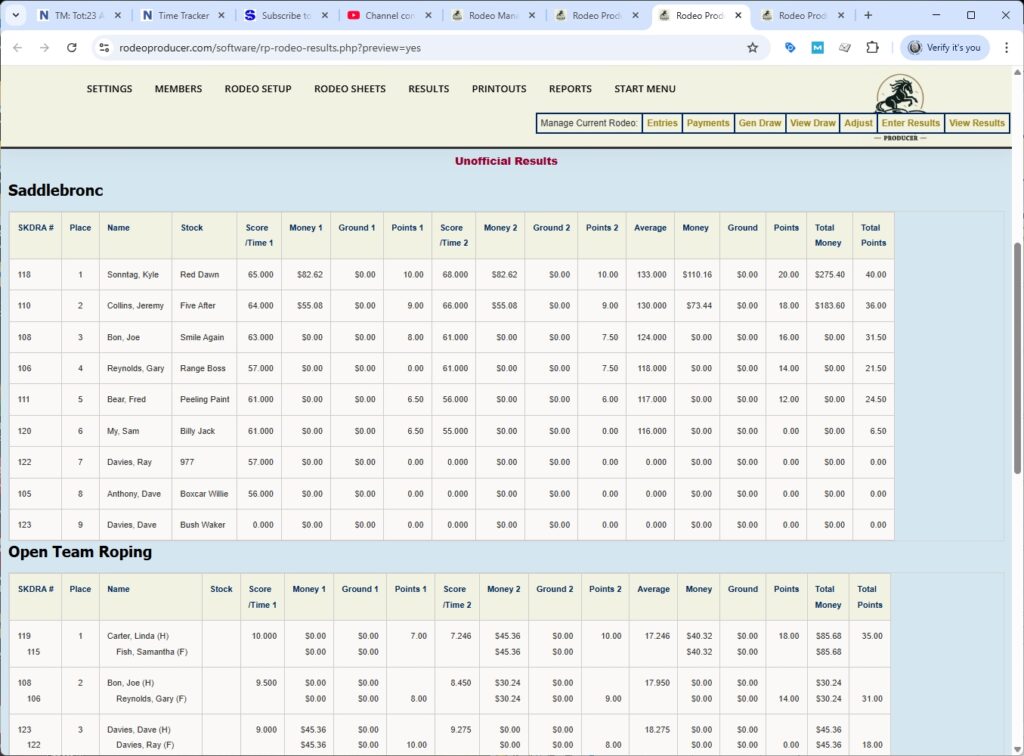
We can turn on the public display and mark as official. Now those results would be available for members and spectators to view. As they'are marked as official, they would also now be included in the Season Standings.
We can do a preview of the season standings now, Results > Season Standings Preview
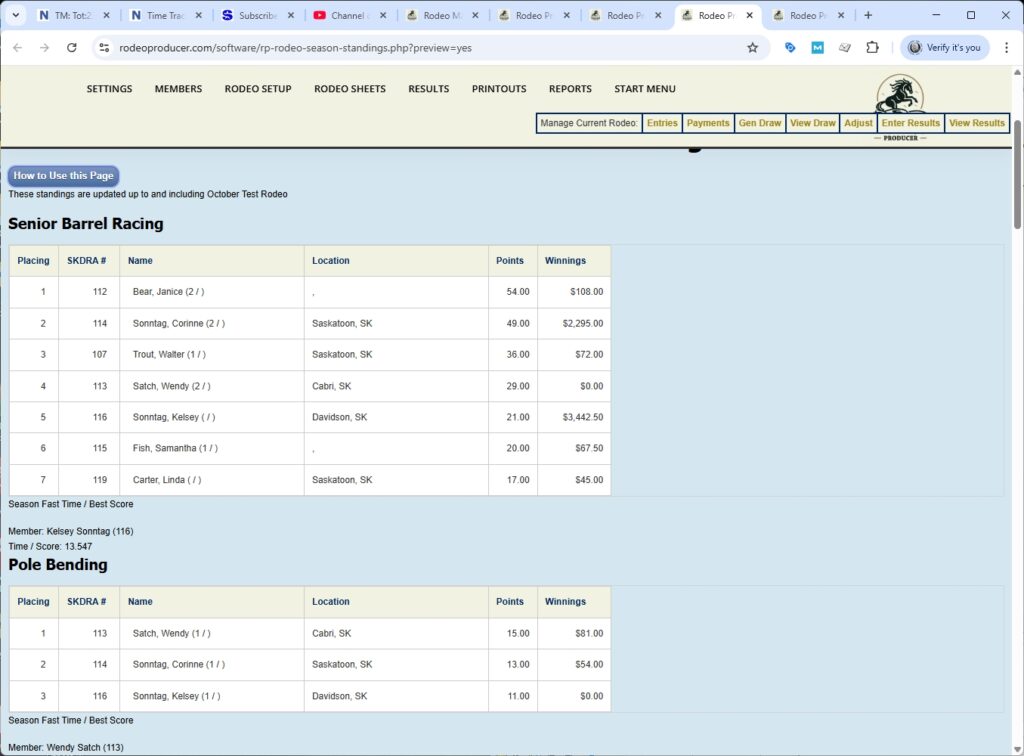
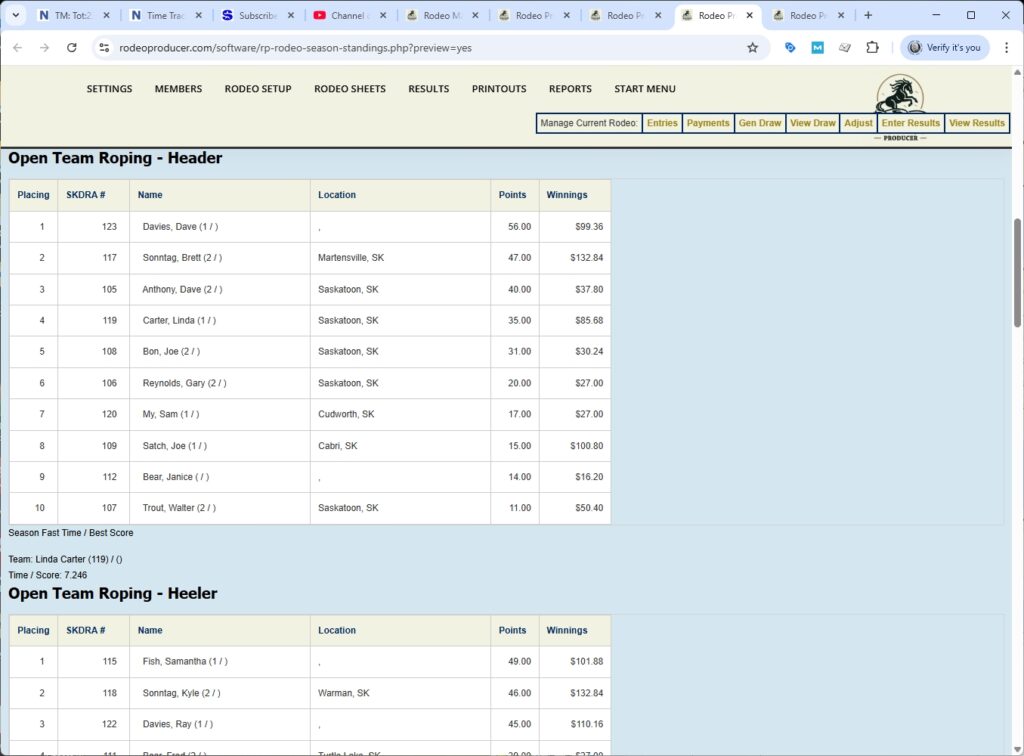
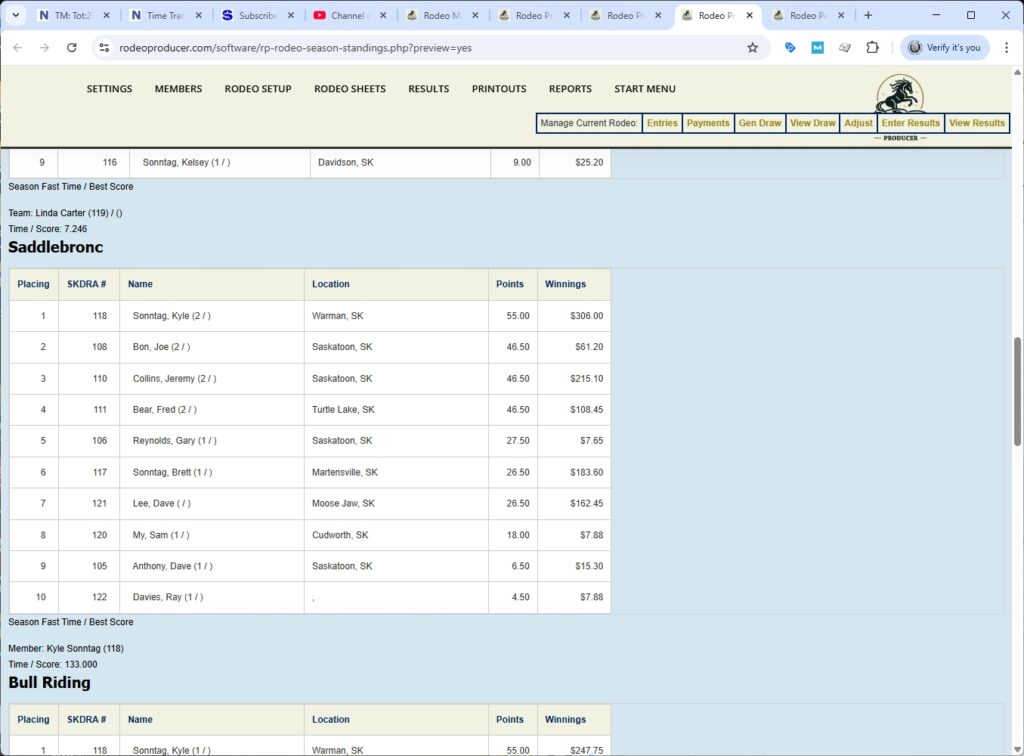
You'll see that this is updated up to and including September 6th and 7th rodeo.
That is a 2 Go Plus Average rodeo..