
Hi, welcome to section three of the Rodeo Producer user guide. In this article, we will be talking about managing members. To get started, we will click the start button and log into our demo account and then we will go to members set members.
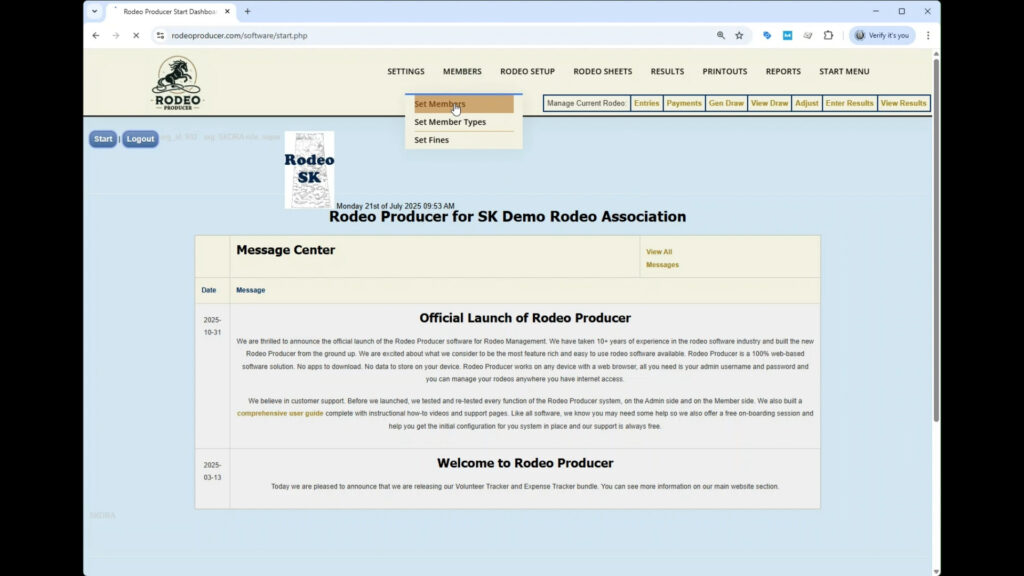
So the initial view here is the table the list of all of the members in this association database.
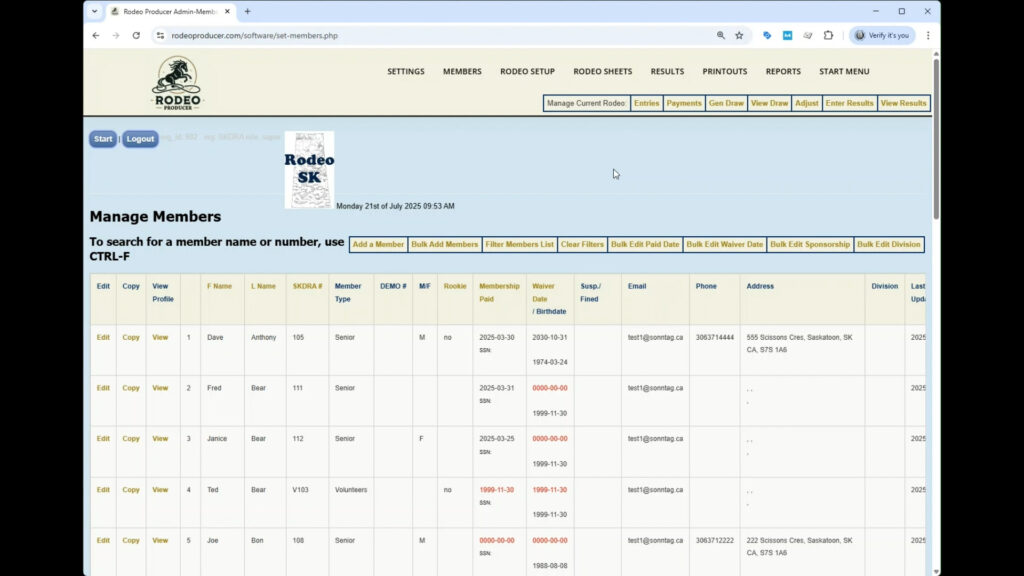
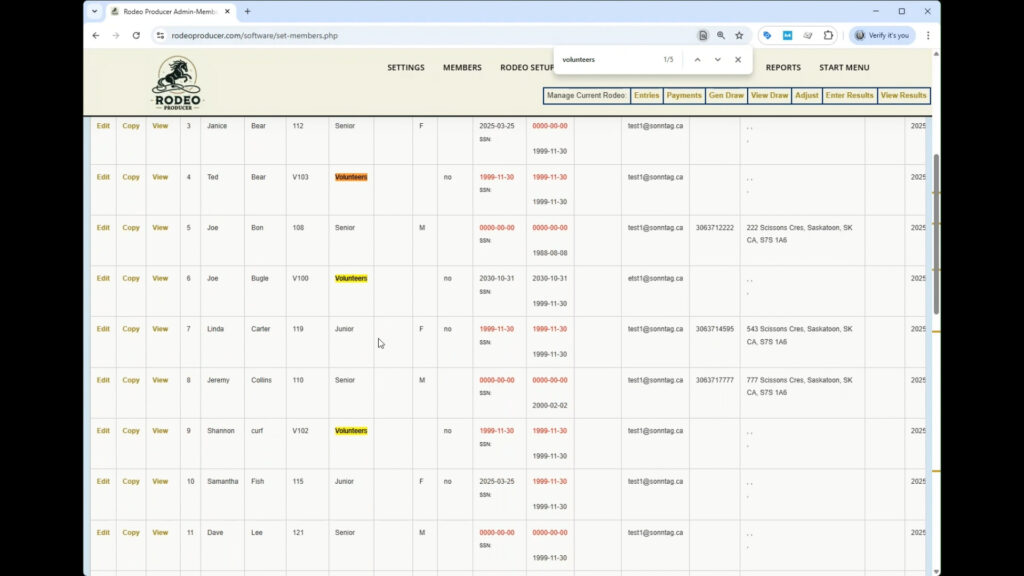
A few key concepts before we get into the details here. In order to be added to a rodeo, in order to enter an event in a rodeo, a person must first be a member of the association's membership. All members must have a membership type. We'll cover that in the next chapter. It's up to your organization to determine what you will charge for memberships, including free memberships. The organization admin can manage all information in a member profile. A member can manage all of their personal information. So you'll see some of the the differences shortly here. Again here we are in Members > Set Members and this loads the member list for your association. The list can be sorted by a number of the headings here. You'll see them in in link format here. Clicking any one of these will sort the list by that particular column which can be handy if you're looking for members of the same type or specific information. If you need to find a specific member or you're searching for some specific information you can use the uh default browser functionality of CRL - F and then you simply enter the information here. Let's say volunteers and you will see that all of the volunteers are highlighted on here and if we click the next arrow it will take us to the first, second, listing etc.
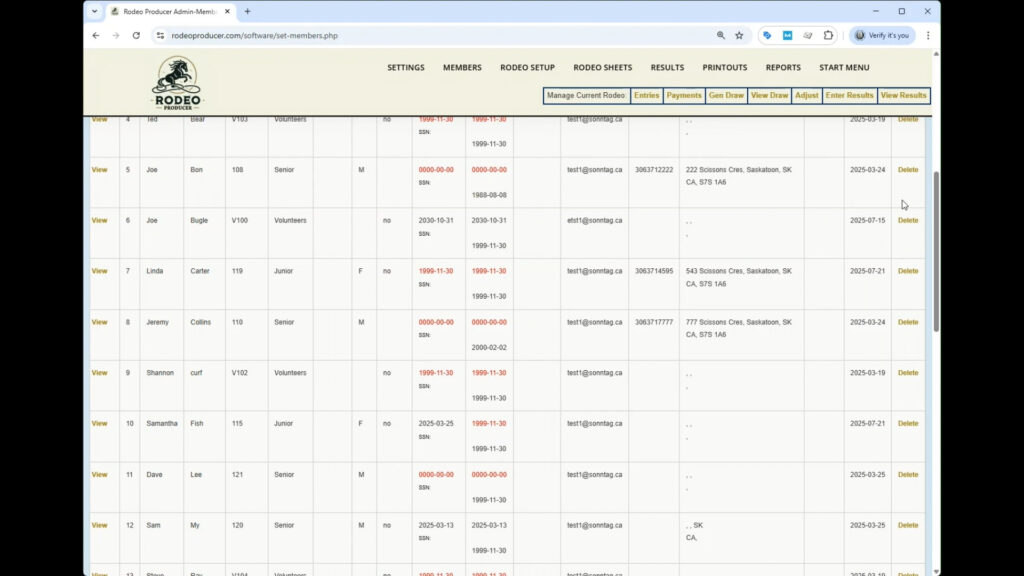
If you scroll to the far right you will see there is a delete link and we've put that way over here on the far far right so that you don't accidentally hit this and delete a member. So if you do need to delete somebody it's way over here.
Up here above the list there are a number of buttons , quick links so you can add a member, bulk add members. Add a Member is obviously adding one at a time and Add Bulk Members will be a form so that you can add a short list of members all at once without having to add, enter data, save, come back to add. It just makes it a little little quicker if you have a short list. You can filter the member list by a number of criteria such as paid dates and member types and that sort of thing. If you want to clear that you can clear the filters. Then we have a number of bulk operations here. So you can bulk edit the membership page. If you do have a bunch of updates to do to that field, click this and you can edit right here in the list. Same with waiver dates, you can bulk edit that. Bulk edit sponsorship information. Some organizations manage and keep track of their sponsorship information through the member list, and bulk edit divisions if your organization uses divisions. So down the left hand side here uh you can see some more links where uh the admin can edit the membership information you can copy the membership information. By making a copy you will copy most of the key information. So if you are copying say um this this member so that you can create a new member uh such as this person's brother or sister uh then you would copy most of that. It would transfer over most of the information such as addresses and that type of stuff and then you simply edit and save.
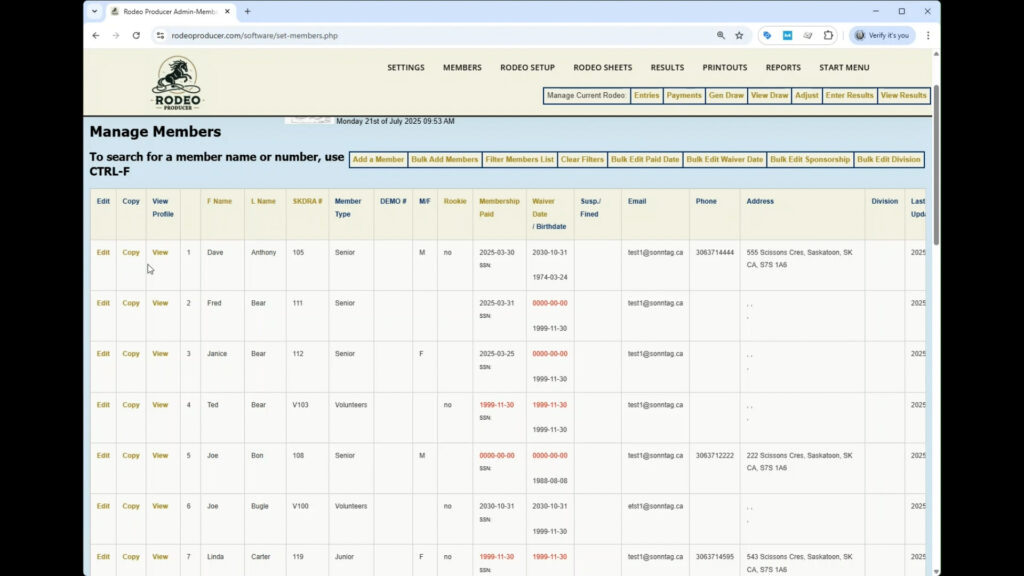
You can view their member profile. So let's go have a look at something we have saved in here. So we'll start here and we'll have a look. We can click edit and we can see we have a bunch of the personal information.
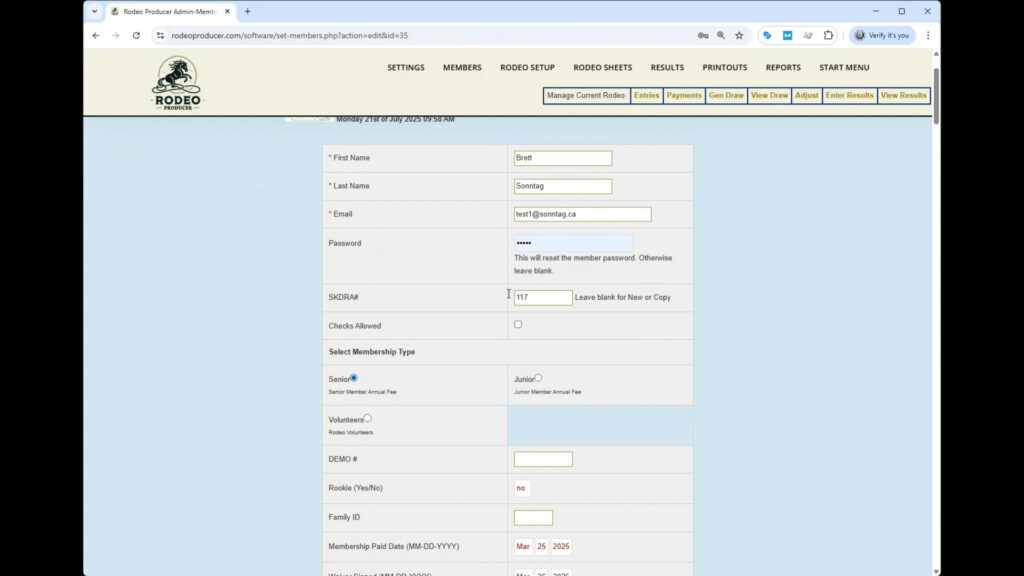
We have membership numbers. We have a password here. Now if you change the password here then it will change for the member profile login for this member. This would reset it. Otherwise just don't touch it, leave it alone. We have the membership types. We have some date information such as membership paid and waiver signed.
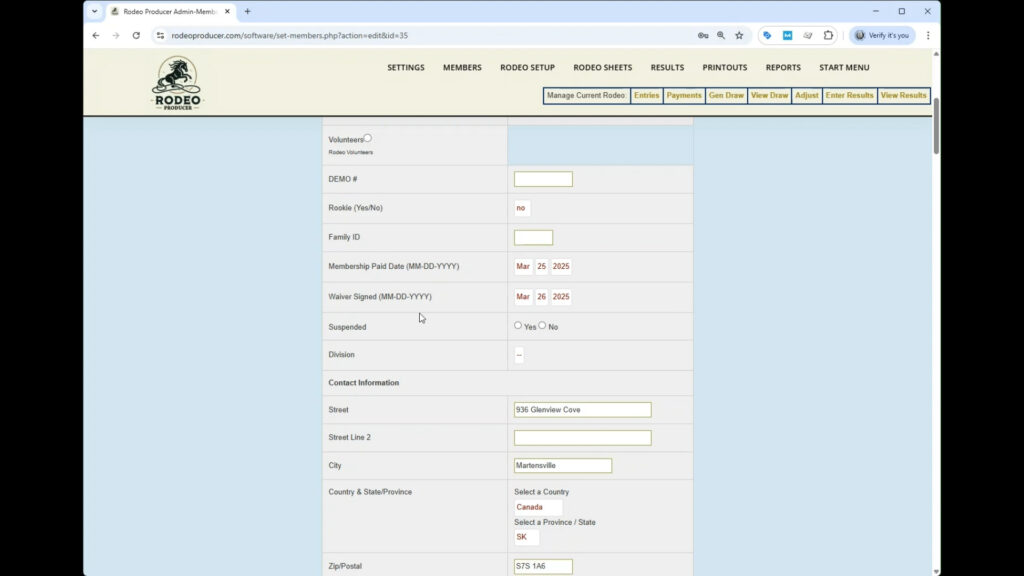
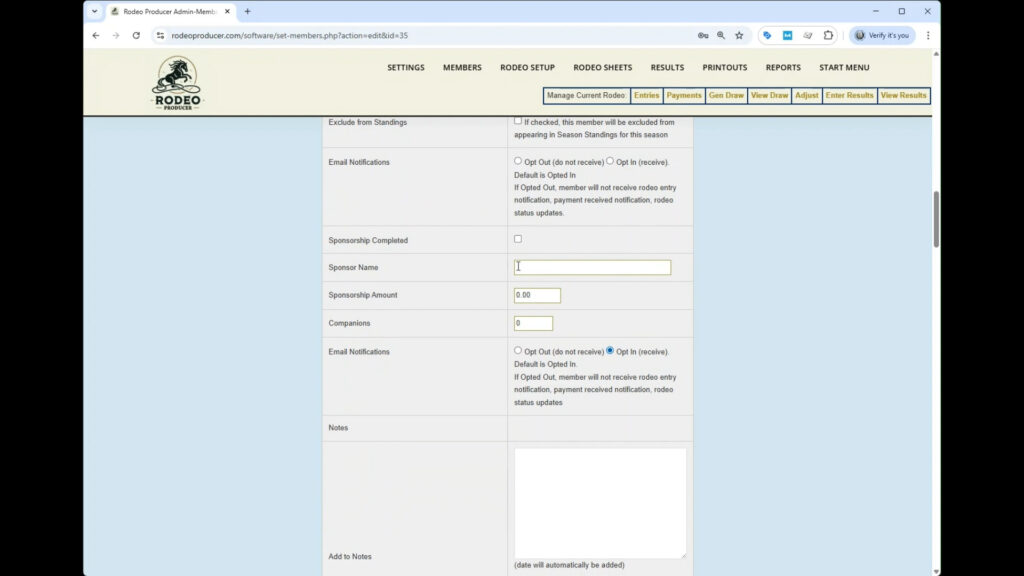
You can suspend a member here if need be. If this association used divisions, we could edit that stuff here. Some more of their contact information. Obviously this is, you know, detailed information on each membership. And not every organization needs all of this. Things like weight and jacket size and shirt size. You may not need that information. Then a few other optional settings here that allow for some advanced features. Some of the sponsorship stuff here uh if you if you use that. Uh you can also add notes to this this member file. When you're finished with your edit, you can submit the changes.
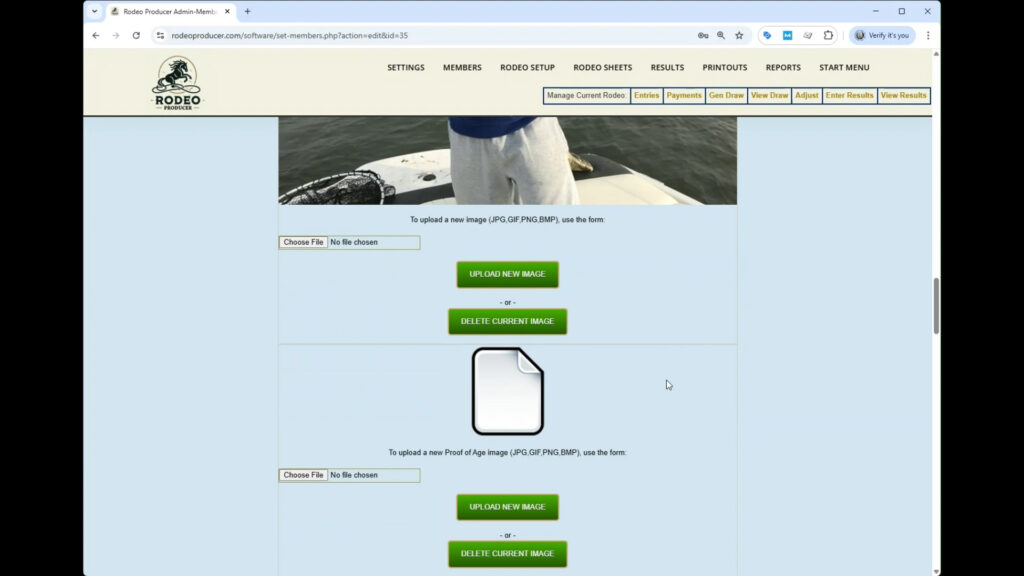
There are also a number of images that can be attached to a member file such as their membership image. We also have a proof of age image that could be used. We have several other custom image files that that you can manage here and more information on how to use those is available simply by contacting us. It is a fairly custom area and some of this is controlled actually in the Settings > System Settings. So you'll probably see that in an advanced chapter.
Back to our main list here, and we'll scroll back down to that member. Again, you can copy and add a family member. That's typically what's used for the copy. We can also go and view their member profile. This is the same thing that the member would see when they view their own profile.
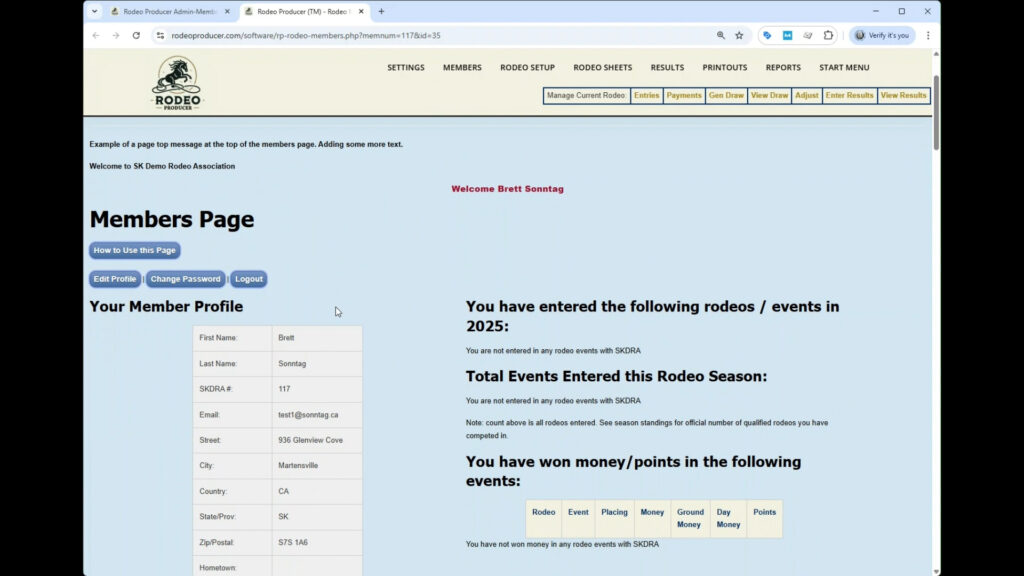
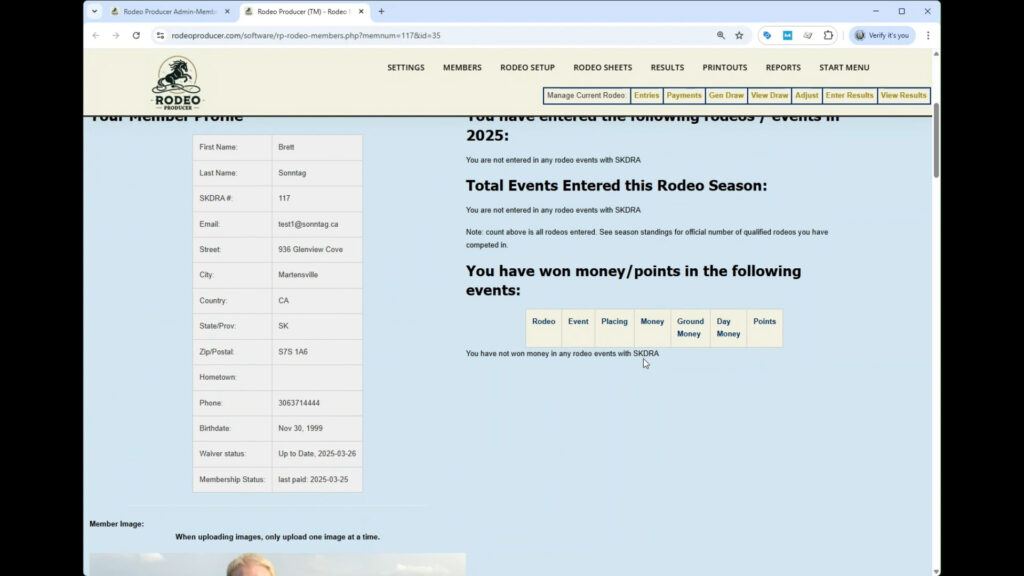
It has their personal information, has information on what rodeos and events they've entered, this person hasn't entered any yet. If they won any money. This is a convenient place to go for them to see information on themselves and again the all the image files that are are set up within the system.
So one of the important things to know here is under membership paid date most associations will not allow a member to enter a rodeo uh to enter the events in a rodeo if their membership is not current.
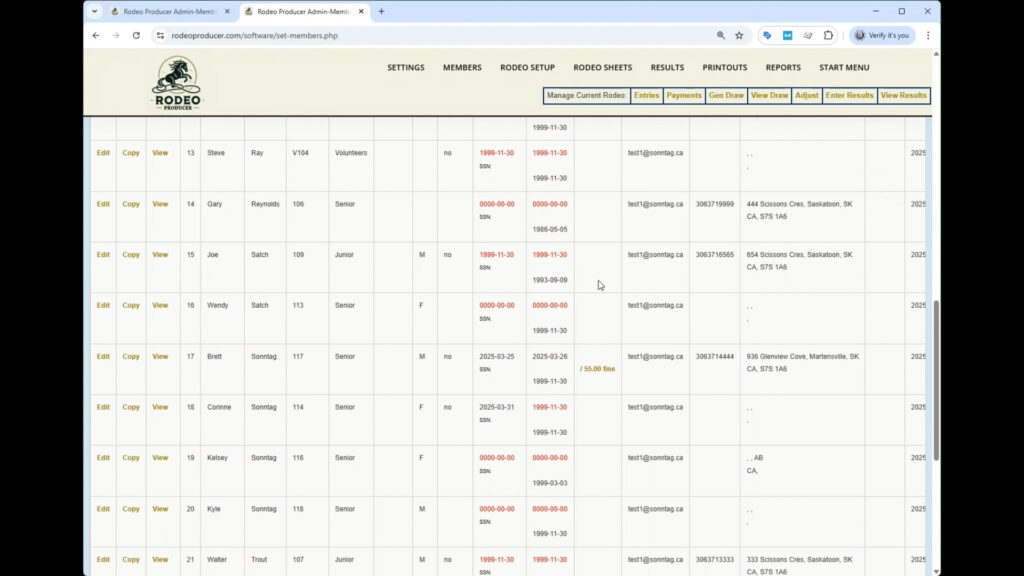
So we used season dates set in the system and if their membership is not current as this one is not uh it will display as red. The member can obviously renew their membership online or the admin can edit and change this membership paid date as needed. And another field here that may be of interest is the suspensions and fines list. If any members are suspended or have outstanding fines, uh it will show up in this list. You can click here to go and view the fine. If they're on the suspended list, it will highlight that here as well.