
Admin Fees
In this chapter, we will describe setting up Admin Fees.
To get started, from rodoeproducer.com we will click the Start link in the top right and then login to our demo Rodeo Producer account.

From the main menu, choose Admin Fees under Settings.
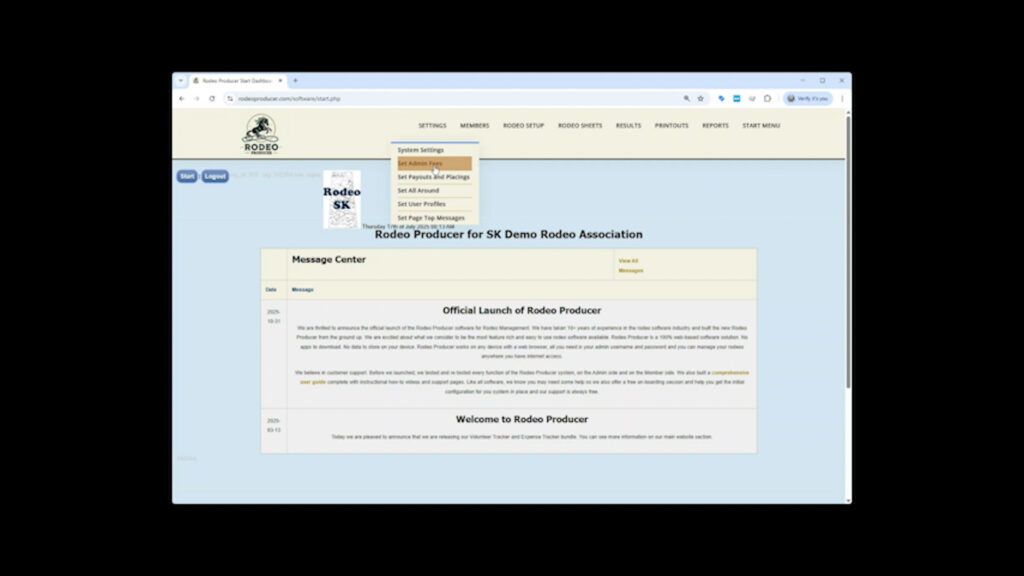
In addition to charging event entry fees (which are set in your Event Settings), most organizations also charge additional fees to their members upon entry to a rodeo. These can be such charges as Finals Fees, Arena Fees, Stock Charge Fees, Office Admin Fees, and many more fee names. You have the freedom to name your fees to whatever you want.
We manage these in Settings – Manage Admin Fees
Admin fees are charged at the time of rodeo entry, but are not included in the prize purse. There are three ways an admin fee can be set up:
• Per each event entered
• Per entrant, the fee is charged once per entry regardless of number of events
• Event specific
We will start with the fees that apply to all rodeos.
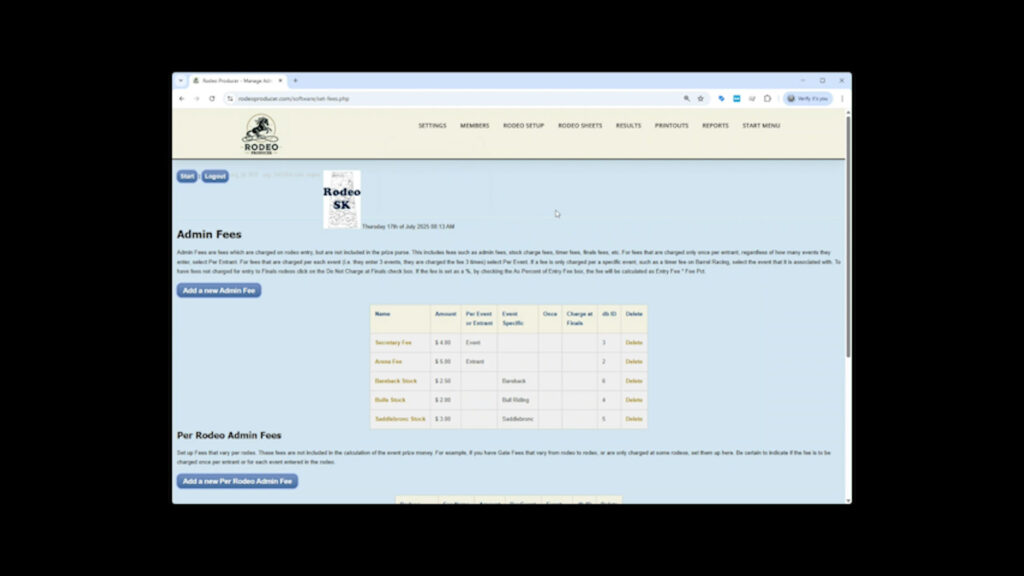
First of all, you can see in the demo that we have one of each type, a Per Event Fee, a Per Entrant Fee, and an Event Specific Fee. We are going to add a new fee, fee called Finals Fee. Click Add a new Admin Fee Type to set up new fees.
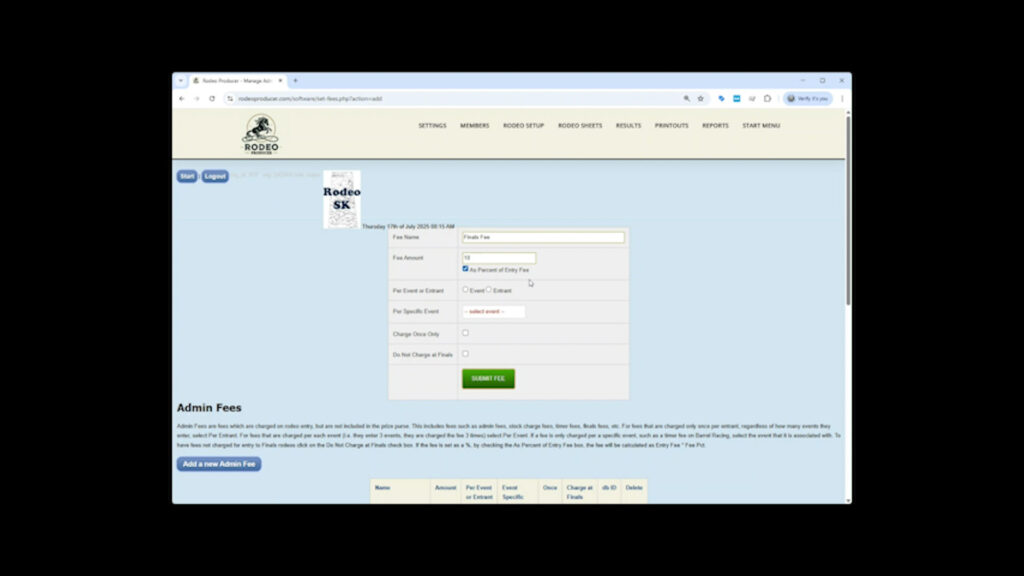
Finals Fee
$5
Event
These are the basic settings. If we are done, we would click Submit Fee Type. Additional settings include setting this as a % of entry fees. To do this, we would enter the % in the fee amount and click the box for As Percent of Entry Fee. 10, check box. If the entry fees associated with this entry were $100, this would charge $10 as the Finals Fee. Let’s set it back to the standard setting of $5 flat rate. If this was an event specific charge, we would select the event here.
If your association allows multiple entries in the same event, but this per event charge should only be charged for the first entry in that event, click the button for Charge Once Only. If this fee is not to be charged at your Finals rodeo, click the last button. As this is how Finals Fees are usually handled, we will click this box. Then click Submit Fee Type, and you can see the new fee stored in the table.
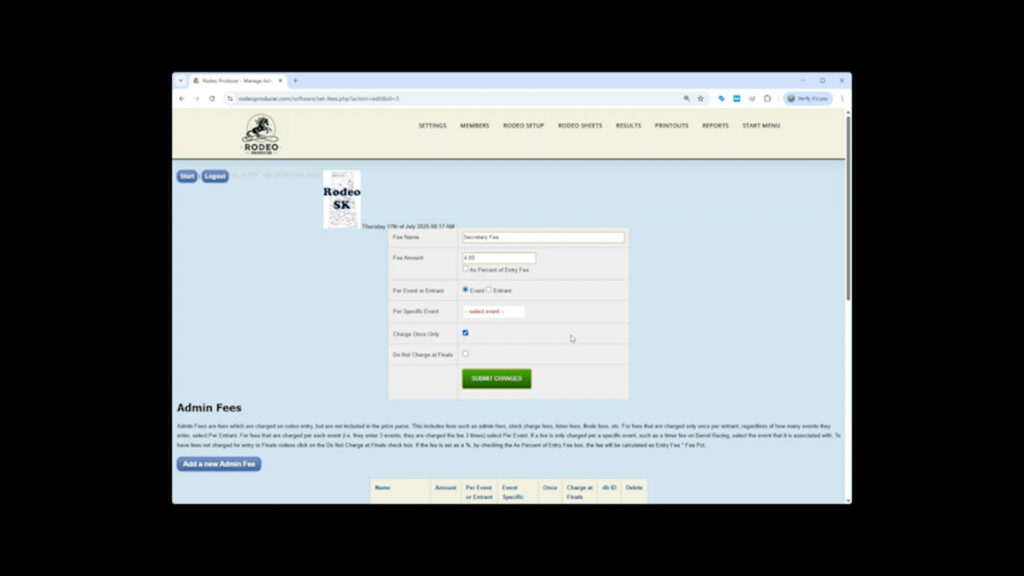
To edit a fee, simply click the Edit link and you will be able to change of the options, such as the misspelling of fee.
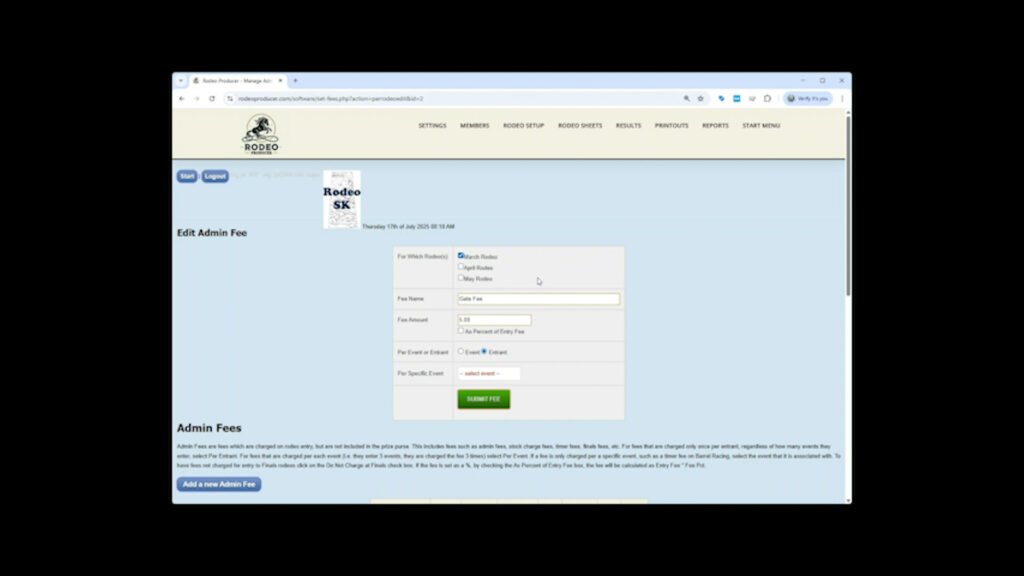
Admin fees can also be set specifically for a rodeo. An example of this may be a gate fee or an indoor fee which is charged due to the location of the rodeo. Let’s update the example, we click edit. As you can see, you can select which rodeo, or multiple rodeos, where this fee applies. [change fee to 7.00]. Submit Fee Type and now you can see the amount is updated.
There is one other type of admin fee that can be set. This is found in Settings > System Settings > Results.
We won’t go over all the settings available here at this time. That is for a later chapter. What we are looking for is the Admin Fee Percentage.
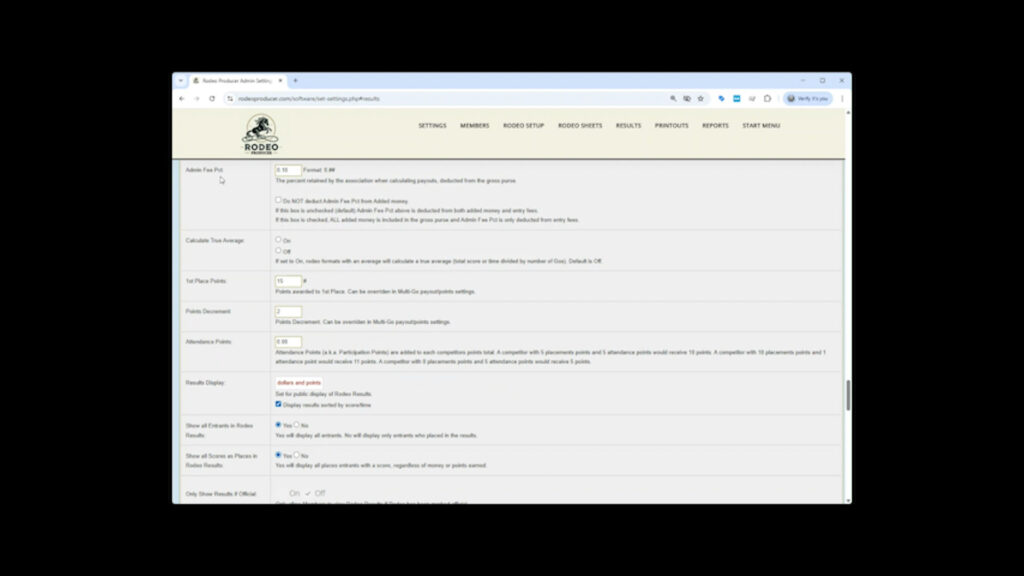
This setting affects the prize purse payout. How it works is that once the gross prize purse is determined, the combination of entry fees plus added money, when payouts are calculated, this percentage is then deducted from the gross prize purse to arrive at the net purse to paid out to the winners. So let’s say an event has 20 entrants at $50 entry fee, that $1000 in entry fees. Plus $1000 in added money, that a gross purse of $2000. An Admin Fee Percentage of 10%, or .1, will take $200 from the gross purse, for a net purse of $1800. If your association does not use this, simply set this to 0. You can scroll to the bottom of the long form to Save Settings, or just hit enter when in any of the input fields.
Thanks for reading the Settings > Systems Settings > Account chapter for Rodeo Producer.
In addition to these support pages, we also have each Section and Chapter available as a video on our Rodeo Producer YouTube Channel.