
Introduction
In this chapter, we will describe setting up System Settings for Accounts within the main Settings area. To get started, from rodoeproducer.com we will click the Start link in the top right and then login to our demo Rodeo Producer account.

From the main menu, choose System Settings under Settings.
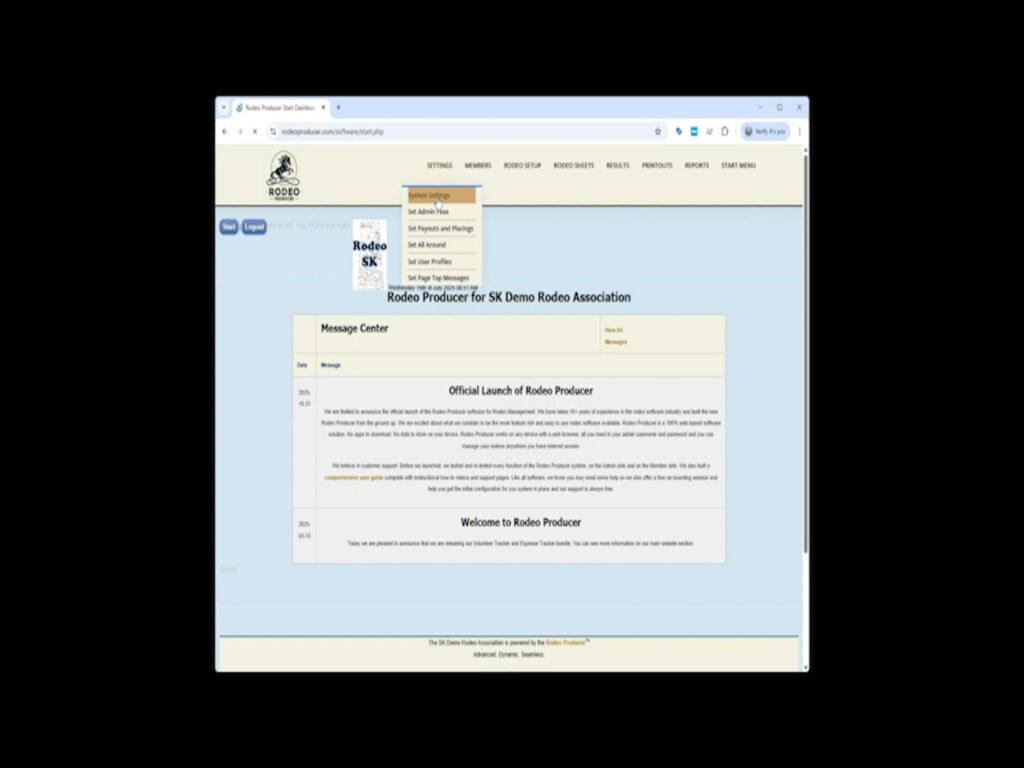
System settings are used to set system-wide configurations. Some of these settings can be overridden at the rodeo-specific level in the rodeo settings (more on that in the Rodeo Setup chapter). Most of the system settings are already set as defaults to the most commonly used settings. As part of the on-boarding process with Rodeo Producer, we will help you configure the proper settings. In most cases, unless you have had a change in your association rule book, once set, these system settings do not need to be changed. At the top of the table we have jump buttons set up to take you quickly to the various areas of the System Settings. • Account • Schedule • Members • Entry • Entry test • Payments • Draw • Results • Standings We will cover each of these areas in separate videos on each topic of Advanced System Settings. For now, lets review the settings in the Accounts area as these are relevant to getting your account up and running.
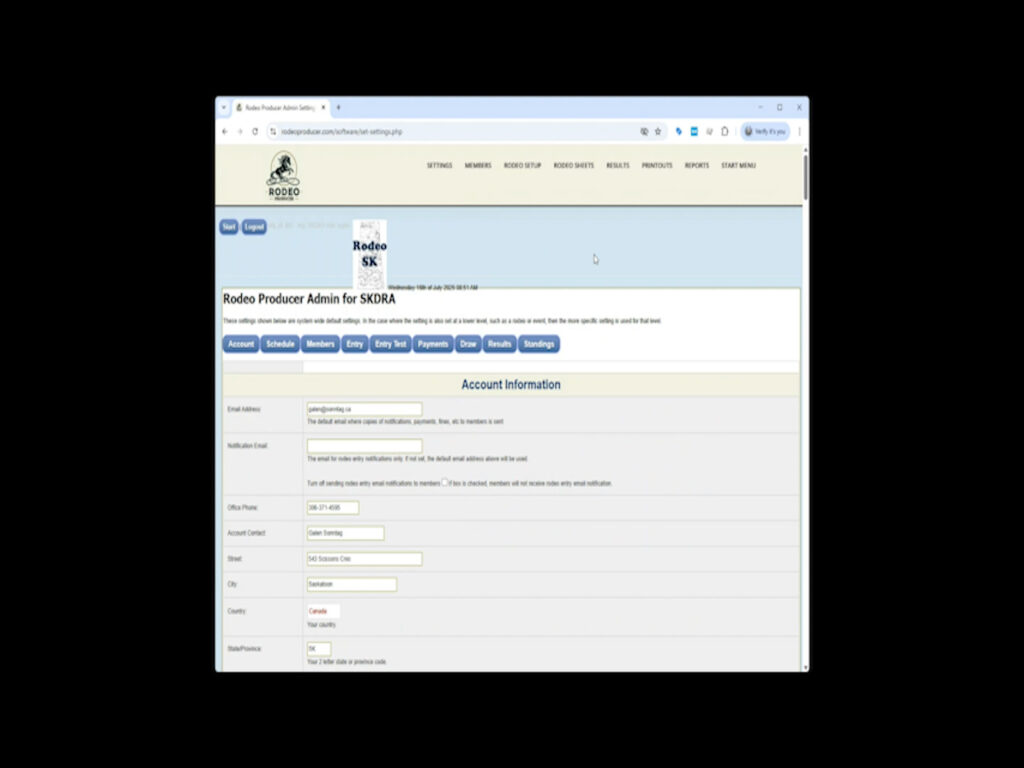
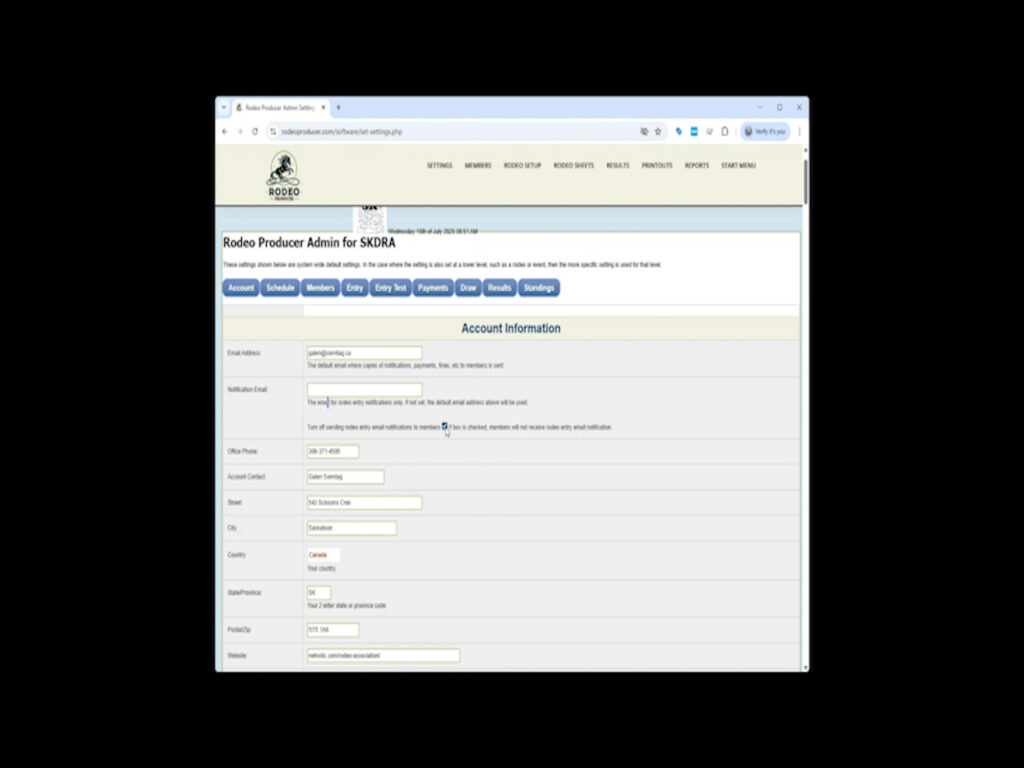
These setting are your account profile and notification/contact settings and are used to display information to your members, for our own billing system, and information used to set up the online payments processing system. One important field to draw your attention to is the Notification Email field. If set, this email will be used for rodeo entry notifications only. If not set, the default email address above will be used. The check box below will turn off the sending of entry notification emails to members, such as if you are testing out the system with real members and their emails, you can temporarily turn off notifications.
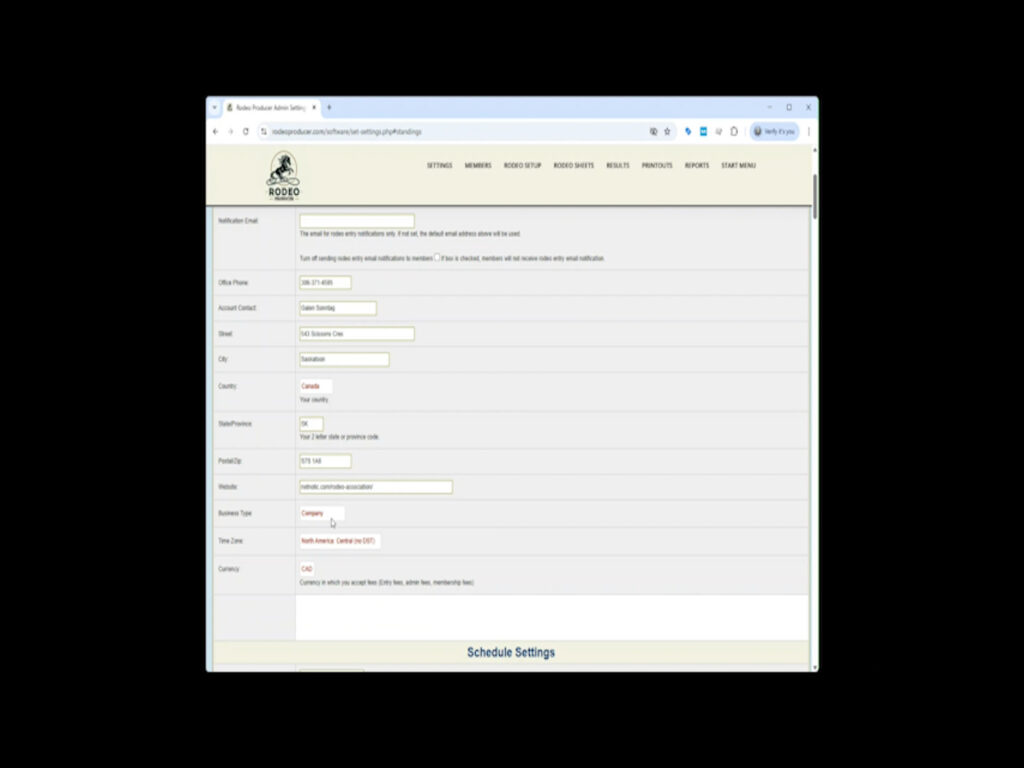
For the Business Type setting, we recommend choosing Company as the business type, as long as you have some form of formal documentation on your company, such as a certificate of incorporation, as you will need to verify your business, and a business representative if you are using the Stripe online payment processing in the platform. Otherwise, we recommend choosing Individual as the verification requirements will be less arduous.
At the bottom end of the form, after standings, is the Save Settings form submit button. After making changes, don’t forget to click this button or your changes will not be saved.
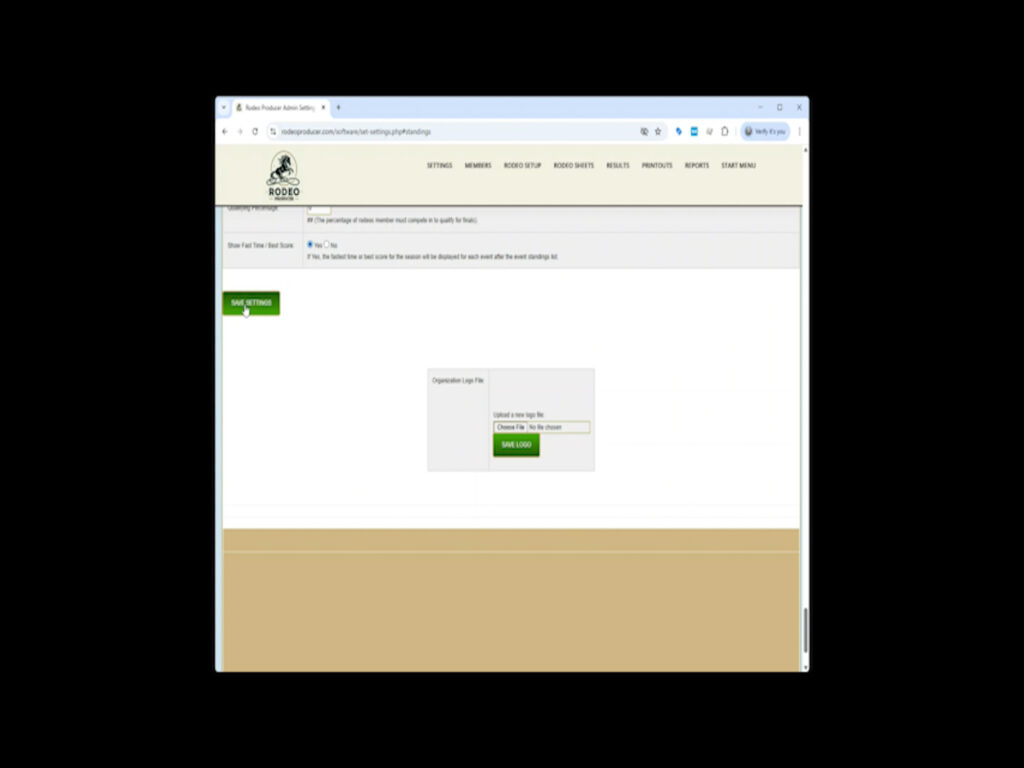
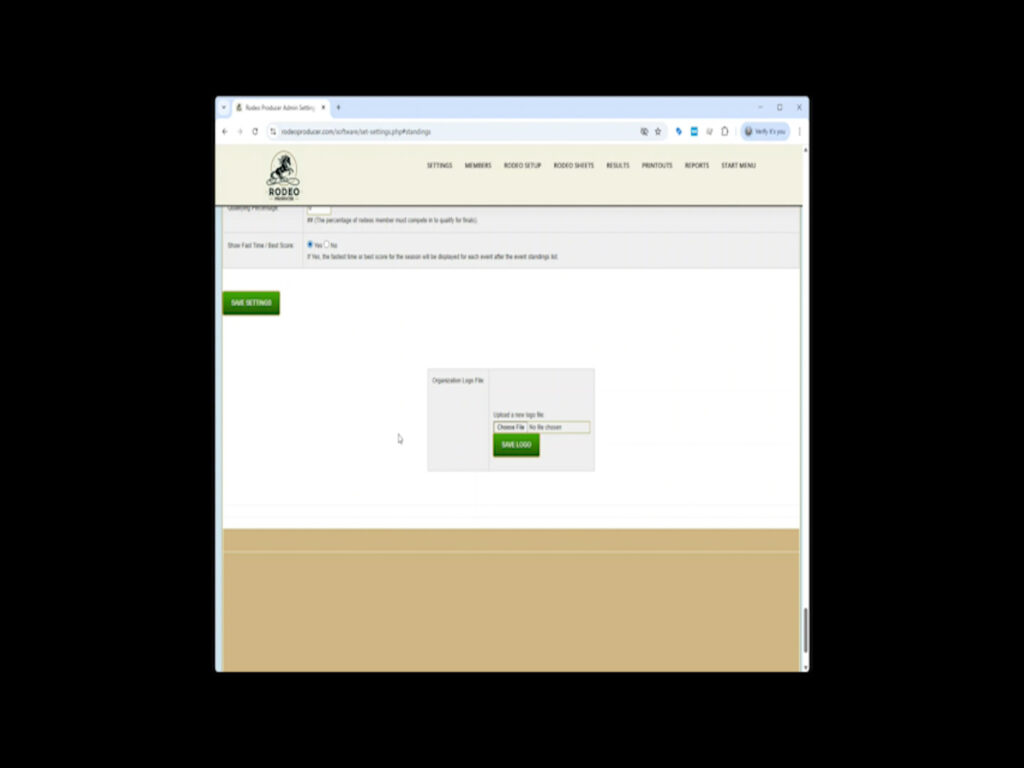
At the very end of the page, after the Save Settings submit button, is a separate form which can be used to upload your organization logo image file. Ensure it is an image file, not a PDF, in the file format of jpg or png.
Thanks for reading the Settings > Systems Settings > Account chapter for Rodeo Producer.
In addition to these support pages, we also have each Section and Chapter available as a video on our Rodeo Producer YouTube Channel.