
User Profiles
In this chapter, we will describe setting up Admin User Profiles. Admin User Profiles set different levels of access for people with Admin access to your Rodeo Producer account.
To get started, from rodoeproducer.com we will click the Start link in the top right and then login to our demo Rodeo Producer account.

From the main menu, choose Settings > User Profiles
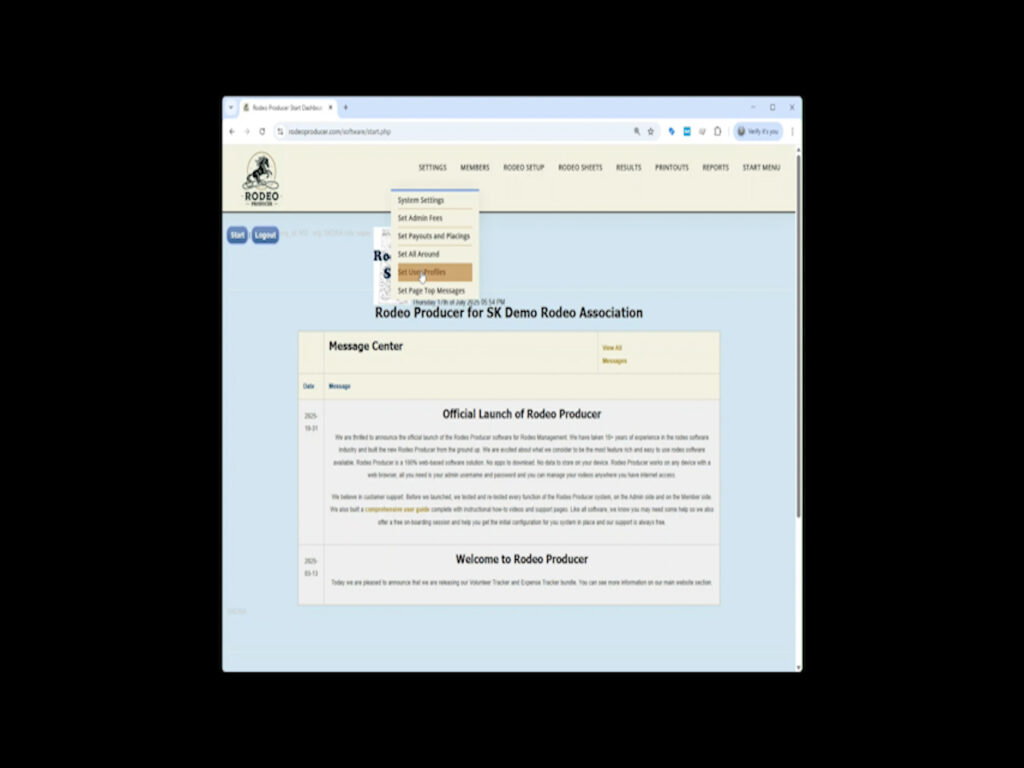
We will take a look at the User Profile options by editing the existing User Profile.
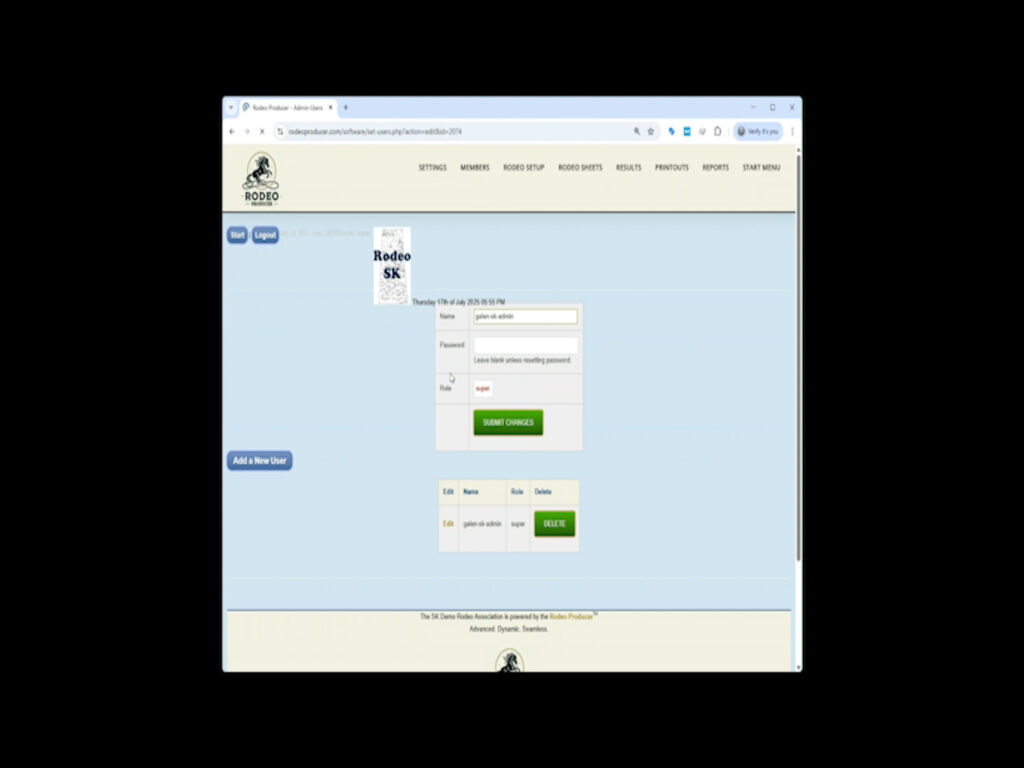
The top level is the Super User. - This profile has access to all the features and functions and is the only user profile that can add, edit and remove other users. We recommend only one user should have this level of access, although you can assign as many admin users to as you want, to any access level. This is often the level assigned to the organization President or the Office Manager.
The Admin profile has access to all the functions and features, except the ability to add, edit and remove users. This is often the level assigned to the Rodeo Secretary or Office Manager.
User – has limited access to member editing features. can view most reports and listings but only has access to enter some data, such as draws and entering times and scores during rodeos. This is often the level assigned to someone only responsible on rodeo day for entering data.
User – has limited access to member editing features. can view most reports and listings but only has access to enter some data, such as draws and entering times and scores during rodeos. This is often the level assigned to someone only responsible on rodeo day for entering data.
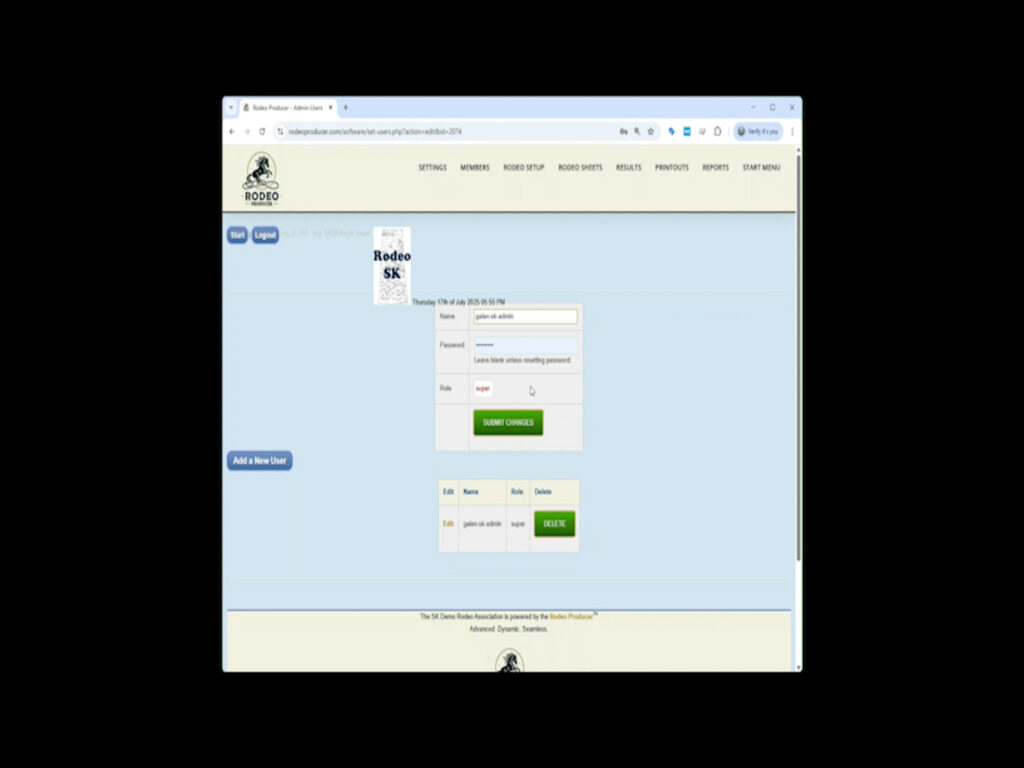
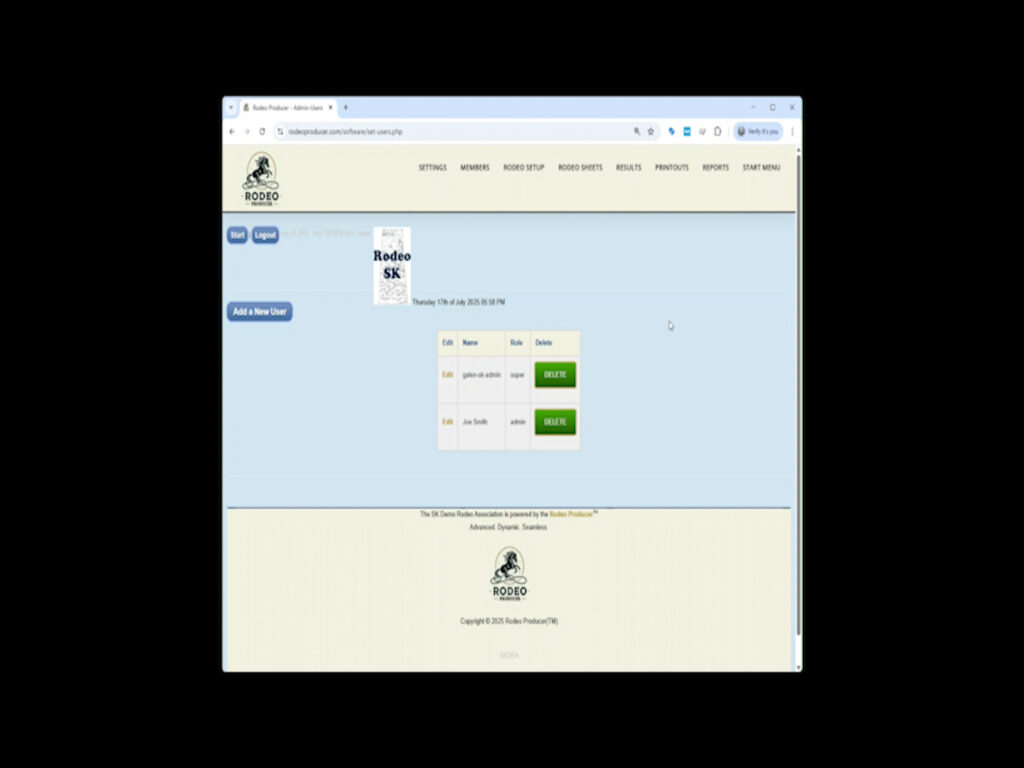
To create a new Admin User Profile click the Add a New User button then enter the fields. You will want to share the username and password with the new user. Note that the username for login is not the person's email address. This is a common login mistake.
If a User needs to have a password reset, it must be reset by the Super Admin.
There is no limit to the number of Admin Users and Admin User Profiles you set up and no limit to the number of Admin Users that can be logged in at any one time. You can even have multiple people logged into the same User Profile at the same time. One caution is that you want to ensure that you do not have multiple users editing the same information at the same time or you will overwrite each others data. For example, if multiple users are entering the scores / times in the same event in the same rodeo, the last one to push save will be the last data kept.
There is one more level of access available, it is the Online Judges. They only have the ability to enter scores / times without any ability to change any other information or view reports. We will discuss this in the Chapter on entering results.
Thanks for reading the Settings > User Profiles chapter for Rodeo Producer.
In addition to these support pages, we also have each Section and Chapter available as a video on our Rodeo Producer YouTube Channel.