In this chapter, we will be talking about the various options under the Rodeo Producer Software Start Menu from the rodeoproducer.com homepage. We'll click on Start and we are now logged into the Demo Association account.
We'll be looking at these options under the Start Menu.
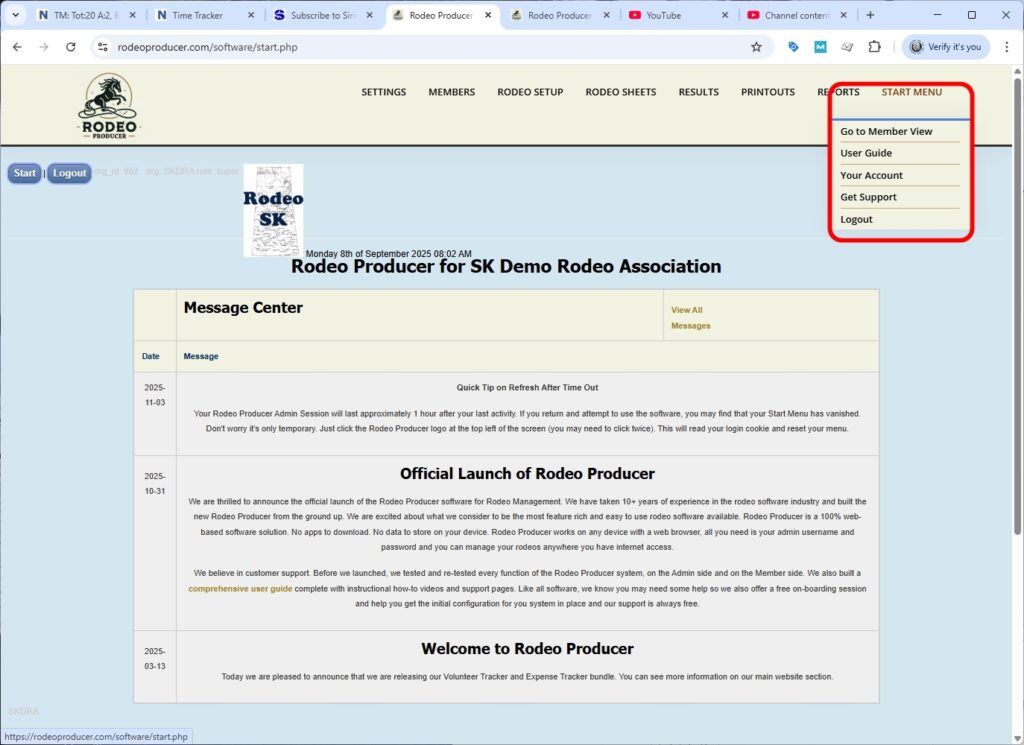
Member View
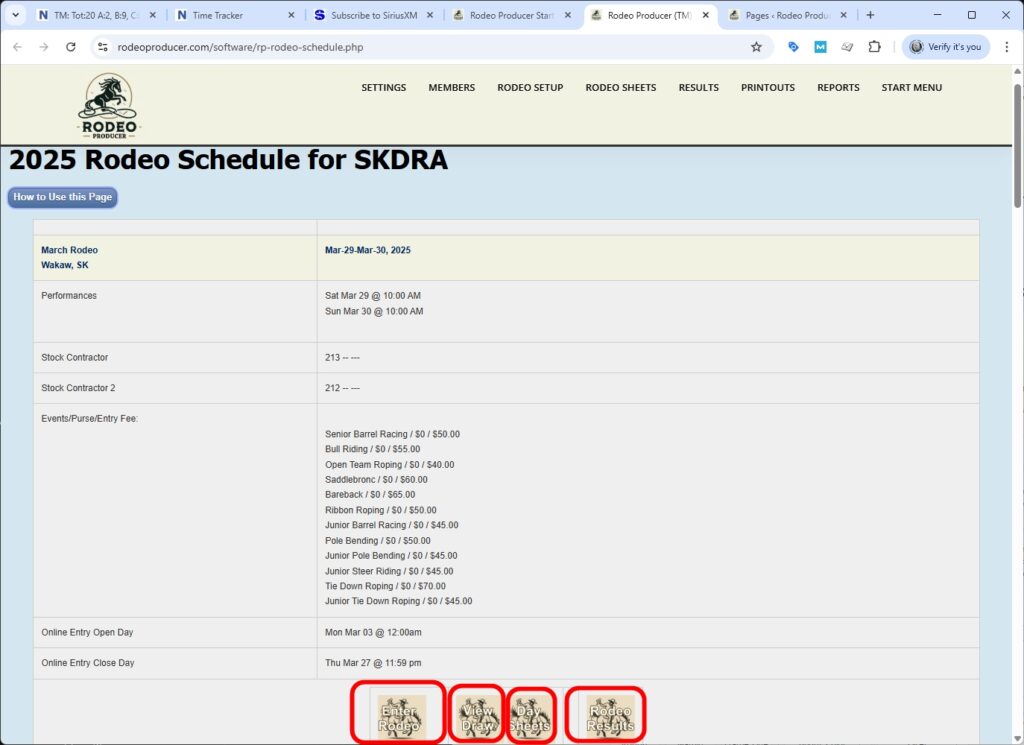
The first option is to allow a rodeo Admin to have a look at the system from the Member View. This shows us as if we are a member or as if we are a spectator. And the initial view is the rodeo schedule.
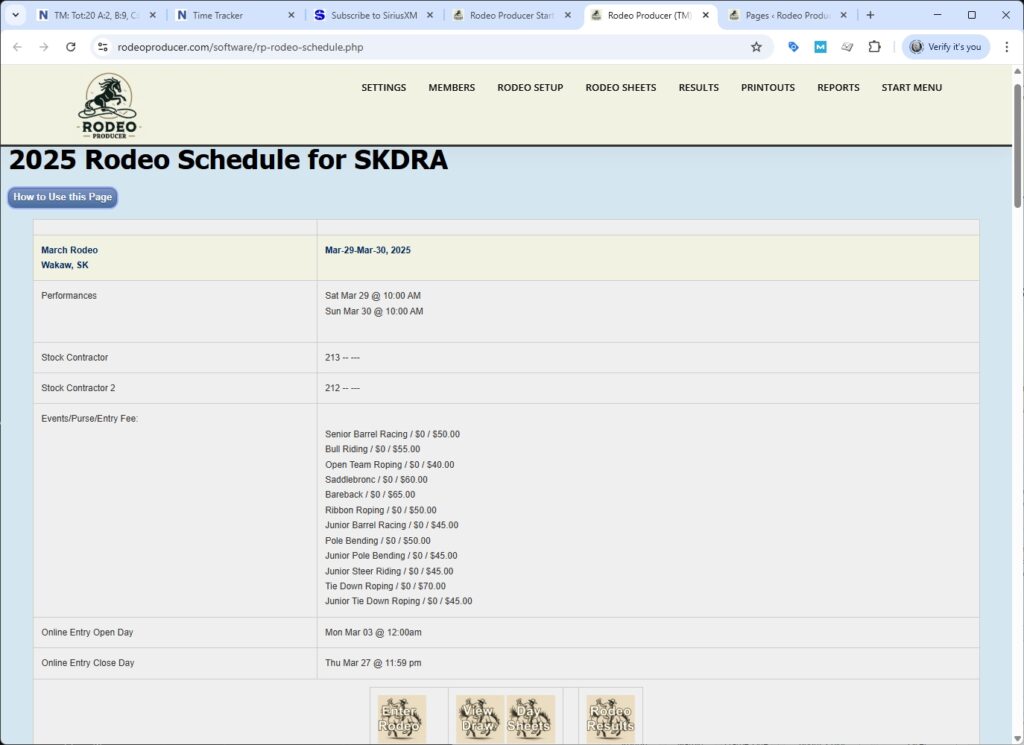
We can see the various rodeos, the March, April, May rodeo as you scroll. At the bottom, there is a section on how to use this page, it is information intended for the members.
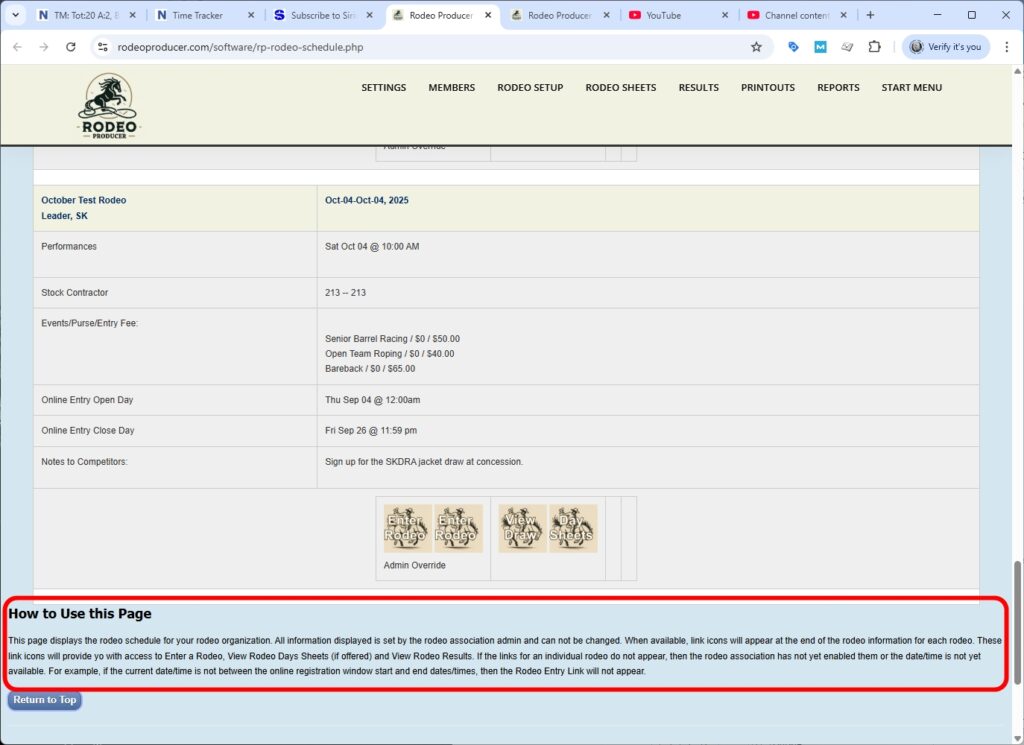
This schedule shows dates, performances, the events, the added money, the entry fee, and shows the online entry open day and close day, days and times, and provides icon links to viewing the draw, viewing the day sheets, and viewing the rodeo results. As the admin, you also have access to another icon here called Rodeo Entry Admin Override. This allows you to use the member entry form, we've shown you that before under Rodeo Setup > Rodeo Entry by Admin. You will notice that the options change uh depending on the status of the rodeo. So if the results are not in place, if the draw is not in place, those options don't show up on the member side. So you will notice that while you are in the member view, it's the Admin menu that stays active on the top.
User Guide
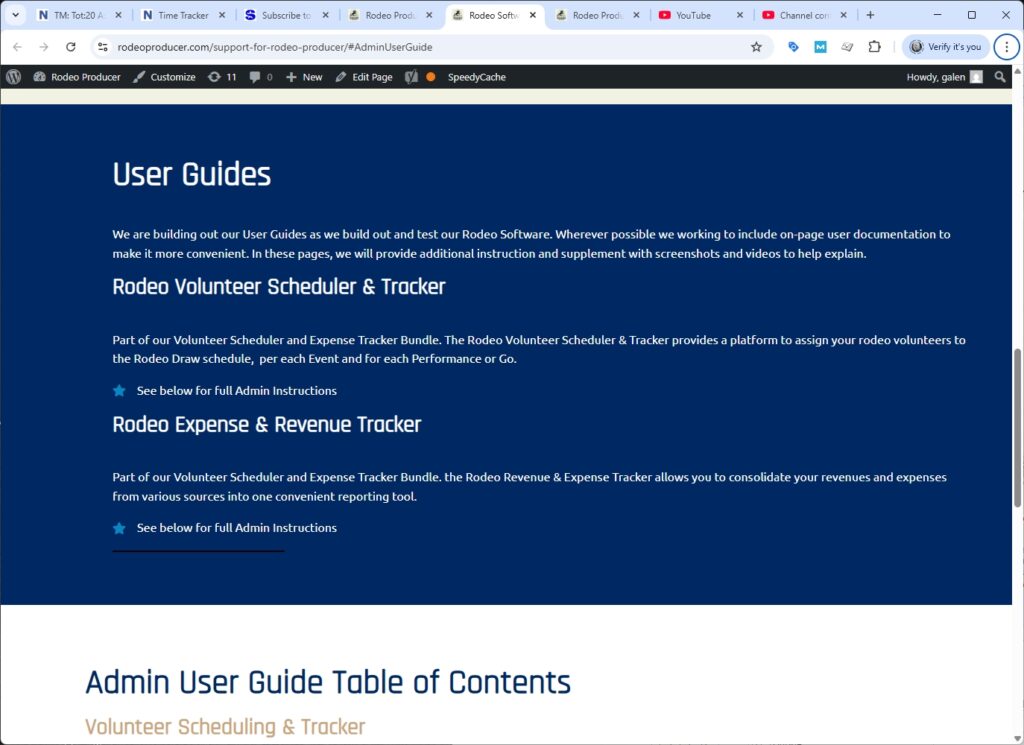
Next, we have a link to the User Guide. When you click this menu item it will open a new tab in your browser (so you can maintain your place in the system) with a series of links to all of the pages corresponding to our videos and chapters that include everything in visual format, the descriptions as well as screen captures to show how to use the Rodeo Producer system.
Your Account
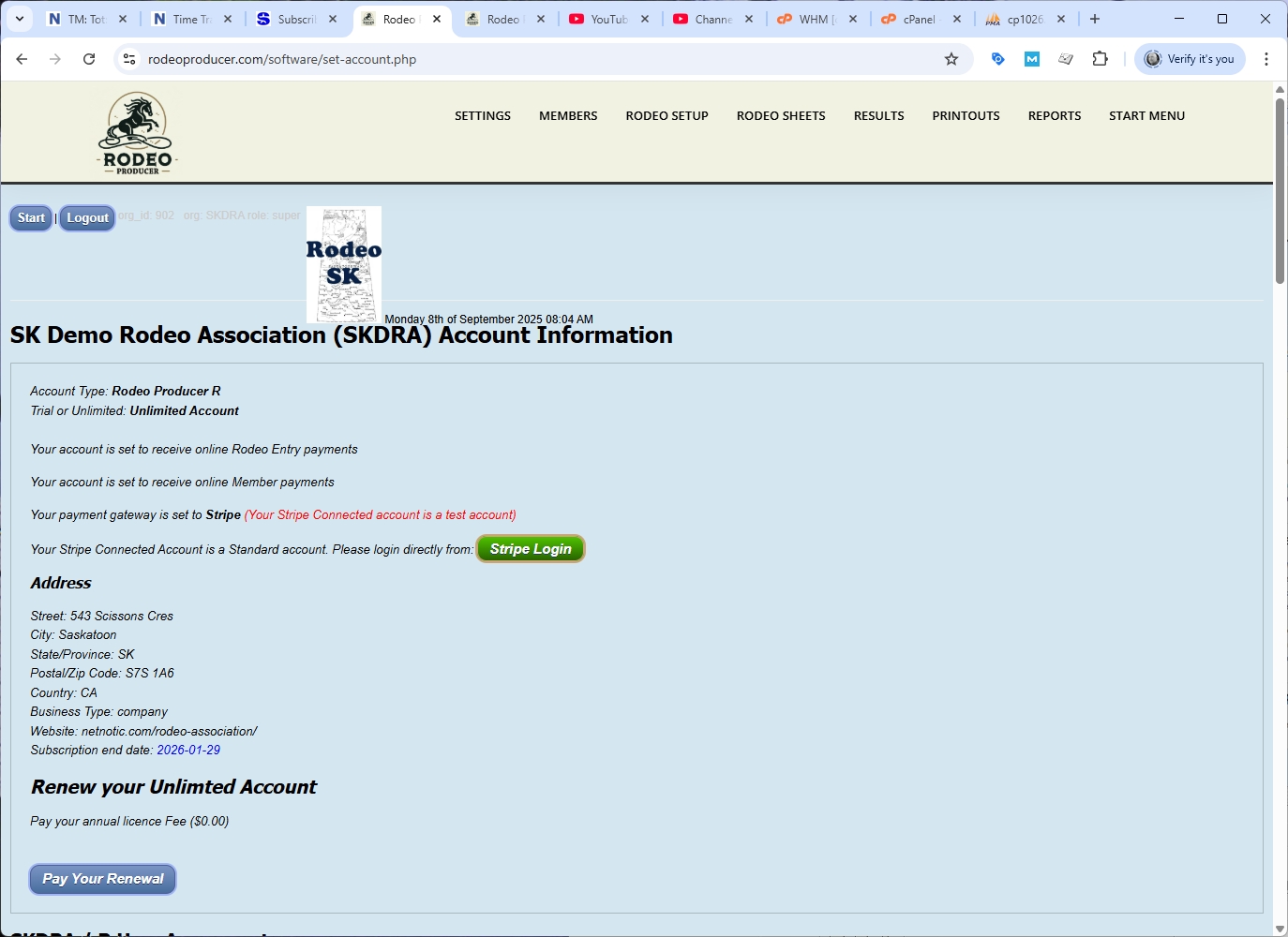
We have a link to Your Account page. We'll click that and have a look. This is for our demo association. It shows the account type whether this is a Trial or an Unlimited Account. So if you're in trial mode, you're limited by the number of members and rodeos and events that you're allowed to use. Unlimited means absolutely that, unlimited number of members, events and rodeos. This page will tell you whether you're set to receive online rodeo entry payments and member payments and information about your payment gateway setup. This is a test account in our test system, as a live account, you would not see this. You can access your Stripe Connected account from the link here.
If you don't have a Stripe account set up yet, instead of this being a link to log into your account, it will be a link for you to create your account. You will need to create a Stripe account to receive online payments for rodeo entry and/or for member payments.
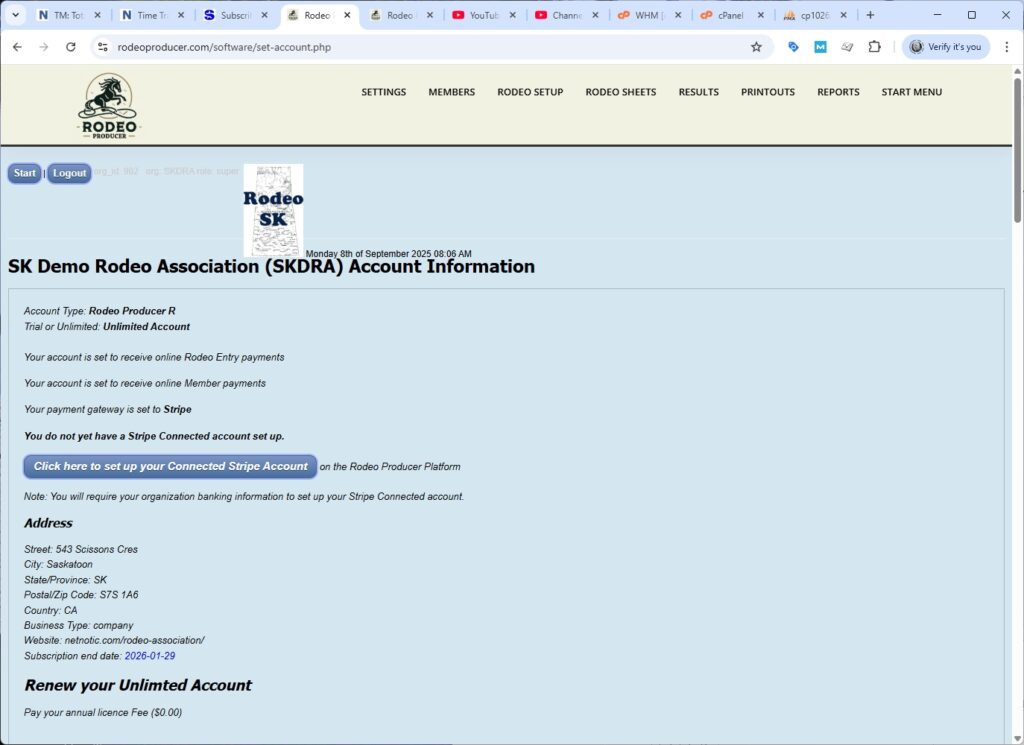
When you create your Stripe account, you will be actually exiting the Rodeo Producer platform and going to the Stripe platform. From there, you will need to provide information about your organization and the organization representative. You'll need to provide banking information. We would suggest you have that information handy such your account numbers so that when Stripe receives payment, it can be transferred to your organization's bank account. There's of course your company information here. Your annual subscription information and pay your renewal here when it's due.
User Agreement
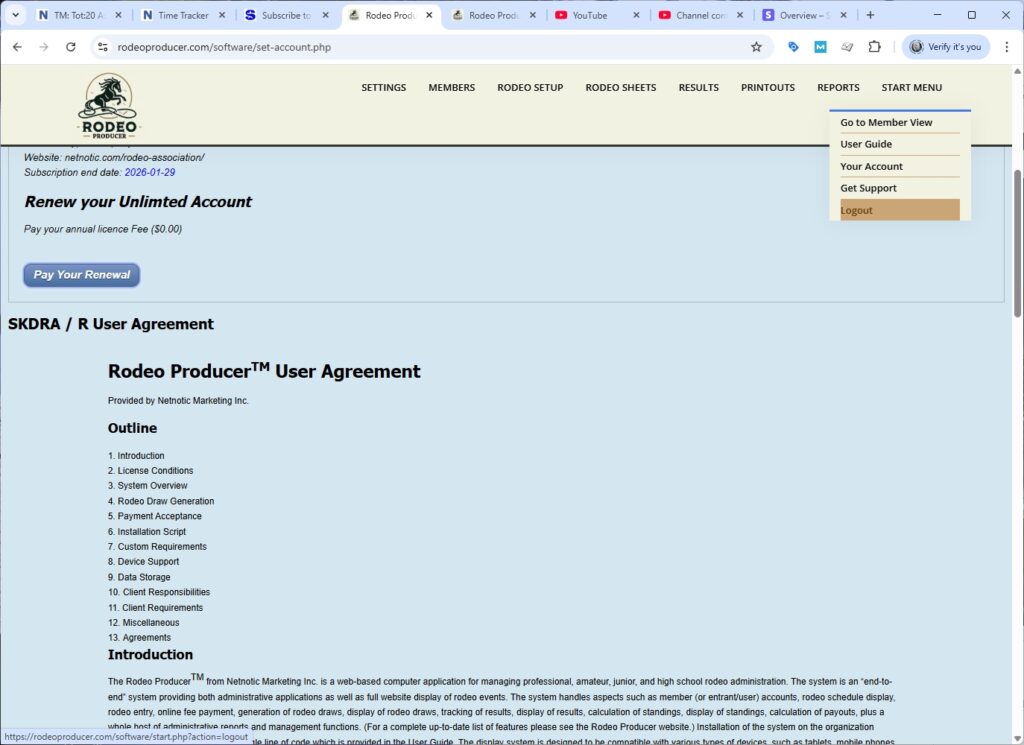
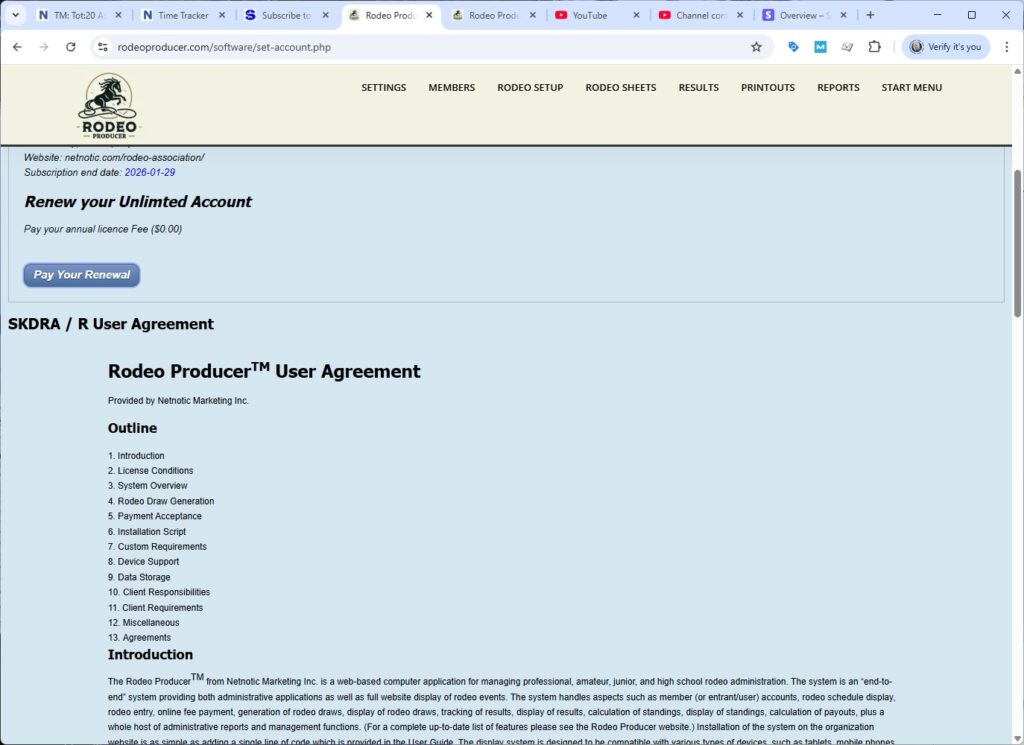
If you scroll down the Your Account page further you will find the User Agreement that applies to your organization with respect to the Rodeo ProducerTM.
Get Support
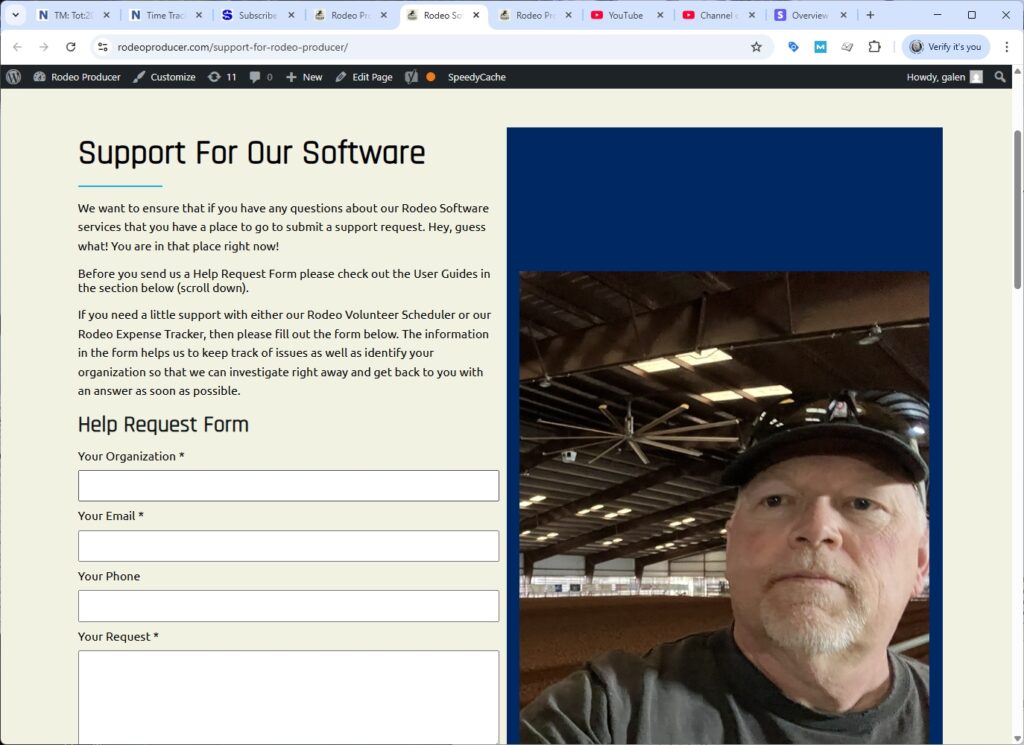
Next on our Start Menu list is the Get Support link. This will take you back to our rodeoproducer.com main site and provides information about how to get support for our software using the help request form. Use the form and send it to us. There are links to the user guides chapters down here and you can scroll through the list to find the article or topic you're looking for.
Log Out
Last on the start menu is the Log Out link. We would suggest that you log out whenever you are done for the day with the Rodeo Producer system. When you next need to access your account, you will find that when you come from rodeoproducer.com website, click on the Start link, it will recognize you and automatically log you back into the system. By being logged out, it just ensures that if anybody else accesses your device, then they simply don't have access to the Rodeo ProducerTM system and can't accidentally delete any data or mess up some settings.